
T-Mobile Hotspot Not Working
To fix a T-Mobile hotspot not working, first find out which side is broken. Test the laptop or tablet on another Wi-Fi network, then check that your plan includes hotspot and that you have not used up its high speed data.
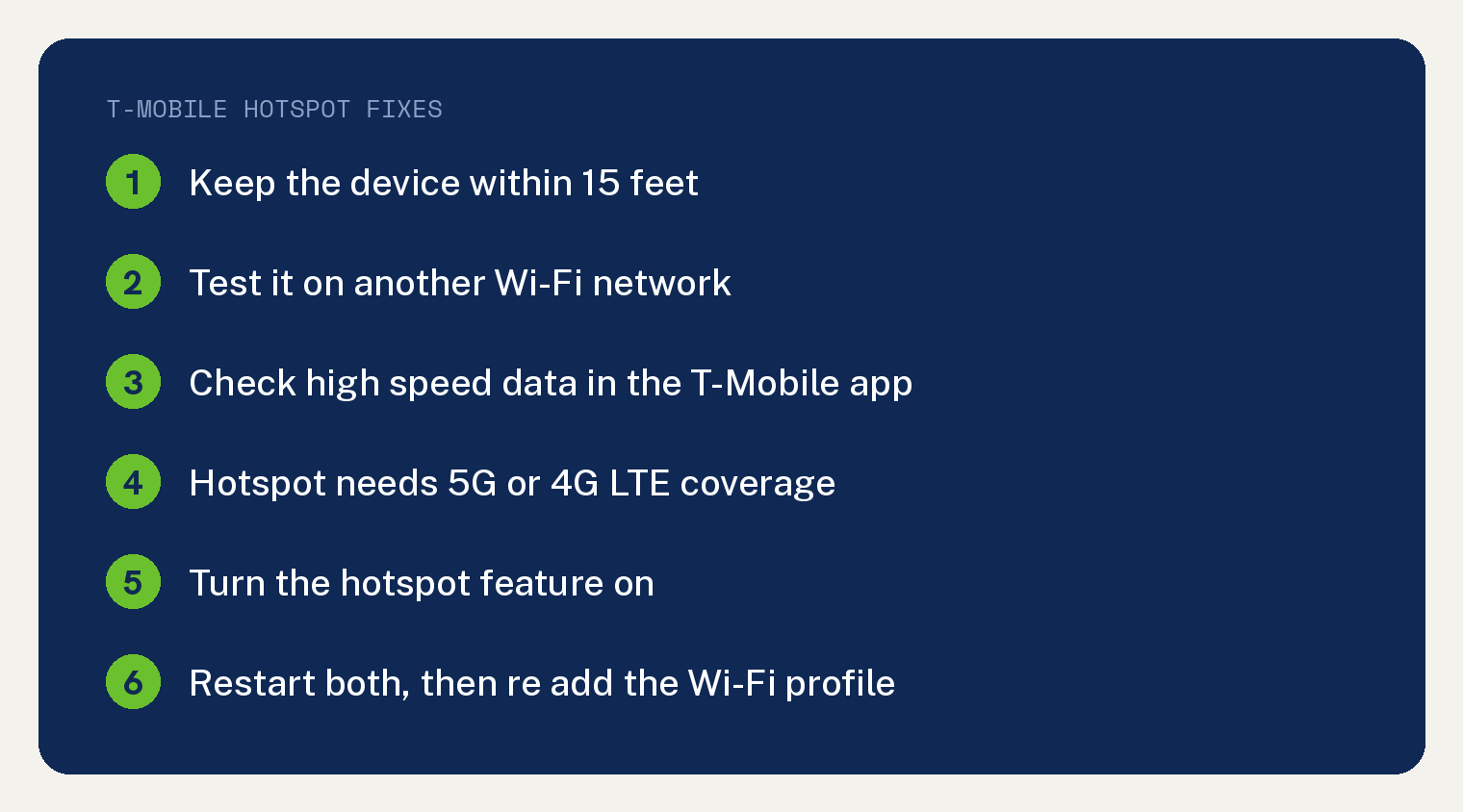
Most of the steps below come from T-Mobile’s Mobile HotSpot troubleshooting page. The plan and coverage rules come from T-Mobile’s Smartphone Mobile Hotspot page.
Is it the hotspot or the device you are connecting?
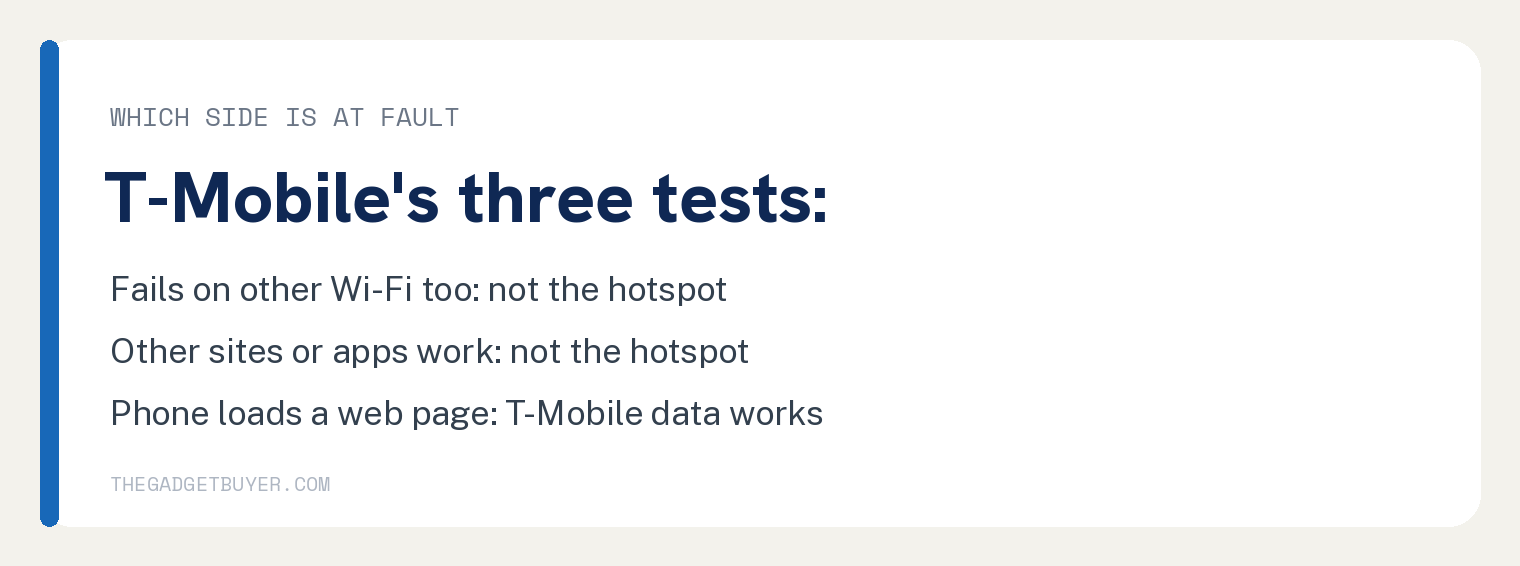
T-Mobile gives three quick tests that rule out one side. They sit in two different lists on its page, so we put them in one table. The table is ours; the tests and what they mean are T-Mobile’s.
| Test | What T-Mobile says the result means |
|---|---|
| Join the laptop or tablet to a different Wi-Fi network | If it cannot connect there, “the problem is not with the hotspot.” |
| Open a different website or app on it | “If they work as expected, the hotspot is not the problem.” |
| Load a web page on the phone sharing the hotspot | If it loads, “the T-Mobile data works. Contact the other device manufacturer.” |
T-Mobile lists the third test under “Smartphone Mobile Hotspot (SMHS)”, which it describes as “Supported T-Mobile phones and tablets that use your T-Mobile network as Wi-Fi for other devices.” If the first two tests point at your laptop or tablet, work through the device checks next.
Checks on the laptop or tablet you are connecting
T-Mobile lists seven checks for the connecting device under “Check your connecting device:” and puts them before any hotspot fix.
- Keep it close. “Make sure it is within 15 feet of the hotspot.”
- Try a different computer or T-Mobile device on the hotspot. T-Mobile adds: “We can’t support game systems, TVs, or non-T-Mobile phones or tablets.”
- Turn off timeout, power saving and hibernate features.
- Test it on other Wi-Fi networks. “If not, the problem is not with the hotspot.”
- Try a different website or app. “If they work as expected, the hotspot is not the problem.”
- Close or disable programs running in the background, and clear the browser cache and history.
- Make sure it is connected to the right Wi-Fi network.
If the device passes all seven, look at the hotspot side.
Phone hotspot connected but no internet
Start with your plan and your data. T-Mobile’s troubleshooting page says to check the T-Mobile app “to verify that you haven’t exceeded the high-speed data amount included in your plan.”
Running out slows you down. From T-Mobile’s hotspot page: “If you use your high-speed Mobile Hotspot allotment (such as 15GB), your Mobile Hotspot speed will be reduced until the end of your billing cycle.” It adds: “Price and high-speed Mobile Hotspot data allotment varies depending on your plan.”
To see your numbers, log in to T-Mobile.com and select Usage, then Data.
Curious how fast a laptop eats that allotment? See how much data a laptop uses on a hotspot. To stretch it on an iPhone or iPad you connect, see our guide to hotspot Low Data Mode.
Under “You’ll need the following to use Mobile Hotspot on your device”, T-Mobile lists “A plan that includes Mobile Hotspot.” and says “Mobile Hotspot only works in 5G and 4G LTE coverage”.
Then run the phone test. If your phone loads a web page, T-Mobile says its data works and you should contact the maker of the other device.
T-Mobile hotspot device will not connect
This section is for T-Mobile’s standalone hotspot device. T-Mobile lists four points for it:
- “Mobile Hotspot devices only support using WPS security.”
- The device you connect needs a “b/g Wi-Fi radio.”
- “If the Hotspot is plugged into a USB port, disconnect it.”
- For help with any step on the unit itself, use T-Mobile’s Device tutorials.
Still not working after those checks
T-Mobile follows with seven more steps under the heading “Once you’ve checked all of the above:”
- Make sure you are in T-Mobile coverage with at least 2 bars of signal. If you are roaming, T-Mobile points you to its Data Passes.
- Check that the Mobile Hotspot or Smartphone Mobile Hotspot feature is turned on.
- Check that Wi-Fi is turned on on the connecting device.
- Update to the latest firmware version for all devices.
- Restart the hotspot device or phone.
- Restart the devices you are trying to connect.
- Delete the Wi-Fi profile on the connecting device and add it again.
Sharing from an iPhone? See why your iPhone hotspot is not working, or our fixes for when an iPhone hotspot keeps disconnecting.
T-Mobile hotspot device will not turn on
Check the charger and the outlet first. These are the first four of T-Mobile’s five steps for a standalone hotspot that won’t turn on; the fifth is to call T-Mobile.
- Plug it in and watch for the charging light. “This can take up to 20 minutes.”
- Use the charger that came with the device, and test another one if you have it.
- Plug the hotspot into the charger first, then plug the charger into a wall outlet.
- Try a different outlet, and make sure it works with another device, like a lamp.
Can a game console or TV use a T-Mobile hotspot?
T-Mobile says it can’t support them. Its troubleshooting page reads: “We can’t support game systems, TVs, or non-T-Mobile phones or tablets.”
For those devices, its hotspot page says to “Contact your device manufacturer for support as we can’t guarantee Mobile Hotspot will be compatible with all devices.”
When to call T-Mobile
If none of this works, call T-Mobile at “1-877-746-0909”. T-Mobile says “It’s best if you can call from a different phone than the one you are having issues with.”
Sources
- Mobile HotSpot troubleshooting (T-Mobile Support)
- Smartphone Mobile Hotspot (Wi-Fi sharing and tethering) (T-Mobile Support)