
iPad Sidecar Not Working? What Both Devices Need
iPad Sidecar not working? Your Mac and iPad have to meet Apple’s requirements first: a supported Mac and iPad, the same Apple Account with two factor authentication on both, and for a wireless link, the two devices within 10 meters (30 feet) with Bluetooth, Wi-Fi and Handoff turned on.
For a wireless link, Apple’s Sidecar page adds: “Your iPad must not be sharing its cellular connection and your Mac must not be sharing its internet connection.” Over a USB cable, the iPad must be set to trust the Mac.
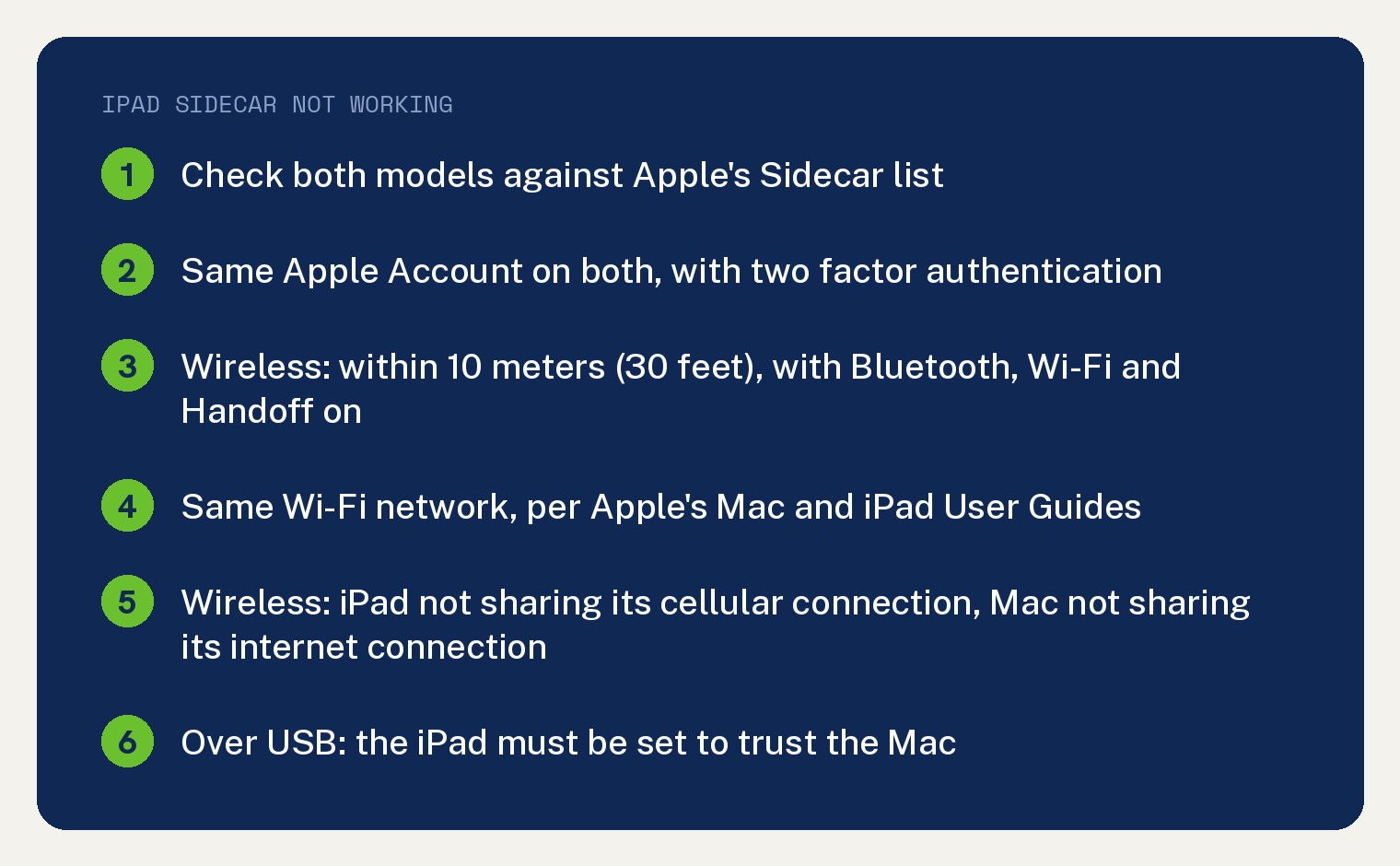
Apple’s Sidecar support article, Mac User Guide and iPad User Guide each print some of these checks, and no single one of the three carries them all. The order below and the table that combines them are ours.
Which Mac and iPad models work with Sidecar?
Sidecar needs macOS Catalina 10.15 or later on the Mac and iPadOS 13 or later on the iPad. Apple’s Sidecar page lists these Mac models:
- MacBook Air introduced in 2018 or later
- iMac (Retina 5K, 27-inch, Late 2015)
- All other Mac models introduced in 2016 or later
And these iPad models:
- iPad Pro (all models)
- iPad (6th generation) or later
- iPad mini (5th generation) or later
- iPad Air (3rd generation) or later
Both devices on the list and still stuck? Apple’s advice for that case: “If you’re having difficulty, install the latest macOS updates and iPadOS updates for your device.”
If the iPad update itself stalls, our guide to an iPad that won’t update to iPadOS 26 covers that first.
Why is my iPad not showing up in Sidecar?
Start with the account, where Apple’s Sidecar page says: “Both devices must be signed in with the same Apple Account using two-factor authentication.”
Then check the wireless conditions. On that same page, Apple writes: “To use Sidecar wirelessly, both devices must be within 10 meters (30 feet) of each other and have Bluetooth, Wi-Fi, and Handoff turned on.”
Apple’s Mac User Guide and iPad User Guide add a network rule under their If Sidecar isn’t working headings. Both tell you to make sure the two devices are on the same Wi-Fi network.
Using a VPN? The iPad User Guide covers that case: “If you’re using a VPN, make sure its configuration doesn’t prevent local networking, as that may interfere with some Continuity features.”
Here is where each check sits across Apple’s three Sidecar pages. The table is ours.
| Check | Where Apple prints it |
|---|---|
| Same Apple Account on both | Sidecar page, Mac and iPad User Guides |
| Two factor authentication | Sidecar page |
| Within 10 meters (30 feet) | Sidecar page, Mac User Guide |
| Bluetooth, Wi-Fi and Handoff on | Sidecar page, Mac and iPad User Guides |
| Same Wi-Fi network | Mac and iPad User Guides |
| No cellular or internet sharing, for wireless | Sidecar page |
| VPN allows local networking | iPad User Guide |
| iPad trusts the Mac, for USB | Sidecar page |
If Wi-Fi itself will not connect on the iPad, fix that first with our guide to an iPad that won’t connect to Wi-Fi.
How do I turn on Handoff on a Mac and iPad?
Handoff is on by default, so check that nobody switched it off. Apple’s Handoff page names Sidecar among the Continuity features that require it.
Apple’s Handoff page gives the switch for each device:
- Mac with macOS Ventura 13 or later: from the Apple menu, choose System Settings, click General, then click AirDrop & Continuity (or AirDrop & Handoff). Turn on “Allow Handoff between this Mac and your iCloud devices.”
- Mac with earlier versions of macOS: from the Apple menu, choose System Preferences, click General, then select “Allow Handoff between this Mac and your iCloud devices.”
- iPad: open Settings, tap General, tap AirPlay & Continuity (or AirPlay & Handoff), then turn on Handoff.
How do I stop the iPad or Mac from sharing its connection?
For wireless Sidecar, turn off sharing on both: Allow Others to Join in the iPad’s Personal Hotspot settings, and Internet Sharing on the Mac. Apple’s Sidecar page puts the rule this way: “Your iPad must not be sharing its cellular connection and your Mac must not be sharing its internet connection.”
Apple links the iPad half of that line to its Connect to the Personal Hotspot of an iPhone or iPad page, which covers an iPad (Wi-Fi + Cellular). There, open Settings, then tap Personal Hotspot (or tap Cellular, then Personal Hotspot), and turn off Allow Others to Join.
The Mac half links to the Mac User Guide page Share the internet connection on Mac with other network users. Its route is Apple menu, System Settings, General, then Sharing, where the switch is named Internet Sharing. Turn it off there.
Can I use Sidecar with a USB cable?
Yes. Apple’s Mac User Guide says: “You can also connect your Mac and iPad using a USB cable.”
The guide allows the cable that came with your iPad or another cable that matches the ports on your Mac and iPad.
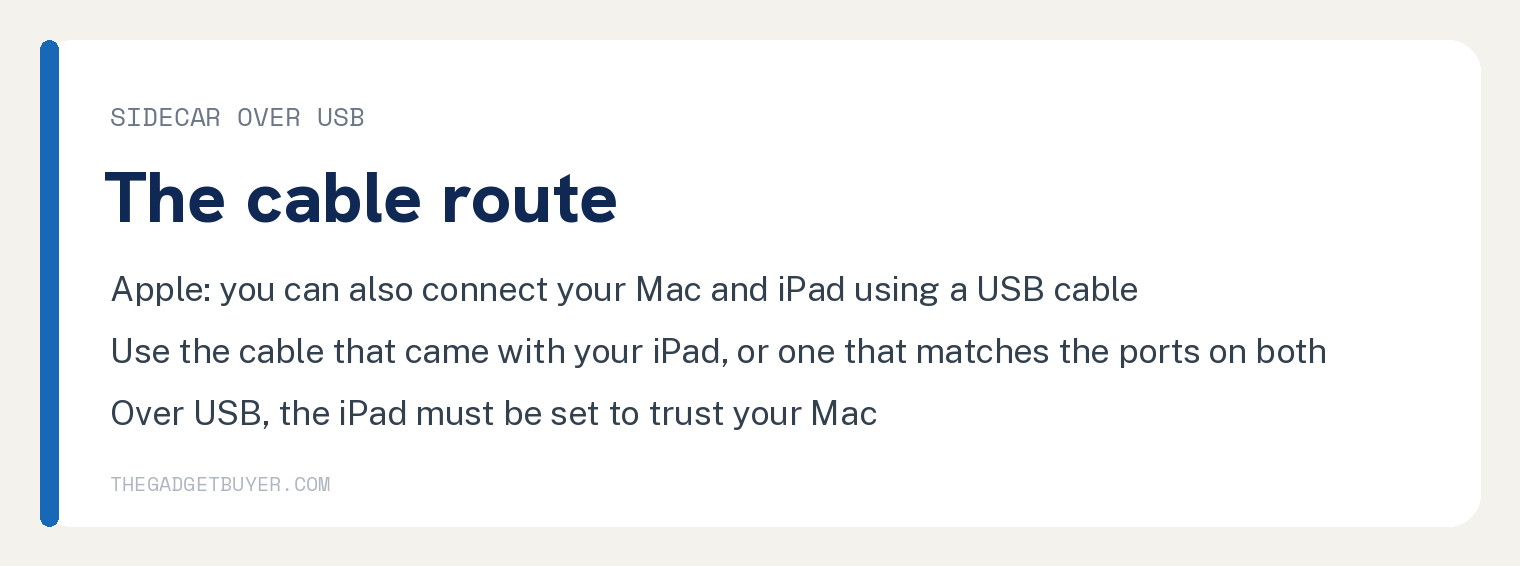
Apple’s Sidecar page says: “To use Sidecar over USB, your iPad must be set to trust your Mac.”
Apple’s Trust page says an alert asks whether you trust the computer the first time you connect the iPad to it. Its four steps, in short:
- Connect the iPad to the Mac.
- Enter your passcode, if you have one, to unlock the iPad.
- On the Mac, select the iPad in the Finder or in the Apple Devices app, then click Trust.
- On the iPad, tap Trust.
A cable has one more use. Apple’s Sidecar page suggests a direct USB connection, with the charge cable that came with your iPad, to keep the iPad charged during use.
If the Mac does not see the iPad over the cable at all, our guide to an iPad not showing up in Finder walks through Apple’s cable and Trust checks.
How do I start Sidecar from the Mac?
Open System Settings on the Mac and click Displays in the sidebar. You may need to scroll down to find it.
The iPad User Guide adds: “If your Mac has macOS 12.5 or earlier, choose Apple menu > System Preferences.”
Then click the Add Display menu on the right and choose your iPad. That is the route in Apple’s Mac User Guide.
Control Center works too. Apple’s tip: “You can use Control Center to set up Sidecar.” Click the Control Center icon in the menu bar, click Screen Mirroring, then choose your iPad.
Why does Sidecar keep disconnecting?
Apple’s Sidecar page says interference “can affect Sidecar performance when using Sidecar wirelessly.”
Apple’s Resolve Wi-Fi and Bluetooth issues caused by wireless interference page lists “Device doesn’t connect or stay connected” among the symptoms interference could cause.
Its general steps, which Apple says can help, include bringing Bluetooth devices that connect to each other closer together. It also says: “Avoid using your wireless devices near common sources of interference, such as power cables, microwave ovens, fluorescent lights, wireless video cameras, and cordless phones.”
Did the Mac desktop vanish after you opened an iPad app? Apple’s Sidecar page says switching to an iPad app suspends the session: “This suspends the Sidecar session until you switch back to the Sidecar app, which appears on the Home Screen only while using Sidecar.”
If you wanted the iPad to keep its own Home Screen and apps while your keyboard, mouse or trackpad controls your Mac and iPad, Apple’s Sidecar page sends you to Universal Control for that.
Other Bluetooth gear dropping off the iPad too? Our guide to iPad Bluetooth not connecting covers Apple’s pairing fixes.
Sources
- Use an iPad as a second display for a Mac (Apple Support)
- Use your iPad as a second display for your Mac (Mac User Guide)
- Use your iPad as a second display for your Mac (iPad User Guide)
- Use Handoff to continue tasks on your other Apple devices (Apple Support)
- About the ‘Trust This Computer’ alert message on your iPhone, iPad, or iPod touch (Apple Support)