
Verizon eSIM Transfer Not Working Means One Old Phone Check
A Verizon eSIM transfer not working on a new iPhone comes down to Verizon’s conditions for the move, and the one to check first is the old phone: on an account with a single line, Verizon needs your old phone for authentication. Verizon’s own FAQ gives the conditions and the steps, and Apple’s page for an eSIM that will not set up gives the checks to run on the new iPhone.
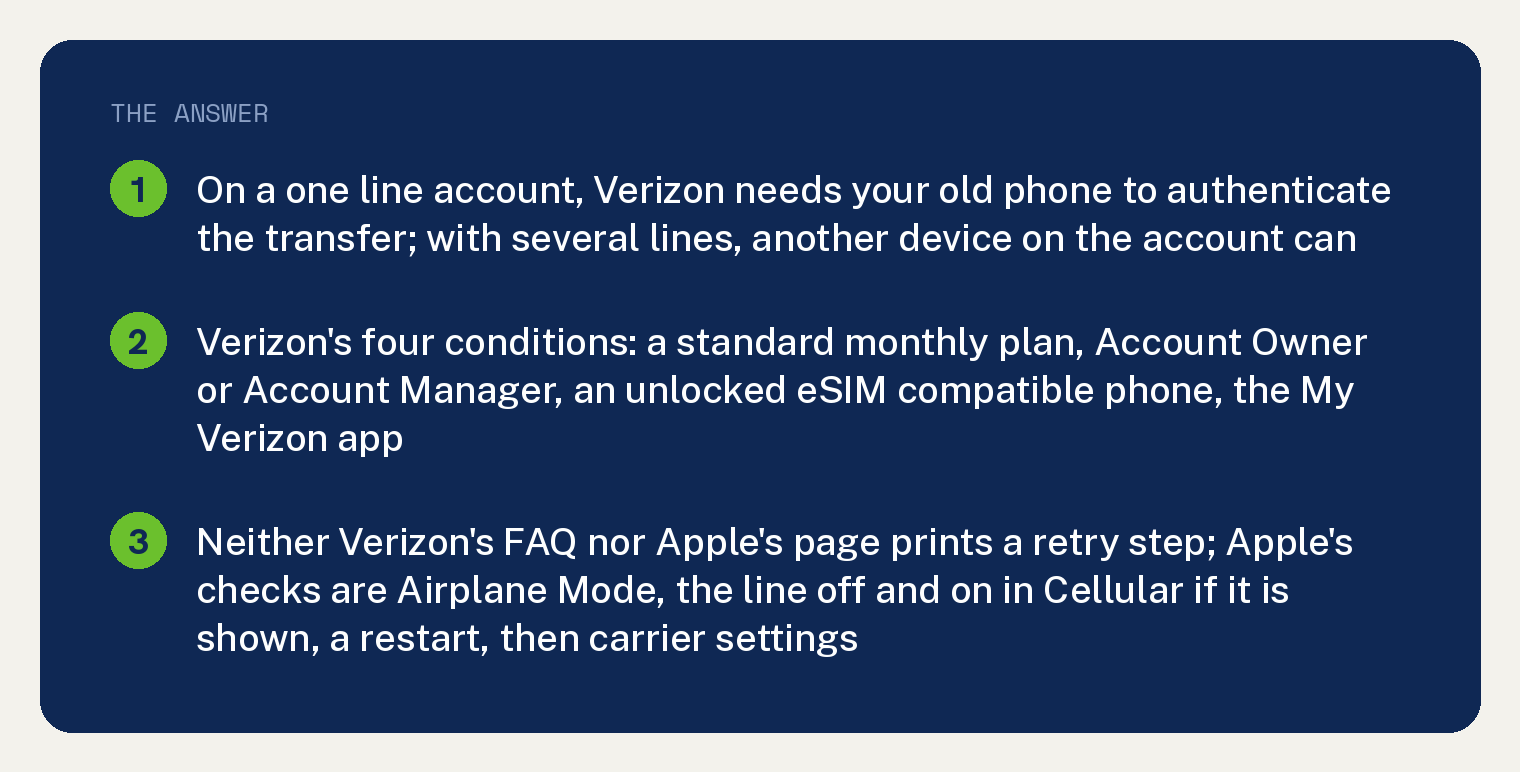
Verizon’s rule, in its words: “Yes. You need your old phone for authentication if there’s only one line on your account.” The next line covers everyone else: “However, if you have multiple lines, you can use another device on the account to authenticate.”
Who can move a Verizon line to an eSIM in the My Verizon app?
Verizon lists four conditions, and every one has to be true. The lead in on its page reads: “You can use the My Verizon app to move a line or manage a phone’s eSIM if all of these apply:”
- You are a Verizon customer with a standard monthly mobile plan.
- You are the Account Owner or an Account Manager.
- You have an eSIM compatible phone that is unlocked.
- You have the My Verizon app.
The second condition is the quiet one. A note under Verizon’s transfer steps repeats it: “Only the Account Owner or Account Manager can move existing lines of service.” A family member who is not the Account Owner or an Account Manager cannot move it.
The move in the My Verizon app costs nothing. Verizon: “There is no charge (or fee) if you move your line using the My Verizon app.”
How do I move my Verizon line to the new iPhone?
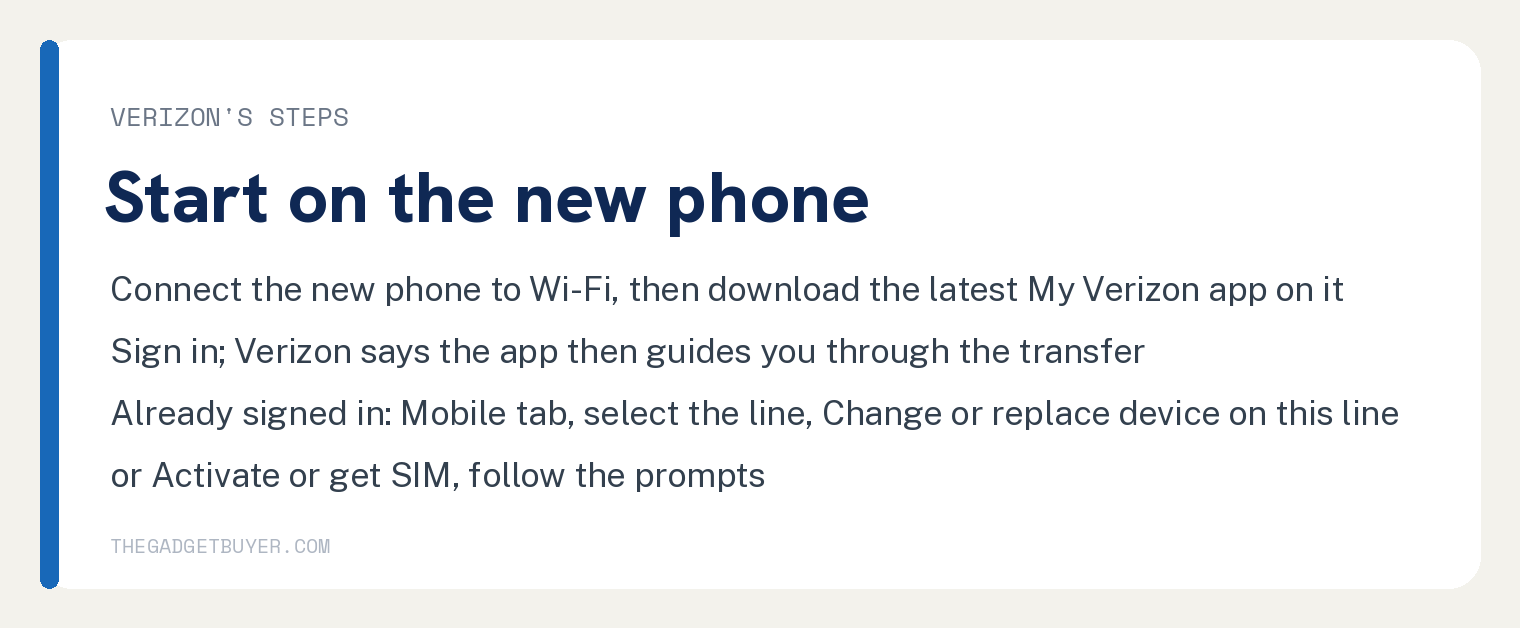
Verizon’s steps start on the new phone, and the first one is Wi-Fi.
- Connect the new phone to Wi-Fi.
- Download the latest My Verizon app from the App Store on the phone you want to activate.
- Sign in to the My Verizon app. Verizon says the app “then automatically guides you through the transfer process.”
If you are already signed in, Verizon gives the path by hand: go to the Mobile tab, select the line you want to move, scroll down and choose Change or replace device on this line or Activate or get SIM, then follow the prompts.
Verizon’s app route needs no numbers off the box. Its page lists what you skip: “You won’t need the device IMEI number or SIM ICCID number.” It adds: “No need to search and scan a QR Code.”
Once the number moves, the old phone loses service. Verizon: “After you move your number to the new device, service is deactivated on the old phone.”
What if the transfer stops part way?
Neither page prints a retry step for a transfer that stops in the middle. Verizon’s eSIM FAQ and Apple’s eSIM page carry no cancel, retry or try again step, so this article invents none.
Apple’s page prints a set of checks for an eSIM that will not set up, with one test to run between each check.
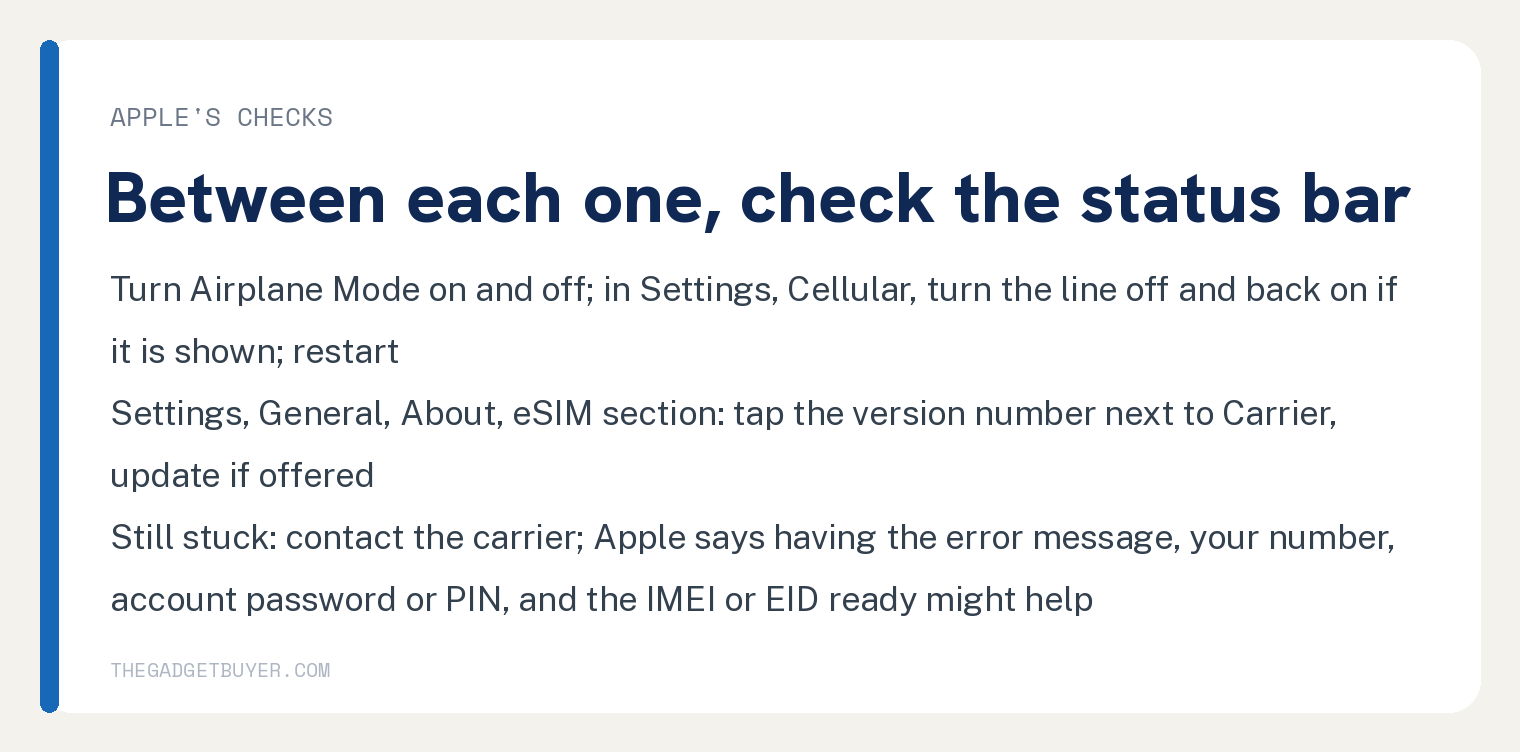
Apple’s lead in: “After following each step below, open Control Center by swiping down from the upper-right corner of the screen. Check if your carrier appears in the status bar. If not, go to the next step.”
- Turn Airplane Mode on and off.
- Open the Settings app and tap Cellular. Apple says to check whether the number you are trying to activate is shown, and if it is, turn the line off and back on.
- Restart the iPhone.
Apple adds a diagnostic for newer software: “On iPhone models running iOS 18 or later, you can download the latest version of the Apple Support app to run additional diagnostics that might help determine the source of your device’s issue.”
Apple also wants three things in place before any of this: the new iPhone on Wi-Fi or a hotspot, an active plan and eSIM from a carrier that supports eSIM, and the latest iOS the phone can run. On the first one Apple adds: “In some countries and regions, iPhone models that are eSIM-only can activate without a Wi-Fi network.”
Does the iPhone need a carrier settings update?
Apple’s next check is the carrier settings. Open the Settings app, tap General, tap About, and scroll down to the eSIM section.
Apple’s words for what you see there: “Your iPhone’s carrier name and a version number is next to Carrier. Tap the version number. If an update is available, you’ll see a prompt to select OK or Update.”
What if the new iPhone can’t make calls after the transfer?
Verizon answers this case on the same FAQ page, and its first move is a restart. Verizon: “Restart your phone if you have an issue with network connectivity.”
If calls still fail after the restart, Verizon sends you to its page titled “Phone can’t make calls, calls drop, calling not working”. Our guide to restarting an iPhone covers the restart itself.
When do I contact Verizon, and what should I have ready?
Apple’s page ends with the carrier: “If you still can’t set up an eSIM on your iPhone, contact your carrier”. Verizon’s page says the same for eSIM problems: “For help with eSIM issues, contact Verizon Customer Service”.
Apple lists what to gather first, with its own qualifier that it “might be helpful”: the error message on the iPhone, your phone number, your carrier account password or PIN, and the iPhone’s IMEI or EID. Apple’s path to those last two: open the Settings app, tap General, then tap About.
Neither page prints an error message to look for. Apple’s list only says to note the one you see.
Frequently asked questions
Do I need my old phone to transfer a Verizon eSIM?
With one line on the account, yes. Verizon: “You need your old phone for authentication if there’s only one line on your account.” With several lines, Verizon says another device on the account can authenticate instead.
Can I keep using the old phone after the transfer?
Verizon’s page says service on it is deactivated once the number moves, and that you “can use the old phone with a different carrier or for other purposes.” For an old phone with a physical SIM, Verizon adds: “If the old phone had a physical SIM card, you can remove and discard it.” Our guide to switching a SIM card to a different phone covers the physical card route.
How long does a Verizon eSIM transfer take?
Neither page prints a time. Verizon’s timing sentence is about the app route: “Your service is activated instantly over Wi-Fi.”
What if I lost or deleted the eSIM profile?
Verizon’s FAQ gives a path for that: sign in to the My Verizon app, go to the Mobile tab, select the device that needs a new eSIM profile, scroll down and select Activate or get SIM, then follow the prompts.
How do I know if my phone has an eSIM?
Verizon’s answer: “To find out if your device has eSIM, or can get eSIM, check the settings under About or About Phone.” For an Apple Watch, see our guide to whether Apple Watches have SIM cards, and for a 5G phone see whether a 5G Verizon phone needs a new SIM.