
Samsung TV Won’t Turn On Red Light Blinking: Samsung’s Fix
When a Samsung TV won’t turn on and the red light is blinking, Samsung’s answer has three steps: unplug the TV for 30 seconds, plug it into an outlet you know works with no surge protector, and if the light still blinks, request service. That is the Samsung TV won’t turn on red light blinking case, and Samsung’s own page sorts a dead set by that red standby light, so this article follows Samsung’s three sections, blinking first.
Samsung’s page asks one question before any step: “Is your standby light on, off, or blinking?” The answer picks the section, and each section ends with Samsung’s own rule for when it is a service call.
What does the red standby light mean on a Samsung TV?
Samsung’s rule, in its words: “In normal use, the red standby light is on when the TV is off (indicating the TV is on standby), and the red standby light is off when the TV is in use (or doesn’t have power).” The light is the small red light at the edge of the TV that you point the remote at.
Samsung also prints one case to know about: “In some situations, it may actually be on but just displays a black screen.” A monitor is different, and Samsung says its standby light “will be blue”.
The red light is blinking and the TV won’t turn on
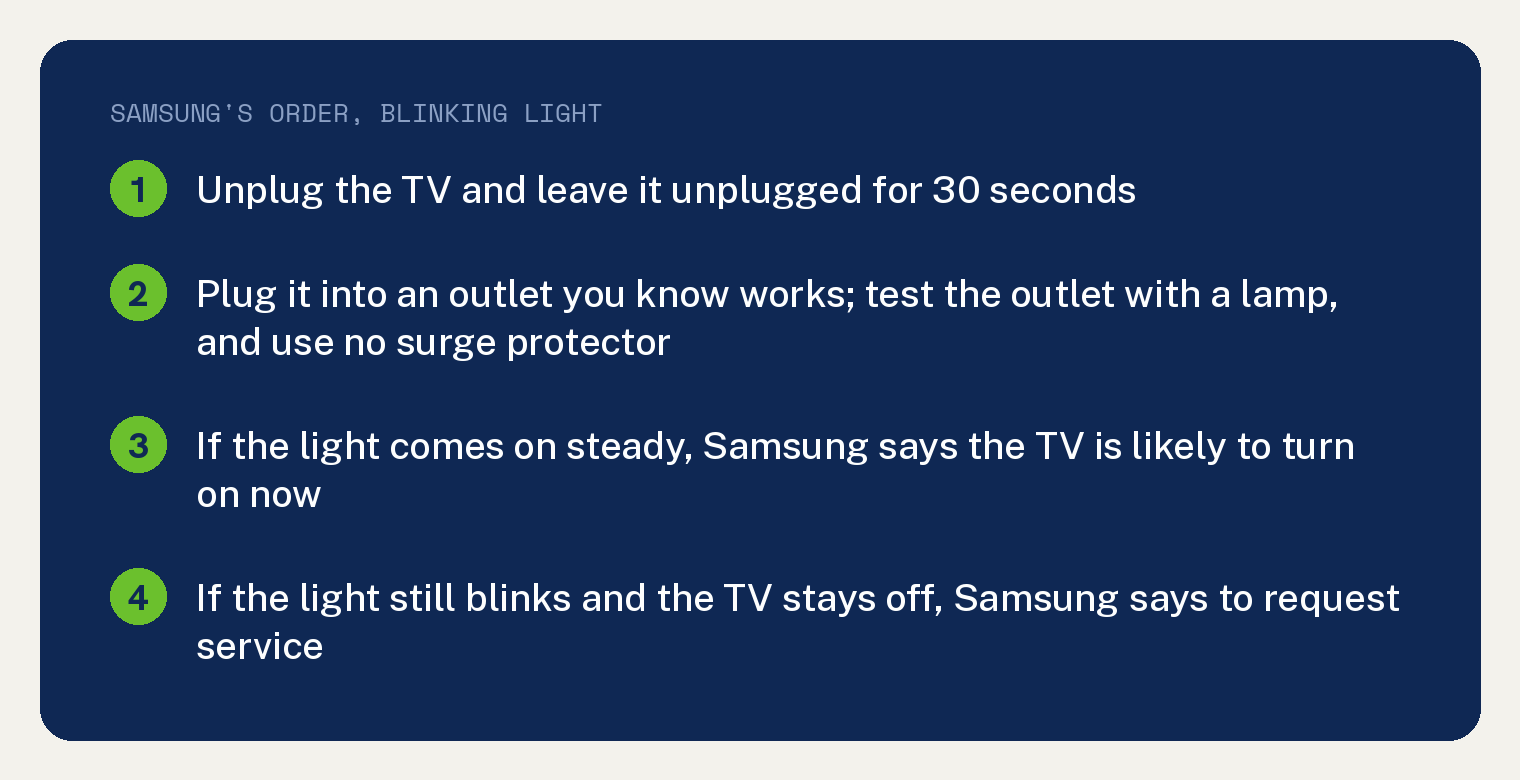
Samsung’s blinking section has three steps.
- Unplug the TV for 30 seconds. Samsung’s line: “Unplug the TV and leave it unplugged for 30 seconds.”
- Plug the TV into an outlet you know works. Samsung says you can test the outlet with another device, like a lamp, and adds a warning this section alone prints: “Do not use a surge protector, as they may eventually wear out and stop providing the necessary voltage for your TV.”
- Set up service for the TV. Samsung’s rule: “If the TV still won’t turn on and the red standby light is still blinking, this is a sign that something is wrong with your TV.”
Samsung tells you what a steady light after step 2 means: a red light that comes on “and doesn’t flash or blink” means “your TV is receiving power”, and Samsung says it is likely to turn on now. Samsung then blames the original outlet, or the surge protector if you were using one.
If the light goes steady but the TV still will not turn on, Samsung’s blinking section sends you to the steps for a lit light, which are the light on section below.
The red light is off and the TV won’t turn on
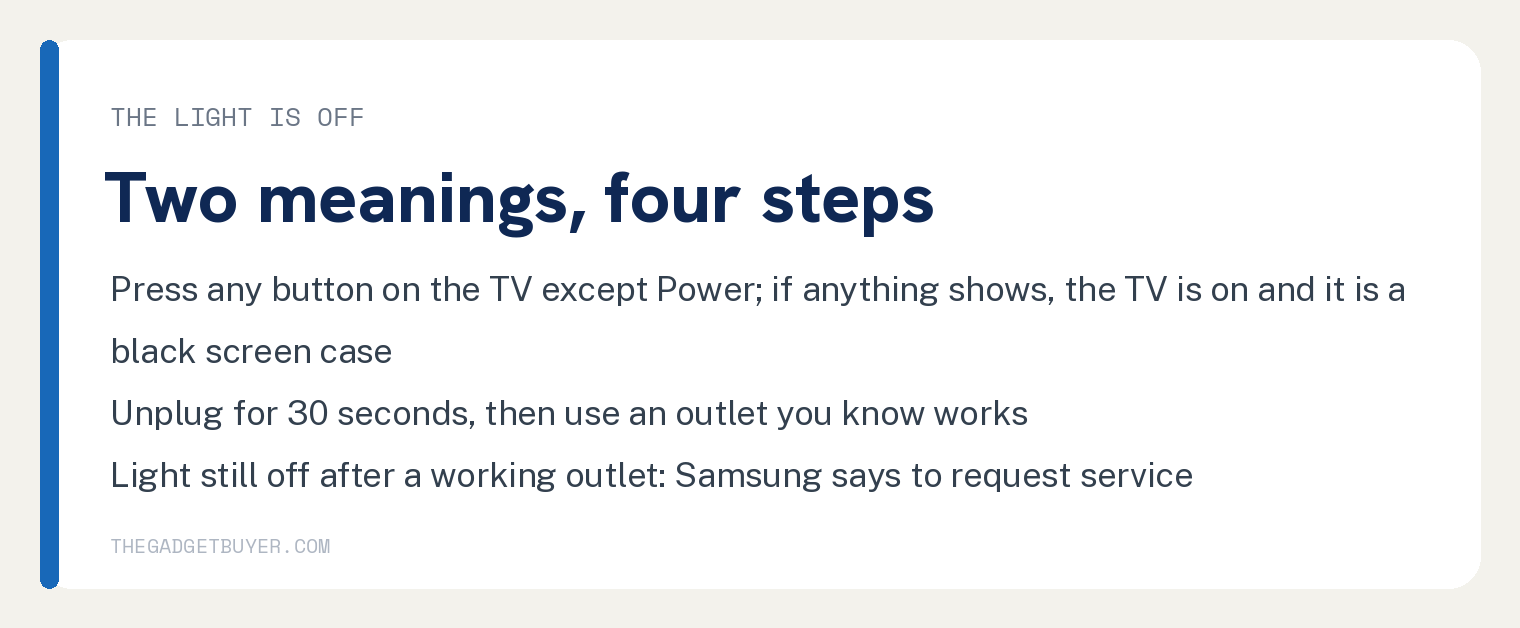
Samsung gives a dark light two meanings: “When the red standby light is off, the TV either doesn’t have power, or it’s turned on and the screen is just black.” Samsung’s four steps for this section sort those two apart.
- Press any button on the TV except Power, without the remote. Samsung: “If anything appears on the screen, this confirms your TV is on.” Samsung then sends you to its black screen guide; on this site that case is our guide to a Samsung TV screen that goes black.
- Unplug the TV for 30 seconds. Samsung’s reason: “The next thing to rule out is a power issue.”
- Plug the TV into a working outlet, tested with another device such as a lamp. Samsung’s line for this section: a red light that comes on “and doesn’t flash or blink” means “your TV is receiving power”, and Samsung says it is likely to turn on now.
- Request service if the standby light is still off. Samsung’s rule for this section: a light that never comes on after a working outlet, with a TV that will not turn on, goes to Samsung Support for service.
If the light comes on but the TV stays off, Samsung’s light off section also sends you to the light on steps below.
Where the buttons are, in Samsung’s words: “Most newer TVs have buttons on the back right side.” Samsung also says “Some TV models have a single button control.”
The red light is on and the TV won’t turn on
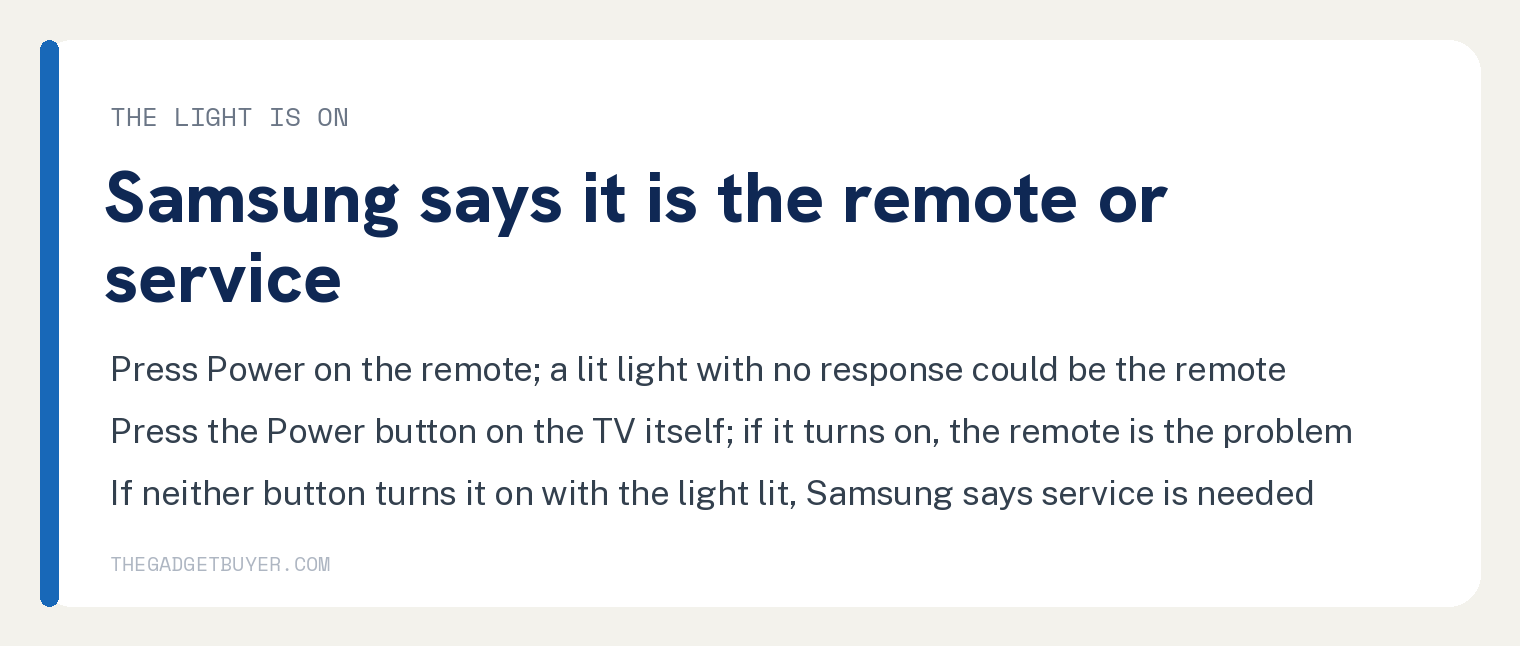
Samsung’s note for a lit light says that is normal when the TV is off, plugged in and receiving power. Samsung’s next sentence names the only suspect: “But if the TV still won’t turn, the only thing left to rule out is the remote.”
- Press the Power button on the remote. Samsung’s line: “If the TV does not turn on, but the red standby light is lit, then there could be an issue with the remote.” Step 2 sorts the remote from the TV.
- Press the Power button on the TV itself. Samsung’s verdict: “If the TV turns on with the TV’s physical button, then your remote is experiencing a problem.”
- Request service for your TV. Samsung’s rule: “If your TV is receiving power (indicated by the red standby light being lit) but will not turn on with either the remote or the physical button on the TV, then service is needed.”
Samsung says the button’s location “varies depending on your TV’s model” and points you at the user manual. If service is where Samsung’s rule lands you and you are weighing repair against replacement, our guide to how long Samsung TVs last is the next stop.
Frequently asked questions
How many times does the red light blink, and what does the count mean?
Samsung’s page prints no blink count and no blink code. Its only rule for a blinking light is the three steps above, ending in service if the light still blinks after a working outlet.
Should I hold the power button to drain the TV?
Samsung’s page prints no button hold and no reset. Its number is 30 seconds unplugged, printed in both the blinking section and the dark light section.
Is a surge protector the problem?
Samsung’s blinking section says to use no surge protector, in its words: “Do not use a surge protector, as they may eventually wear out and stop providing the necessary voltage for your TV.”
My Samsung TV turns off by itself and then won’t come back on. Same fix?
A set that switches itself off while running is a different case from a set that will not power on, and it has its own guide on this site: why Samsung TVs turn off by themselves.
Does Samsung print a software or HDMI step for a TV that won’t turn on?
No. Samsung’s no power page prints no software, firmware or HDMI step; its one routing for a set that is on with a dark screen is its black screen guide.