
Why Spectrum Internet Keeps Dropping and What to Fix First
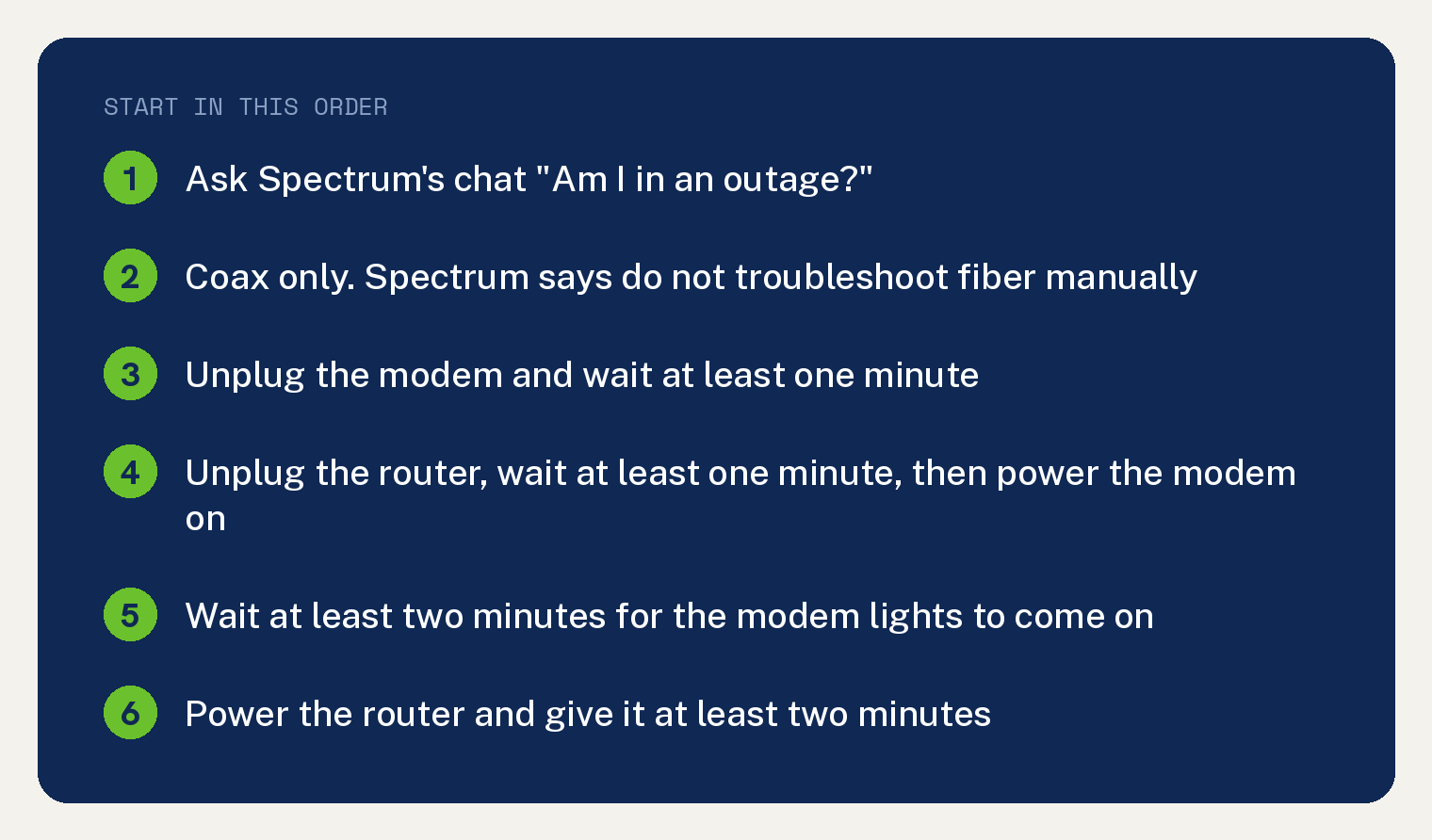
If your Spectrum internet keeps dropping, do two things before anything else. Ask Spectrum’s chat “Am I in an outage?”, then restart your gear in Spectrum’s order: modem unplugged for at least one minute, modem powered back on for at least two minutes, then the router on for at least two more.
If the drops keep coming after that, the pattern points you at the cause. Everything dropping at once points at the modem, the cable line or an outage.
One device dropping alone points at that device, where it sits, or the band it joined. WiFi dropping while a wired computer stays up points at the router.
Drops at the same minute every day point at a pause schedule or a busy hour. That mapping is ours, built on Spectrum’s own tests.
Start here: which drop pattern do you have?
Spectrum’s support pages give the tests, and they spread them across five articles without sorting them by which drop pattern you have. The table below does that sorting.
| Your symptom | What to suspect first | Start with |
|---|---|---|
| Every device drops at once | Modem, cable line or an outage | The restart, then the outage check |
| One device only | That device, its distance or its band | The one device section |
| WiFi drops, a wired device stays up | Router or the WiFi side | The wired test |
| Wired drops too | Modem, connections or an outage | The wired test, then connections |
| Same time every day | A pause schedule or a busy hour | The same time every day section |
If you cannot tell which row is yours, plug one computer into the router with an Ethernet cable. Watch that computer during the next drop.
A computer that stays up sends you to the WiFi row. One that drops too sends you to the wired row.
Restart the modem and router in Spectrum’s order
Spectrum publishes a restart sequence with specific waits. Its order brings the modem up before the router every time.
This manual restart is for coax customers only. Spectrum says fiber customers should avoid touching the back of the fiber modem, because the fiber cable can be damaged.
For fiber equipment, Spectrum says not to troubleshoot manually and to refer to your user manual for support.
- Unplug the power cord from the modem and wait at least one minute.
- Unplug the power cord from the WiFi router.
- Wait at least one minute, then put any battery back in and reconnect power to the modem.
- Wait at least two more minutes. Spectrum says the modem’s lights should gradually turn on, confirming the device has power and is connected to the internet.
- Reconnect power to the router and allow at least two minutes for it to finish powering on.
- Open two or three different web pages to make sure your connection is working.
You can also restart without touching the hardware. Sign in at spectrum.net, select the Services tab and then the Internet sub tab, choose your equipment from the list, and select Restart Equipment.
The My Spectrum App has the same option. Open the app, sign in, and select Services.
Spectrum’s equipment status page says your equipment will be listed with a status of Connected, Unavailable or Connection Issue.
If you see Connection Issue, tap it and select Restart Equipment. Spectrum says to use that same option when the equipment appears connected and you are still having trouble.
A restart deals with the equipment inside your home. An outage, a damaged connection or a splitter problem needs the sections below.
Check for an outage before you troubleshoot
Spectrum’s outage information page says to check whether you are in an outage before troubleshooting, by selecting its Check Outages button.
There is a second way that takes one line of typing. Spectrum’s Internet troubleshooting page says you can ask “Am I in an outage?” in chat.
You can also have the app tell you next time. Open the My Spectrum App and sign in.
- Select More from the navigation panel.
- Select Settings.
- Select Notifications, then under Push Notifications choose Manage.
- Under Support, toggle on alerts for Outages.
If Spectrum confirms an outage, there is nothing to fix in your house. Spectrum says it is sometimes necessary to reboot your equipment after power and service are restored, so run the restart above once the outage clears.
Read the modem lights before you call
The lights tell you whether the modem sees Spectrum’s network at all. Spectrum says the lights cycle during a reboot, so wait until you are sure the modem has finished powering on before you check them.
Labels vary by modem. Spectrum says its own table is not a comprehensive list, so check your equipment’s user manual if a label below is missing.
The colors carry meaning too. Our guide to what the Spectrum modem light colors mean covers that side of the display.
- Online or PC: the internet is available.
- DS and US (Downstream and Upstream): the internet is available, and you can send or receive data.
- Cable Link or Ready: on means registration is complete and the gateway is operational, blinking means it is still going through startup and registration, off means there is no cable connectivity.
- Diag: on or blinking means the gateway might be malfunctioning, and Spectrum says to contact them.
An Online light that goes out while the connection is down puts the fault on the cable side, ahead of your router.
That reading is ours, built on Spectrum’s own light definitions. It sends you to the connections and splitter checks, and then to a call.
Test with a wired connection to see if the router is the problem

Spectrum’s way to check if your personal router is working as intended is to hook a laptop directly to the Ethernet. Run the drops past that laptop and see what happens.
- Turn off the router.
- Unplug the modem from the power source or wall unit.
- Disconnect the Ethernet cable from the router.
- Wait 60 seconds, then plug the modem back into a power source.
- When all the modem online lights are lit (blue or green in color), plug the Ethernet cable into your computer.
- If your computer does not recognize an internet connection after 60 seconds of being connected to your modem, reboot the computer.
Use that wired connection for a while. Drops that stop point at the router or the WiFi side, so go to the one device section and the equipment age check.
Drops that continue on the cable point at the modem, the line or an outage. Go to the connections section.
Spectrum gives a wired speed test for the same split. Run it with an Ethernet cable from your computer to your router.
Spectrum’s speed test note says a wired connection with a Cat 5e or higher Ethernet cable gives the best results.
If your wired result is lower than your plan’s current range, Spectrum says to troubleshoot your wired connection first. If the result is at or above that range, Spectrum sends you to its network connection checks.
To put the router back, follow Spectrum’s steps. Unplug the modem and leave it unplugged for 30 seconds, plug it back in, then plug the router back into a power source.
Check each device to make sure all connections are secure at both ends. Wait a few minutes until the lights on the modem and the router are lit and working again.
When one device is the only thing dropping
When one phone, laptop or TV drops while everything else holds, the fix lives on that device or in the spot where you use it.
Distance and interference
Spectrum says your best signal is within 125 feet of the router without anything in between. Move the device closer and see if the drops stop.
On Spectrum’s interference list, concrete and metal have the highest potential for interference.
Cordless phones on 2.4 GHz, baby monitors and microwaves within 15 feet of the router are the next tier down. Water, brick and marble sit one tier below that.
Spectrum also says to keep devices such as baby monitors, cell phones and Bluetooth devices away from your router.
Placement follows the same logic. Spectrum says to make sure your router is not in a closet, behind furniture, or near metal objects, appliances, windows or mirrors.
Put the router in the room where you use the most WiFi and wired devices, ideally in the center of your home. Place it on top of a surface so it is off the ground.
Spectrum says your connection is strongest closer to the router and may not exist at all if there is a dead spot or you are too far away. Its advice is to walk through your home with a device that shows WiFi signal strength to find the rooms where the signal is strongest.
Spectrum adds that streaming video and gaming systems require the strongest signals. Those are the devices to place nearest the router.
A room that never holds a signal is a coverage problem. Our guide to whether you need mesh WiFi or a better router covers that case.
The band your device is on
Spectrum says to check that your wireless device is compatible with the network you selected, 2.4 GHz or 5 GHz.
Our explainer on whether Spectrum WiFi runs on 2.4 GHz or 5 GHz covers which devices belong on which band.
Spectrum’s Advanced WiFi routers combine all WiFi frequencies into one network name. Spectrum says Advanced WiFi 5, 6, 6E and 7 routers have a QR code and will include model numbers that begin with SAC2V1A, SAC2V2S, SAX1V1R, SAX1V1K, SAX1V1S, SAX2V1S, SAX2V1R, SBE1V1K or SBE1V1R.
Spectrum says that router automatically switches your device between 2.4 GHz, 5 GHz and 6 GHz based on how close the device is to the router. It calls that Adaptive Steering. Spectrum notes that only its WiFi 6E and WiFi 7 routers, model numbers SAX2V1R, SAX2V1S and SBE1V1K, support the 6 GHz frequency.
Spectrum also says a device might automatically switch from 5 GHz to 2.4 GHz to provide better range and signal penetration, especially through walls. It lists 2.4 GHz as the slower band with the farthest range.
One more Advanced WiFi detail matters here. Spectrum says the Set up Smart Device (2.4 GHz) feature switches every connected device to 2.4 GHz for 30 minutes, to help you set up devices that are only 2.4 GHz capable.
Spectrum says the 30 minute period starts once you initiate the setup process, and that your devices switch back to the original frequency band after it lapses.
Phone or tablet has trouble connecting to WiFi
Spectrum gives two checks for this exact case. Try switching off cellular data in your phone or tablet settings.
Then check whether WiFi Assist is enabled in your phone settings. Spectrum says to disable it, because that feature may prevent phones using 2.4 GHz from connecting.
Spectrum also says to update your device to the latest operating system for faster, more reliable and secure WiFi connections.
Spectrum adds a note alongside those steps. Feature availability may vary by router model and region.
One app failing on one TV is its own problem. Our guide to the Spectrum TV app not working on a Samsung TV covers that case.
When everything drops, wired devices included
By the reading above, when every device drops and the Online light goes out with them, the coax side is the first suspect.
Spectrum’s no connection checklist says to make sure your modem is powered on. It also says to make sure the modem is set up properly and that there are no loose or damaged connections.
The same checklist says to verify that you are using your Spectrum issued modem.
Spectrum allows a modem you already own only if it is authorized to work on the Spectrum network. It also says only Spectrum provided equipment is supported by its technicians.
Splitters have their own rules. Spectrum’s splitter page says a splitter should only be used if the outlet will be shared by two or more devices, and should not be used if you are connecting one device to the cable outlet.
If you use your own splitter, Spectrum says to make sure it is rated at 3.5 dBmV.
If you need more than one splitter, Spectrum says a technician must install an amplifier at your location. A second splitter on your line is a reason to call Spectrum.
Spectrum’s troubleshooting, splitter and outage pages carry no instruction on hand tightening a coax connector. A visibly loose or damaged connection is the thing to report.
When your Spectrum internet keeps dropping at the same time every day
Three things Spectrum publishes can put trouble on a clock. One of them disconnects devices and two of them slow the connection.
A pause schedule
Spectrum says you can set a schedule to pause and resume WiFi automatically for selected devices, and that during those times they will not be able to connect.
The schedule uses a Start Time you choose for the time of day to automatically disconnect that device or device group from your network.
If one TV or one tablet dies at the same minute each evening, open the My Spectrum App and choose the Services tab. Select Router, then select Manage Devices.
Look for a schedule on that device or its group. Spectrum says Advanced WiFi is available only to customers who use a Spectrum issued router.
A busy hour
Spectrum says you may notice slower internet speeds when many people and devices are on your network at the same time, or when you use the internet at a busy time of day.
It also says streaming movies and games can slow your speed, especially with multiple streams running at the same time. Spectrum describes both of those as slower speeds.
Slow evenings have their own guide. Read why Spectrum internet slows down at night if your speeds sag at the same hour.
Congestion management
Spectrum says it may temporarily reduce the available bandwidth to customers using high amounts of bandwidth as necessary to reduce congestion.
Spectrum’s network congestion management page calls this usually brief and intermittent, and estimates that less than 1 percent of all users will be managed at any given time.
Spectrum also says congestion is not managed based on which online activities, protocols or apps are used.
If none of those three fit and the drops still keep a schedule, run the restart in order again. Spectrum says a restart lets the best available channel be selected, which matters in an apartment or townhome with many neighbors and WiFi networks.
Is your equipment too old?

Old equipment shows up as slow service, and three of Spectrum’s pages each carry a piece of it.
Spectrum says older hardware or software connects more slowly, and that regularly updating your equipment can help your internet speeds. Its suggestion is to visit your Spectrum Store for updated equipment.
Spectrum also says you need a modem that is authorized for the speed tier you have.
When Spectrum upgrades network speeds, it says it will notify you and give you the option to upgrade your equipment if your modem does not support the new speed tier.
So the age check is two questions. First, has Spectrum ever notified you that your modem is not optimized for your speed level?
If it has, Spectrum says you can get a new one from a Spectrum Store. It also says you can swap it out yourself without a technician appointment.
Second, does your modem match the tier you are on today? If you changed plans, check which Spectrum internet plan you have and compare it against the modem’s authorized speed.
Spectrum gives no maximum age in years for a modem or router on the pages behind this section, so this guide gives none either.
If you use your own modem or router, two limits apply. Spectrum supports only its own equipment through its technicians, and Advanced WiFi features work only with a Spectrum issued router.
Your own gear can still be fine. The limit is that a technician will not troubleshoot it for you.
When to call Spectrum and what to tell them
Call once you have restarted in Spectrum’s order, checked for an outage, and either the wired test still drops or the Diag light is on.
Spectrum’s own next step is the same. Its equipment status page says to contact Spectrum if the restart did not resolve the issue.
Tell them three things. You restarted with the waits, the drops do or do not happen on a wired connection, and this is the light that goes out during a drop.
That puts the conversation on the line and the modem, where a technician can measure something.
Common questions
I have Spectrum fiber. Can I unplug the modem?
Spectrum says no. It tells fiber customers to avoid touching the back of the fiber modem, because the fiber cable can be damaged, and it says not to manually troubleshoot fiber equipment. Its next step for fiber is your equipment’s user manual.
Does Spectrum slow my connection on purpose?
During congestion, Spectrum says it may temporarily reduce the available bandwidth to customers using high amounts of bandwidth. It calls this usually brief and intermittent, and estimates that less than 1 percent of all users will be managed at any given time. Spectrum also says congestion is not managed based on which online activities, protocols or apps are used.
My internet started dropping right after an outage. What now?
Spectrum says it is sometimes necessary to reboot your equipment after power and Spectrum service are restored following an outage. Run the restart sequence above in order. If your equipment still shows Connection Issue in the My Spectrum App, tap it, select Restart Equipment, and contact Spectrum if that does not resolve it.
Can my own modem cause the drops?
Spectrum’s equipment pages do not name a modem you own as a cause of dropped connections. They do state three things worth knowing. You get a message at install time if the device does not meet the speed tier you ordered, Spectrum offers you upgraded equipment when a network speed increase outgrows your modem, and Spectrum recommends against minimally qualified modems, because it says they have not been tested to confirm their ability to deliver your purchased internet service speed.
Spectrum’s no connection checklist still asks you to verify that you are using your Spectrum issued modem, and Spectrum allows a modem you own only if it is authorized to work on the Spectrum network. Two limits apply either way. Spectrum Home Phone is not compatible with customer owned modems, and symmetrical speed tiers require a Spectrum provided modem.