
Fix Fitbit Charge 6 Heart Rate Not Working in 5 Checks
Fitbit Charge 6 heart rate not working comes down to five checks, and Google puts the Heart Rate setting on the tracker first.
Dashed lines on the screen mean the heart rate sensor is having difficulty detecting a signal.
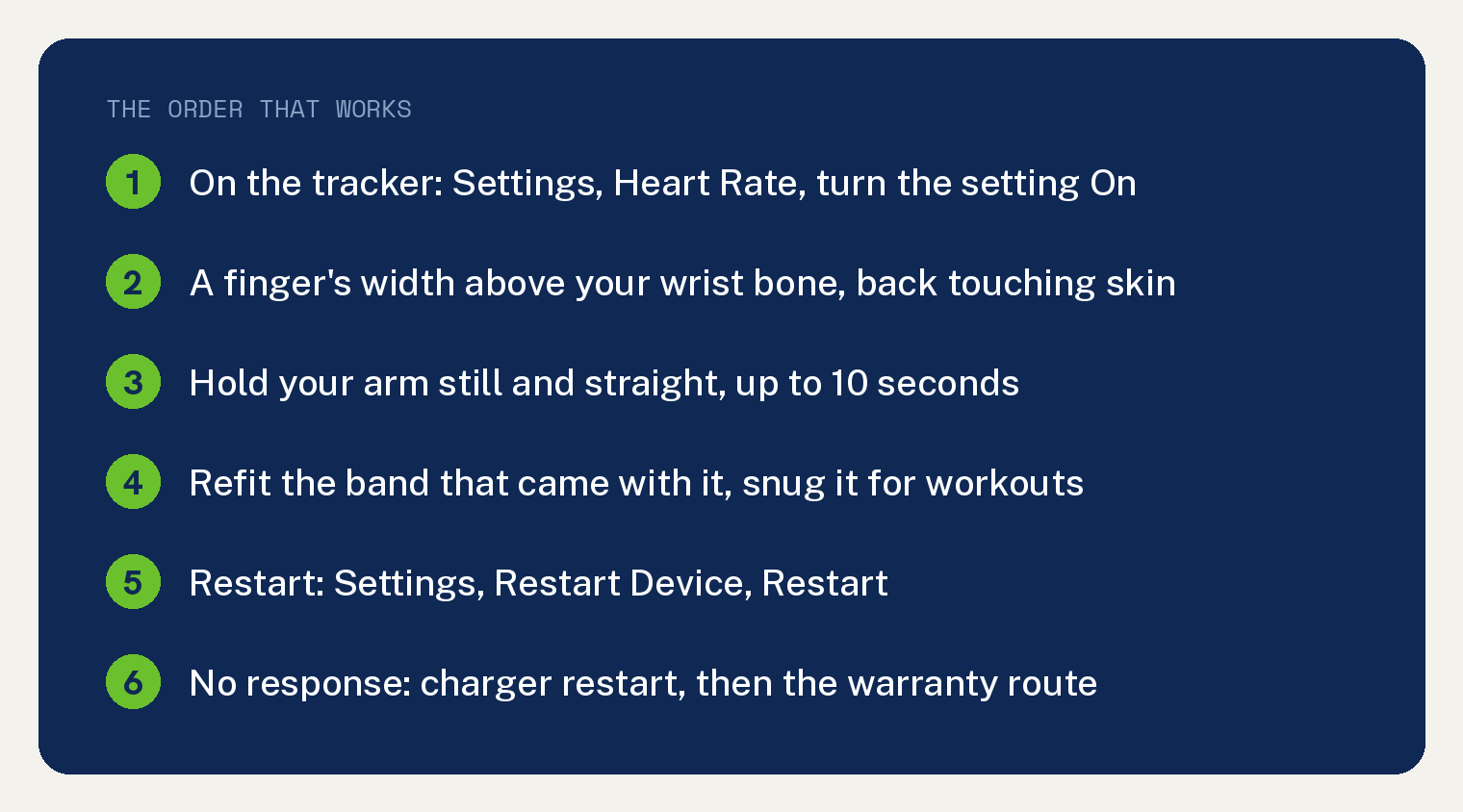
- Turn on Heart Rate in the Settings app on the tracker.
- Sit the tracker a finger’s width above your wrist bone, with the back touching your skin.
- Hold your arm still and straight, up to 10 seconds during a workout.
- Put the band that came with the tracker back on, and snug it for workouts.
- Restart the tracker from its Settings app.
Below the five checks you get the charger method for a Charge 6 that will not respond, then the warranty route.
What your Charge 6 screen is telling you
The tracker shows a few different things when the reading fails. Each one points at a different check.
| What you see | What Google’s page says it means | Where to go |
|---|---|---|
| Dashed lines instead of a number | The sensor is having difficulty detecting a signal (Charge 6 manual) | Check 1, then Check 2 |
| A gray heart rate | Searching for a stronger reading, and normal tracking should resume shortly | Check 3 |
| Blank or frozen during a workout | Occasionally your device may have difficulty getting a strong signal, especially during exercises that cause your arm to move vigorously such as high intensity interval training or boxing | Check 3, then Check 4 |
| A number on the tracker, nothing in the app | Your device could be disconnected from the Google Health app | Your exact case, below |
| No sleeping heart rate | Google’s sleep page recommends a snug wristband for the night | Your exact case, below |
The Fitbit app became the Google Health app on May 19, 2026, so every app path below uses the new name.
If your phone still shows a Fitbit icon, read what changed when the Fitbit app became Google Health.
Check 1: Turn on Heart Rate on the tracker itself
Heart rate tracking is turned on by default. Google’s first instruction for a missing signal is to make sure that switch is on in the Settings app on your tracker.
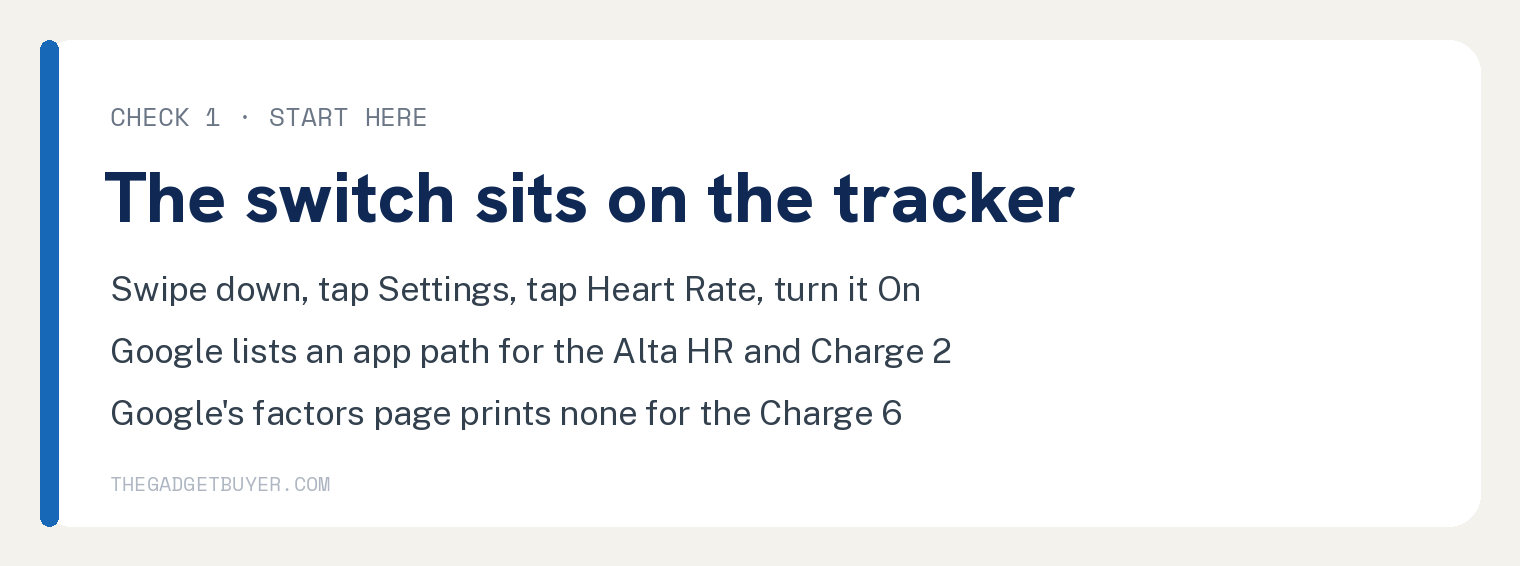
- Swipe down from the clock screen to find the Settings app.
- Tap Heart Rate.
- Tap to turn the setting On.
The Charge 6 manual files the same switch under Other settings, and describes it as the one that turns heart rate tracking on or off.
Google’s page on what affects your heart rate reading prints an app path for this setting under the Fitbit Alta HR and Fitbit Charge 2: Connections, your device, Google Health reminders and alerts, Heart Rate, Auto.
That same page prints no app path for the Charge 6, so use the tracker.
Check 2: Move it to the spot Google names
Once the setting is on, the manual’s next instruction is fit. Move the tracker higher or lower on your wrist, tighten or loosen the band, and keep the back of the Charge 6 in contact with your skin.
The sensor uses rapidly flashing green LEDs to detect blood volume changes in wrist capillaries, and photodiodes measure those changes.
Google gives one position for everyday wear: a finger’s width above your wrist bone, on top of the wrist.
A tight band restricts blood flow and can potentially affect the heart rate signal. Google’s own wording for the fit is snug but not constricting.
Check 3: Hold your arm still and give it 10 seconds
The manual says that after holding your arm still and straight for a short time, you should see your heart rate again.
Google’s factors page puts a number on the workout case: relax your wrist and stay still for up to 10 seconds.
You might notice a spike or a dip as the tracker finds your heart rate. Google says normal tracking should resume shortly in both cases.
Cold weather can hinder the reading during exercise, because it affects blood flow to the skin.
Check 4: Put the original band back on
Google’s factors page says heart rate tracking may not work with certain accessory bands, especially if they are loose fitting.
For best results it tells you to use the band that came with your device.
So if you swapped in an accessory band, put the band that came with the tracker back on and watch the reading. Also tighten the band so that it does not slip on your wrist.
For workouts, the manual and the help page agree: wear the Charge 6 a bit higher on your wrist and a bit tighter during exercise, then loosen it when you are done.
Bike riding and weight lifting bend the wrist frequently, and Google says that could interfere with the signal when the tracker sits lower on your wrist.
Check 5: Restart the Charge 6 from its Settings app
Google’s factors page makes the restart the last heart rate step. If you tried the other steps and cannot find your heart rate, restart the device.
The manual also lists a restart for trouble tracking your stats.
- Swipe down from the clock screen to find the Settings app.
- Open the Settings app and tap Restart Device.
- Tap Restart.
A restart turns the tracker off and on without the loss of any activity data.
When the clock face comes back, swipe up to see your current heart rate, plus your heart rate zone or your resting heart rate.
When the Charge 6 will not respond
If the screen is frozen and you cannot reach Settings, Google gives a charger method for an unresponsive Charge 6.
- Connect the tracker to its charging cable. A tracker that will not take a charge needs the charging fixes first.
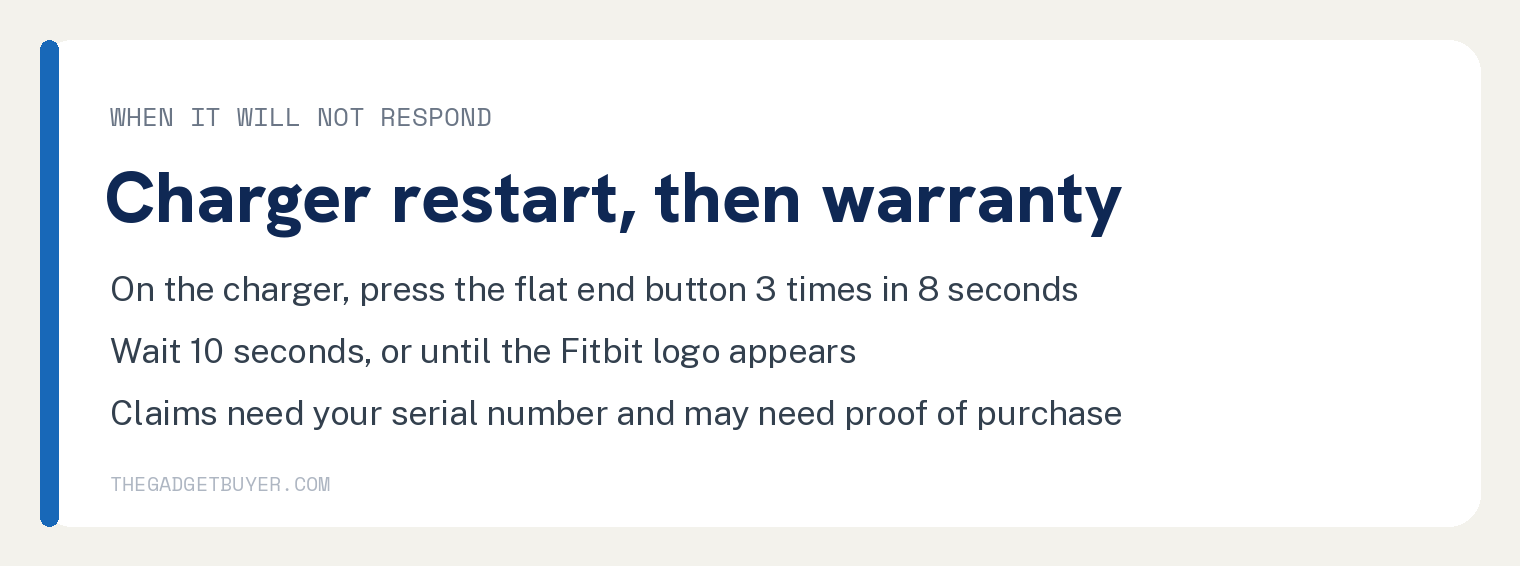
- Press the button on the flat end of the charger 3 times, with a one second pause between each press.
- Wait 10 seconds, or until the Fitbit logo appears.
Google also gives a second method. Unplug the tracker, wait a second, and plug it back in, repeated 3 times in an 8 second interval, then wait 10 seconds until the device restarts.
If the device does not restart, the manual says to wait 15 seconds and try again.
Google says some Fitbit devices have small holes for sensors, and warns you not to restart the tracker by inserting paper clips or any other item into them, because that can damage the device.
A tracker that stays dark through all of this has a different problem. Work through the black screen checks instead.
When the sensor is the last suspect left
The setting is on, the fit is right, the original band is back, the tracker restarts, and the reading still never appears. The next move is a warranty claim.
Google’s warranty page says a Fitbit that becomes defective through no fault of your own may be returned for replacement, and that accidental damage is not covered.
Warranty terms vary based on the country or region where you bought the device. For a tracker bought on or after July 11, 2023, Google says to visit the Google Hardware Warranty Center for the terms.
To get warranty service you must give your name, contact information and serial number. You may also be asked for proof of purchase, and to answer diagnostic questions about the problem.
An in warranty tracker with a covered claim is sent in for a checkup, and Google provides a replacement if it is defective.
Out of warranty, Google says to contact the Google Store to troubleshoot and to check whether you qualify for out of warranty service. That holds even if you bought the tracker from another retailer.
Sign in to Google’s contact page with the Google Account you use with Fitbit. Chat, call and email are listed there, and each one shows whether it is available when you look.
Your exact case
The heart rate is stuck on one number
Google’s page calls this a frozen reading and groups it with a blank one. One cause it names is exercise that makes your arm move vigorously. It says that occasionally your device may have difficulty getting a strong signal.
Relax your wrist and stay still for up to 10 seconds, as in Check 3.
If the number sits frozen while you are resting, run Check 5. Google’s restart page lists a device that does not register steps or other data as a restart case.
It only goes blank during workouts
Raise the tracker a bit higher on your wrist and tighten the band before the workout, since Google names wrist bending as something that could interfere with the signal.
Then look at how you start the workout. Google’s factors page says that if you use MobileTrack in the Google Health app, your heart rate might not appear on your device.
Use the Exercise app on the Charge 6 instead. The manual says it shows real time stats on your wrist, including heart rate data.
No heart rate during sleep
Google recommends a snug wristband for the night, and says not to wear the device in a clip or pendant accessory.
Your sleeping heart rate is detected continuously through the night. Google also says sudden movements during sleep, or a poor wrist placement affecting the signal, can lead to increased readings.
To check the night in the app, open Google Health, tap the Today tab, tap Sleep duration, scroll to More about your sleep, then tap Sleeping heart rate.
If it is still missing after a night with the fit right, run Check 5. The manual lists a restart for trouble tracking your stats.
It shows on the tracker but not in the app
Google says this means your device could be disconnected from the app, and it sends you to its sync help.
Work through the sync fixes in order before you touch anything else on the tracker.
If the trouble started when the app changed names, the Google Health sync guide covers that switch.
Once it syncs, open the Health tab, tap Heart under Health areas, then tap Heart rate for a more detailed graph.
FAQ
Does restarting a Fitbit Charge 6 delete your data?
No. Google’s restart page says a restart turns your device off and on without the loss of any activity data.
The Erase option in the manual is the one that clears your personal data, and the manual puts it there for giving the tracker to another person or returning it.
Can an accessory band stop heart rate tracking?
It can. Google says heart rate tracking may not work with certain accessory bands, especially if they are loose fitting.
For best results, use the band that came with your device. That makes the original band the test: fit it, then watch whether the reading returns.
Where is the heart rate setting in the Google Health app?
Google’s page on what affects your heart rate reading lists that app path under the Fitbit Alta HR and Fitbit Charge 2, and prints none for the Charge 6.
On a Charge 6, open the Settings app on the tracker and tap Heart Rate.
Why does the Charge 6 disagree with a chest strap?
Google says your Fitbit’s readings might not always match those from other devices, like chest straps or other wrist trackers, due to differences in technologies.
For any concerns about your heart rate data, Google says to contact your physician.
Does a firmware update fix the Charge 6 heart rate?
Google’s page on what affects your heart rate reading, its restart page and the manual’s troubleshooting section do not name an update as a fix, so it is not one of the five checks.
Install one when the app offers it. The manual says your battery must be at least 20% charged, recommends plugging the tracker into the charger first, and asks you to keep the tracker and phone close to each other during the update.
Sources
- Track your heart rate with your Pixel Watch or Fitbit device (Google Health Help Center)
- What factors can affect my heart rate reading on my Fitbit device? (Google Health Help Center)
- Restart your Fitbit device (Google Health Help Center)
- Fitbit Charge 6 User Manual, version 2.1 (PDF, Google)
- Track sleep with Google Health (Google Health Help Center)