
Can’t Sign Out of Apple ID on iPhone: Fix the Grey Name
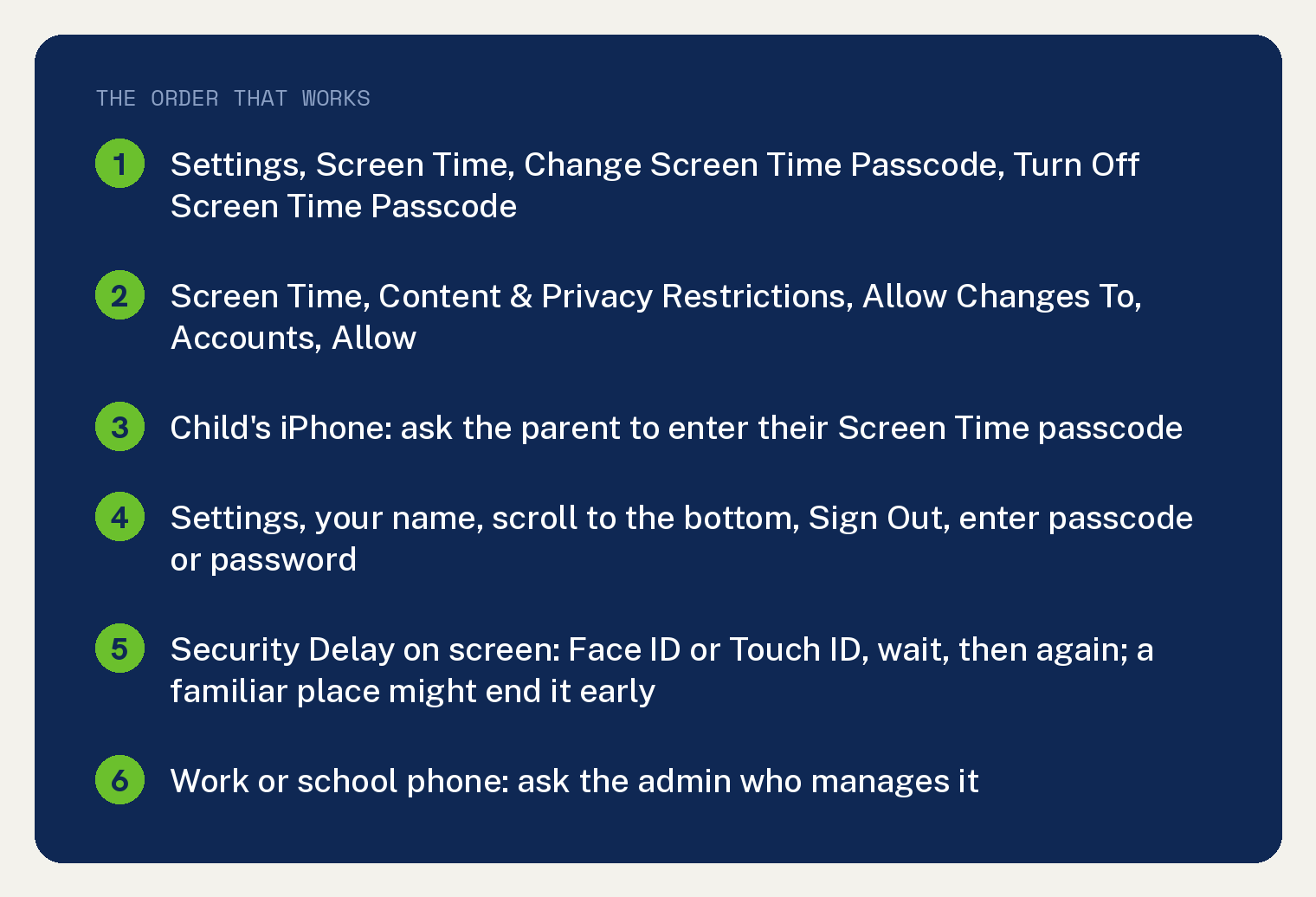
When you can’t sign out of Apple ID on iPhone, Apple’s own fix page points at Screen Time first. If the message says “Sign out is not available due to restrictions”, turn off the Screen Time passcode: Settings, Screen Time, Change Screen Time Passcode, Turn Off Screen Time Passcode.
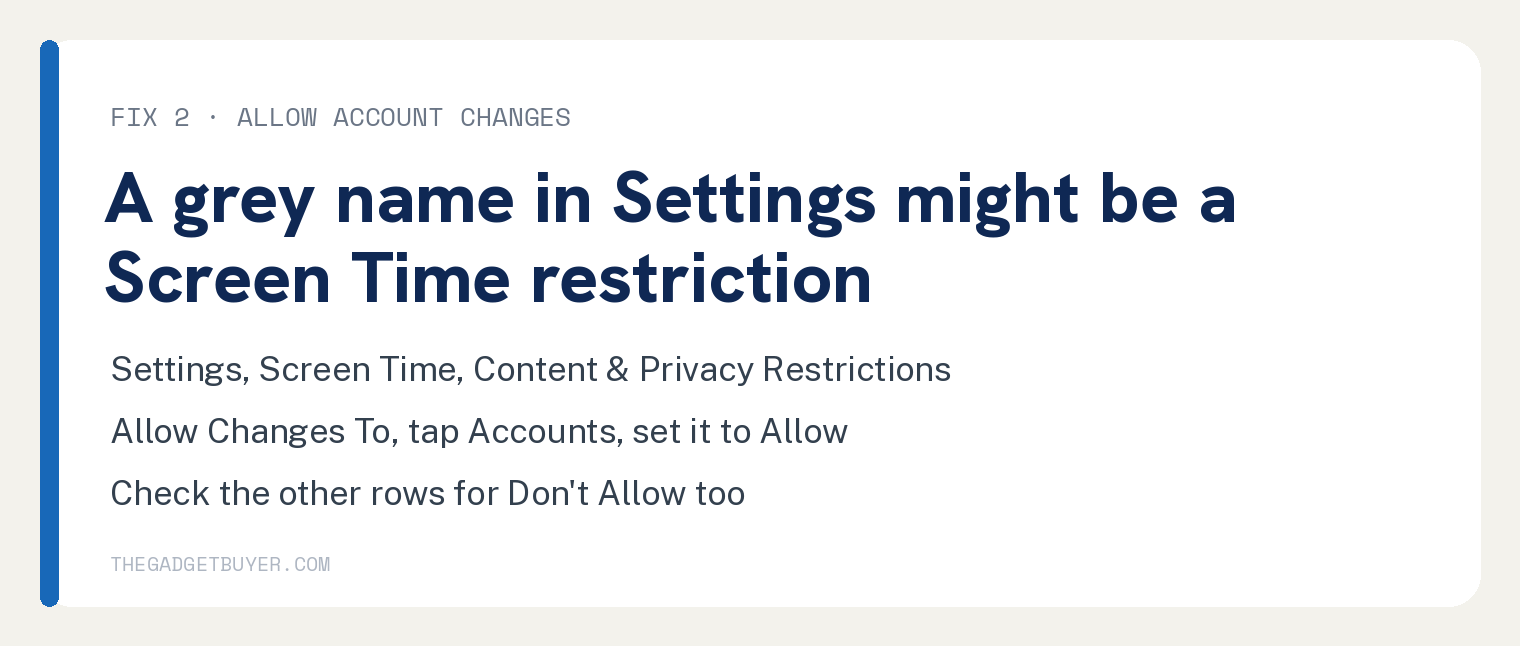
If your name at the top of Settings is grey instead, open Settings, tap Screen Time, tap Content & Privacy Restrictions, scroll to Allow Changes To, tap Accounts, and set it to Allow.
Then go back to Settings, tap your name, scroll to the bottom, and tap Sign Out.
Apple renamed Apple ID to Apple Account, so your screen may show either name. Same login, same password.
None of the causes below needs a third party unlocker tool.
Find your case first
Match what you see to the fix.
| What you see | Go to |
|---|---|
| “Sign out is not available due to restrictions” | Fix 1, turn off the Screen Time passcode |
| Your name at the top of Settings is grey and will not open | Fix 2, allow account changes |
| The iPhone belongs to a child in Family Sharing | Fix 3, the parent’s device |
| Sign Out opens but asks for a password you do not have | Fix 4, the passcode or password step |
| The words Security Delay on screen | Fix 5, Stolen Device Protection |
| A phone from work or school | Fix 6, a managed iPhone |
Fix 1: Turn off the Screen Time passcode
Apple says that when you see “Sign out is not available due to restrictions”, you might have a Screen Time passcode enabled. Turning it off clears the message.
- Open the Settings app, then tap Screen Time.
- Scroll down, then tap Change Screen Time Passcode.
- Tap Turn Off Screen Time Passcode, then enter your passcode to turn it off.
- Go back to Settings, tap your name, scroll to the bottom, and tap Sign Out.
The Screen Time passcode is a separate code from the one that unlocks your iPhone. If you do not know it, skip to the section on a forgotten Screen Time passcode below.
Fix 2: Allow account changes in Content & Privacy Restrictions
When your name at the top of Settings is grey, Apple says you might have certain Screen Time restrictions turned on. The one that matters is called Accounts, and it controls account changes.
- Open the Settings app, then tap Screen Time.
- Tap Content & Privacy Restrictions.
- If Content & Privacy Restrictions is turned on, scroll down to the Allow Changes To section.
- Tap Accounts, and set it to Allow. If asked, enter your Screen Time passcode.
- On the same screen, check for any other setting set to Don’t Allow. Tap it and choose Allow.
- Go back to Settings. Your name should now open, and Sign Out sits at the bottom of that screen.
You can leave Content & Privacy Restrictions on for everything else. Apple’s page has you check the other rows for Don’t Allow as well, so do not stop at Accounts.
Fix 3: On a child’s iPhone, the parent’s device holds the key
If the iPhone belongs to a child or teen in a Family Sharing group, the parent who set up parental controls has to enter their Screen Time passcode. Apple states that changes to a child’s Screen Time passcode must be made on the parent or guardian’s device.
So the child’s phone cannot clear this on its own. Hand it to the parent, or have them do the reset below from their own iPhone.
If you forgot the Screen Time passcode
Apple’s reset uses the Apple Account you entered when you first set up the Screen Time passcode. That can be a different account from the one signed in on the phone.
On your own iPhone:
- Open the Settings app, then tap Screen Time.
- Tap Change Screen Time Passcode, then tap Change Screen Time Passcode again.
- If asked, enter the Apple Account email address and password that you used to set up the Screen Time passcode.
- Enter a new Screen Time passcode, then enter it again to confirm.
- Now go back to Fix 1 or Fix 2 with the new passcode.
On a child’s iPhone, the Family organizer does it from their own device: Settings, Screen Time, the child’s name under Family, Manage Screen Time, then Change Screen Time Passcode twice.
If the reset fails, Apple’s advice is to check the account. It must be the same Apple Account used when the passcode was set up, which in a Family Sharing group might be a family member’s account or the child’s account.
Fix 4: Sign Out asks for your passcode or Apple Account password
When Sign Out does open, Apple’s steps say to enter the passcode for that device or your Apple Account password. Turning on Find My turns on Activation Lock, and Apple says the Apple Account password is required before anyone can turn off Find My or erase the device.
Apple lists Find My among the services that signing out turns off.
The full sign out looks like this:
- Open the Settings app, then tap your name.
- Scroll down to the bottom and tap Sign Out.
- Choose Erase this iPhone or Sign Out But Don’t Erase.
- Follow the on screen prompts. They tell you what stays on the phone and what gets removed.
- Enter the passcode for the device or your Apple Account password.
- If you chose Sign Out But Don’t Erase, tap Confirm and Sign Out. If you chose the erase option, tap Sign Out, then tap Sign Out again to confirm.
If you would rather turn Find My off first, Apple’s guide has a direct path. Go to Settings, your name, Find My, Find My iPhone, tap to turn it off, enter your Apple Account password, then tap Turn Off.
If you forgot the Apple Account password
Reset it on the same iPhone before you sign out, because this phone is a trusted device and that is Apple’s easiest route. Open Settings, tap your name, tap Sign In & Security, tap Change Password, then enter your device passcode and follow the prompts.
Apple notes that you might be required to wait one hour before changing the password.
Our step by step guide on how to reset an Apple ID password covers the same path in detail. If the reset asks for a code that never shows up, see what to do when the Apple ID verification code is not arriving.
Without a trusted device, Apple gives two more routes. Borrow a friend’s Apple device if you still have access to your trusted phone number, open the Apple Support app, scroll to Support Tools, tap Reset Password, then tap Help Someone Else.
Or reset on the web at iforgot.apple.com, which Apple says might take a little longer.
If you cannot find your Apple Account or reset its password, you lose access to the account and might be unable to use or reactivate the iPhone.
If Apple has locked the account, our guide to an Apple ID disabled for security reasons walks through the way back in.
Fix 5: Security Delay means Stolen Device Protection
On iOS 17.3 or later, Stolen Device Protection adds a wait when your iPhone is away from familiar locations such as home or work. Apple lists “Sign out of your Apple Account” as one of the delayed actions.
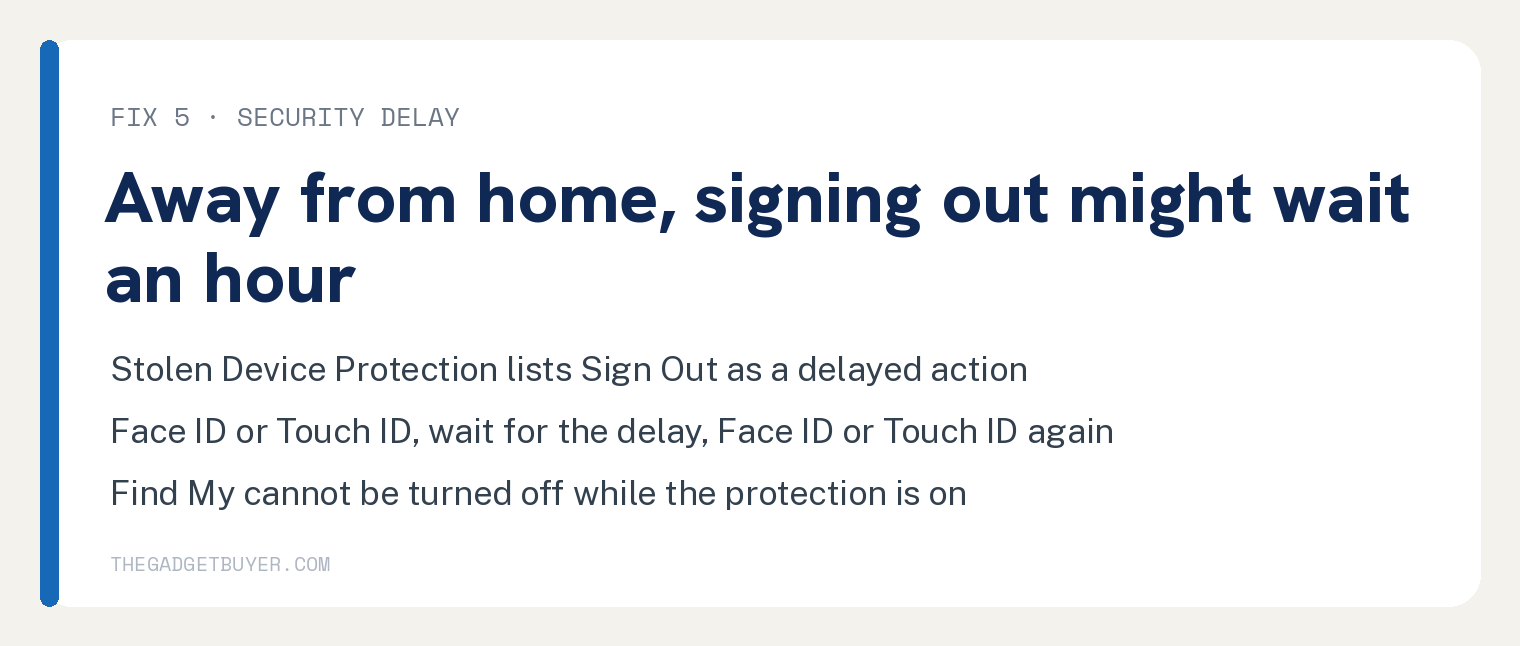
The sequence Apple describes: authenticate with Face ID or Touch ID, wait for the security delay to end, then authenticate with Face ID or Touch ID again. Apple says you may be required to wait an hour.
Your iPhone may end the delay early once it detects that you have arrived at a familiar location.
And in a familiar location, Apple says the extra steps are not required at all. Trying again at home is the fastest fix.
The same protection blocks the Find My route from Fix 4. Apple states that you cannot turn off Find My while Stolen Device Protection is enabled.
The setting lives in Settings, Face ID & Passcode, Stolen Device Protection. Turning it off away from a familiar location starts its own security delay.
If you set Require Security Delay to Always, the wait applies even at home. That is your own setting, and the same Stolen Device Protection screen is where you change it.
Fix 6: A work or school iPhone can block account changes
An iPhone managed by a company or school can carry a device management restriction that Apple calls “Modify account settings”. With it on, users can’t create new accounts or change their user name, password, or other settings associated with their account.
Apple’s deployment guide lists that restriction as one for supervised devices. To see whether your phone has a management profile, open Settings, tap General, then tap VPN & Device Management.
The person who manages the phone controls that restriction. Ask your IT department or school admin to lift it.
Apple’s guide warns that deleting a profile yourself also deletes all the settings, apps, and data tied to it. Ask before you remove anything.
What signing out does to your data
Signing out turns off iCloud and the services tied to it on that iPhone. Apple’s list includes Find My, iCloud Backup, iCloud Drive, iCloud Keychain, iCloud Photos, Messages in iCloud, Apple Pay, and app data for third party apps that use iCloud.
Anything stored in iCloud stays in iCloud. Apple says that information will be removed from your device unless you choose to keep a copy when prompted, so read that prompt before you confirm.
Before you tap Sign Out, make sure you have a current iCloud backup. If you recently changed anything synced with iCloud, Apple’s advice is to wait, or to check iCloud.com or another device to confirm the change has synced.
Apple also states:
- You are also signed out of the App Store, iMessage, and FaceTime. You can sign back in to the App Store with your email or phone number, and use your phone number for iMessage and FaceTime.
- With iCloud+, you lose Private Relay, Hide My Email, HomeKit Secure Video support, and a custom email domain on that device.
- An Apple Watch paired to the iPhone is signed out of iCloud at the same time.
If you only want to stop one feature, such as Photos syncing, Apple’s own suggestion is to change that iCloud setting instead of signing out of everything.
Sign Out still spins after all of that
Apple’s sign out page and its restrictions page carry no step for a Sign Out that spins and never finishes.
What Apple does say is to wait when recent iCloud changes have not synced yet. Give it that time, confirm on iCloud.com that your changes landed, and try again.
If it still hangs, contact Apple Support. Every cause on this page is a setting Apple documents with a way through, so an unlocker tool has nothing to add.
Frequently asked questions
Can I sign out of my Apple ID without the password?
Apple’s sign out step accepts either the passcode for that device or your Apple Account password. Turning off Find My directly asks for the Apple Account password, and Activation Lock requires it before anyone can turn Find My off. If you do not have the password, reset it through Settings, Sign In & Security, Change Password on the trusted iPhone, or at iforgot.apple.com.
Will I lose my photos when I sign out?
Photos stored in iCloud stay in iCloud. Apple says they are removed from the iPhone unless you choose to keep a copy when prompted. A current iCloud backup is Apple’s stated safety net before you sign out.
I bought this iPhone used and the previous owner’s account is on it
Turning off Find My and erasing the phone need that owner’s Apple Account password because of Activation Lock. Our guide on how to remove a previous owner’s Apple ID from an iPhone covers the ways the seller can release it, including from a web browser.
How do I sign in with a different account afterward?
Open Settings and tap Apple Account. Apple gives two choices: Use Another Apple Device, which needs a nearby iPhone or iPad on iOS 17 or later, or Sign in Manually with your email address or phone number and password. If you need a fresh account and want to skip the phone number, see how to create an Apple ID without a phone number.
My iPhone keeps asking for the password instead of letting me sign out
A password prompt that loops is a different problem, and signing out is one of its fixes. Our guide on an iPhone that keeps asking for the Apple ID password runs the fixes in order.
Sources
- Apple: If you can’t sign out due to restrictions, or your Apple Account is grayed out in Settings
- Apple: Sign out of iCloud on your devices
- Apple: If you forgot the Screen Time passcode for an iPhone or iPad
- Apple: About Stolen Device Protection for iPhone
- Apple: If you forgot your Apple Account password
- Apple: Device management restrictions for iPhone and iPad devices