
How to Organize iPhone Photos When You Have Thousands
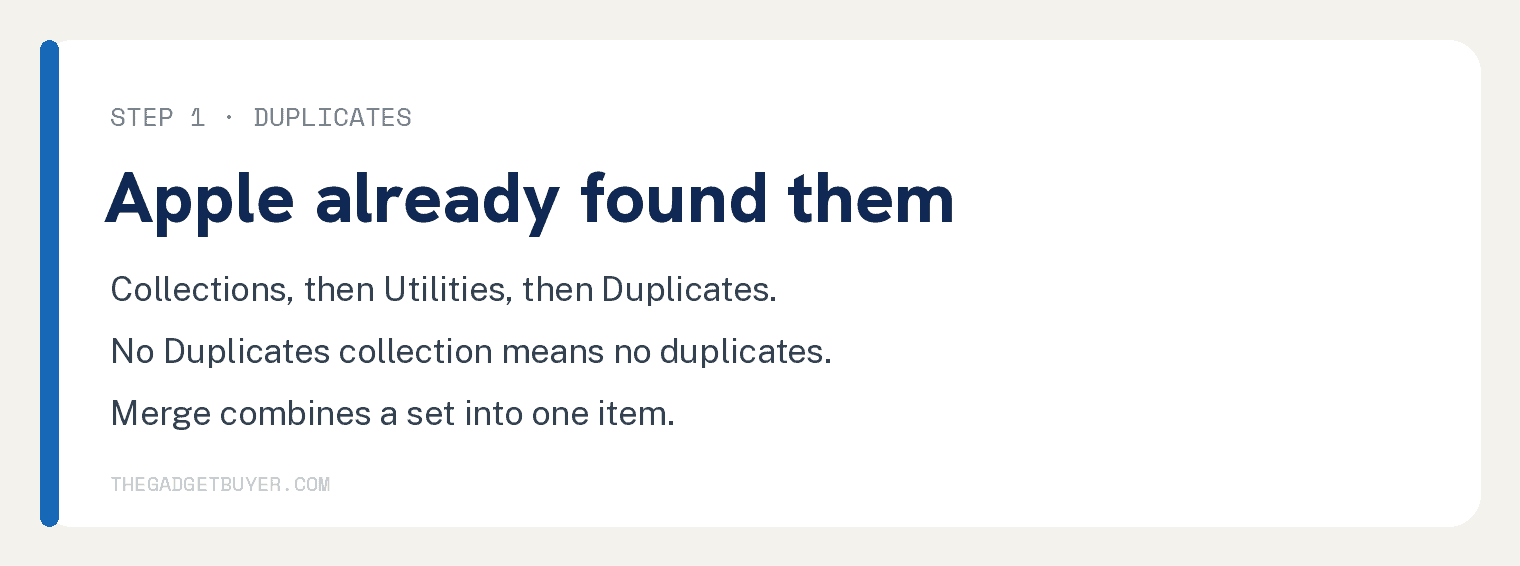
The fastest way to organize iPhone photos is to start with duplicates, because your iPhone already found them for you. Open Photos, tap Collections, tap Utilities, then tap Duplicates and merge the sets it shows you.
That one screen usually clears more clutter in five minutes than an hour of scrolling ever will.
After that the work is about finding things again: albums you actually open, faces the app sorts for you, and a few switches that stop the app from burying what you want.
One warning before you start. The Photos app changed twice in two years, so plenty of advice online points at menus that are no longer there.
Every path below was checked against Apple’s own iPhone User Guide for iOS 26 in August 2026.
Where the organizing tools live in iOS 26
Three buttons sit along the bottom of the Photos app: Library, Collections, and Search.
Library is every photo by date. Collections holds the organizing tools, and it is the tab most people never open.
Apple puts Albums, Recent Days, People & Pets and the rest inside Collections, which is why so many of these tools feel missing.
| What you want | Where it is in iOS 26 |
|---|---|
| Duplicates | Collections, then Utilities, then Duplicates |
| Albums | Collections, then Albums |
| Faces | Collections, then People & Pets |
| Favorites | Collections, in the Pinned row |
| Recently Deleted | Collections, then Utilities |
| Hidden | Collections, then Utilities |
| Recovered | Collections, then Utilities, then Recovered |
| Show Featured Content | Collections, then your account picture, top right |
| Lock settings for Hidden | Settings app, then Apps, then Photos |
Two of those rows are where people give up. The Featured Content switch lives inside the Photos app rather than the Settings app, and the lock toggles moved under a new Apps layer in Settings.
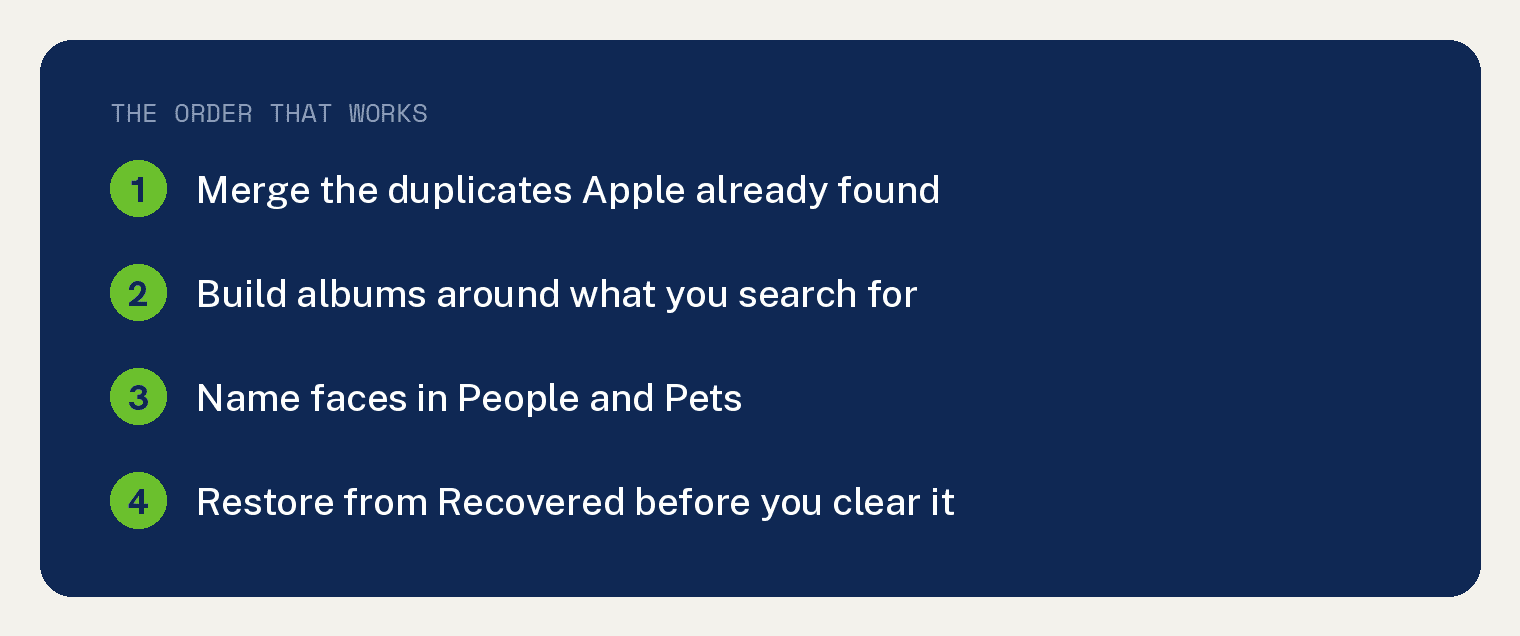
Merge the duplicates Apple already found
The Photos app scans your library on its own and groups matching shots into a Duplicates collection.
- Open the Photos app.
- Tap Collections at the bottom of the screen.
- Scroll down and tap Utilities.
- Tap Duplicates.
- Tap Merge on a set, then tap Merge [number] Items to confirm.
Apple describes merging as a way to combine a set of duplicates to save space and clean up your library, and the app leaves one item where the set used to sit.
If you do not see Duplicates, you do not have any. Apple states it directly: “If you don’t have any duplicate photos or videos in your library, the Duplicates collection doesn’t appear.”
That sentence answers most of the “the Duplicates album is missing” panic online.
Give it time on a large library, because the scan runs in the background and a fresh restore or a big import takes a while to work through.
Build albums around what you search for
Albums named after moods get made once and never opened again.
Name them after the thing you will hunt for in a year: a trip, a house project, a receipt pile, a kid’s school year.
To create one:
- Tap Collections, then tap Albums.
- Tap the add button, then tap New Album.
- Name the album, add photos, and choose a key photo to represent it.
- Tap Create.
Deleting an album never deletes the photos. Apple confirms it: “When you delete an album, the photos and videos within it remain in your photo library and any other albums they were added to.”
That makes albums safe to experiment with, which is the opposite of how most people treat them.
Inside an album you can also change the order. Tap the sort and filter button, then pick newest first, oldest first, or a custom order you drag by hand.
Pin the albums you open weekly. Touch and hold a collection, then tap Pin, and it moves to the Pinned row at the top of Collections.
Filing a few thousand photos without doing it one by one
Selecting photos one tap at a time is what kills these projects on day one.
- Open the Library tab or an album, then tap Select at the top.
- Tap the photos you want. Inside an album, tap Select All to take everything at once.
- Tap the More button, then tap Add to Album and pick the album.
Work in short sessions and file only what you would ever go looking for again.
The rest can stay in the pile. A library where the good photos are findable beats a library where every photo is filed, and nobody ever finishes the second one.
Name faces once and let the app do the filing
The People & Pets collection groups photos by who is in them, including dogs and cats.
Naming a face turns it into a search term, so “Mom” or “Rex” pulls up every shot without an album.
- Tap Collections, then tap People & Pets.
- Tap the person or pet you want to name.
- Tap Name This Person or Name This Pet, then type the name.
- If they are in your contacts, tap their name under Results instead of typing.
Missing someone? Tap Add People at the bottom of the collection to see more faces the app has not surfaced yet.
When the app tags the wrong person, open the photo and swipe up to see its details. Tap the person’s circle in the bottom left corner, tap This is Not [name], then tap Rename This Person or Rename This Pet.
You can also sort the collection itself. Tap Sort, then choose Sort by Name or Sort by Custom Order.
Turn off the Memories if they get in your way
Featured photos and Memories are the slideshows and highlight reels the app builds on its own.
They switch off inside the Photos app, and that is the step most guides get wrong by sending readers to the Settings app.
- Tap Collections.
- Tap your account picture in the top right corner.
- Turn off Show Featured Content to stop automatic featured photos and memories.
- Turn off Show Holiday Events to stop holiday memories.
To quiet one person without turning everything off, open a photo of them and tap the More button, then tap Don’t Feature a Person.
If more than one person is in the shot, tap the face you mean and tap Next. Choose Feature This Person Less or Never Feature This Person, then tap Confirm.
This setting reaches the Photos widget on your Home Screen too, so the same switch quiets both places.
The two locked collections, and the one that deletes forever
Three collections behave differently from everything else in Photos.
Recently Deleted holds deleted photos for 30 days before they are removed from your iPhone, iCloud, and every device on your Apple Account.
Hidden holds photos you chose to hide, and they do not appear anywhere else in the app.
Both are locked by default, and the order of the taps matters. Open Collections, tap the collection below Utilities, tap View Album, then unlock with Face ID, Touch ID, or your passcode.
To turn the lock off, go to Settings, tap Apps, tap Photos, then turn off Use Face ID, Use Touch ID, or Use Passcode.
To take the Hidden collection off the screen completely, turn off Show Hidden Album in that same place.
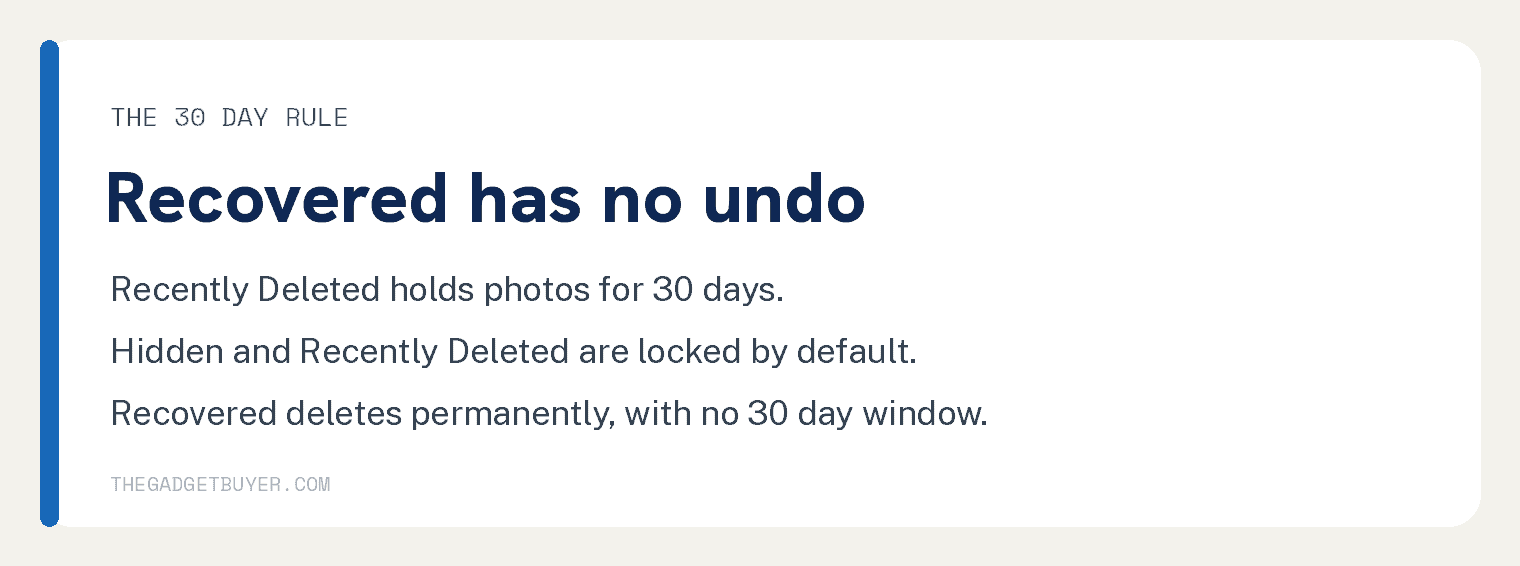
Recovered is the one to handle carefully. It sits at Collections, then Utilities, then Recovered, and Apple says it holds items that were not saved properly and could not be added to your library.
Apple’s warning on it is blunt: “When you delete a recovered photo or video, it’s deleted permanently. You can’t recover photos that you deleted from the Recovered collection in Utilities.”
So open each item first and tap Restore to Library for anything you want to keep. Everything else in Photos gives you a 30 day window, and this collection gives you none.
What Optimize iPhone Storage really does
With iCloud Photos on, your full resolution photos live in iCloud and your iPhone keeps smaller versions to save room.
Apple calls that setting Optimize iPhone Storage, and it is on by default.
The setting lives at Settings, then your name, then iCloud, then Photos. The sync toggle there is now named Sync this iPhone rather than iCloud Photos.
Deleting a photo on your iPhone therefore deletes it from iCloud and every other signed in device, so a cleanup on your phone is a cleanup everywhere.
The copy on your phone may also be a smaller version, which matters when you plan to edit or print. Tap Download and Keep Originals in that same screen to store full resolution copies locally.
If storage is the real problem behind your messy library, checking how much storage your iPhone actually has is the faster first move, and an iPhone backup that keeps growing is usually photos too.
Turning on iCloud Photos is not a backup plan by itself, and who can see your iCloud photos covers the sharing side of that decision.
When you still cannot find a photo
Search does the work albums cannot. Tap Search and type a place, a business name, a category like beach or sunset, an event, a named person, or text that appears in the picture.
Apple lists caption search too, so a one word caption on your important photos becomes a permanent shortcut.
Filters beat reorganizing. Apple’s filters show only videos, only favorites, or only items that are not in an album, and you can stack more than one at a time.
That last filter is the honest tool for a library nobody wants to sort by hand, because it hides everything you have already dealt with.
Photos taken on an iPad follow the same rules, and where AirDrop files land on an iPad answers the other half of the saved it somewhere problem.
Common questions
Does deleting photos from an album delete them from my iPhone?
No. Removing a photo from an album takes it out of that album only, and the photo stays in your library. Deleting from the Library tab is the action that removes it from your iPhone and from iCloud.
Why is the Duplicates album missing on my iPhone?
Because the Photos app hides it when your library has no duplicates. It sits at Collections, then Utilities, and it appears on its own once the app finds matching sets.
How long do deleted photos stay on my iPhone?
Thirty days. Apple keeps deleted photos and videos in the Recently Deleted collection for 30 days, then removes them from all your devices. Inside that window you can recover them or delete them for good.
Can I select a lot of photos at once?
Yes. Tap Select at the top of the library or an album, then tap each photo you want. Inside an album you also get a Select All option for everything in it.
Where did the Albums tab go?
It moved inside Collections. Tap Collections at the bottom of the Photos app, then tap Albums, and pin the albums you use most so they sit at the top of that screen.
Will organizing photos on my iPhone change them on my iPad?
Yes, when iCloud Photos is turned on for both. Apple syncs album changes, deletions, and edits across every device signed in to the same Apple Account.