
AT&T Hotspot Not Working? Check Plan Data, Then the Phone
With an AT&T hotspot not working, check your plan’s hotspot data before any setting on the phone, then the connection between your phone and the laptop or tablet. AT&T says a hotspot slows to a maximum of 128Kbps once you use all the hotspot data in your plan, unless you buy more hotspot data.
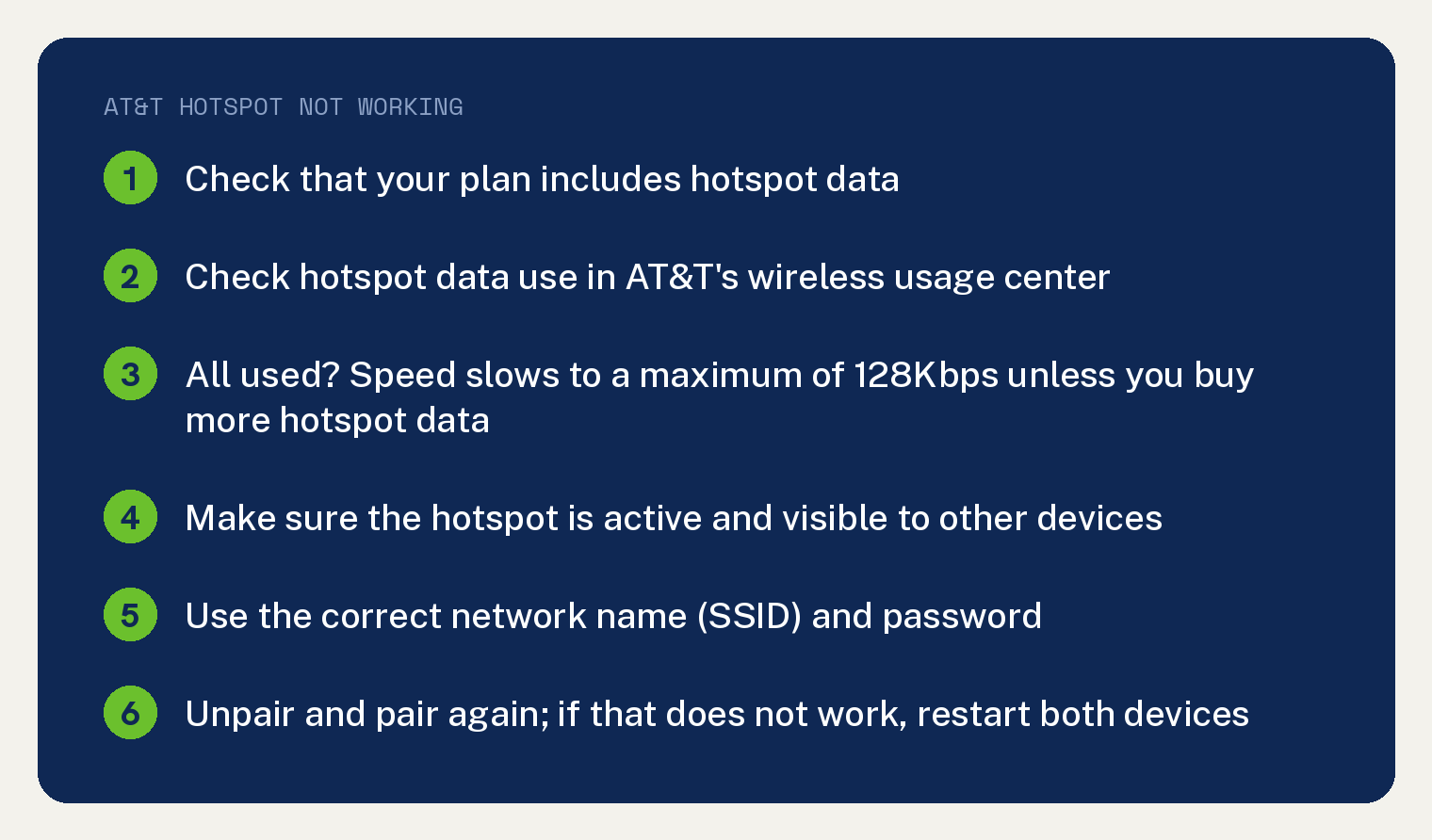
That order is ours. The checks themselves come from AT&T’s own pages, with Apple’s hotspot page added for iPhones.
Does my AT&T plan include hotspot data?
It does if you are on one of the plans AT&T lists, and the amount depends on the plan. AT&T’s Use your device’s hotspot page gives these figures for its Unlimited Your Way group, on a page last updated August 26, 2026.
| AT&T plan | Hotspot data |
|---|---|
| AT&T Elite 2.0 | 250GB |
| AT&T Premium 2.0 | 100GB |
| AT&T Extra 2.0 | 50GB |
| AT&T Value 2.0 | 3GB |
Per that Use your device’s hotspot page, “Many AT&T smartphones and tablets work as a hotspot if you have one of these plans.” Under “Other AT&T plans” it also names AT&T 4GB, AT&T Mobile Share plans and a list of retired unlimited plans.
On an iPhone, a missing Personal Hotspot setting points back to your carrier and plan. Apple’s Personal Hotspot help page puts it this way: “If you can’t find or turn on Personal Hotspot, check that your wireless carrier enabled it and that your wireless plan supports it.”
If your plan has no hotspot data, the Use your device’s hotspot page has the steps to change plans under “Switch to a plan with hotspot data”.
AT&T hotspot connected but no internet, or very slow
Look at your hotspot data before you change a setting. AT&T’s Use your device’s hotspot page carries this heads up: “Once you use all hotspot data in your plan, your hotspot speed slows to a maximum of 128Kbps unless you purchase additional hotspot data.”
According to AT&T’s tethering and mobile hotspot plans page, some plans will slow down “or even cut off” your mobile data after you pass your monthly limit.
To see what you have used, follow the three steps on AT&T’s Check mobile hotspot data use page.
- Go to your wireless usage center. Sign in if asked.
- Select the wireless number you want to check.
- Choose the Data tab, which shows how much data the device has used, if applicable.
Every connected device counts. From AT&T’s Check mobile hotspot data use page: “Every device connected or tethered to your mobile hotspot uses your plan’s data allowance.”
Two of our guides go deeper on hotspot data: how much data a laptop uses on a hotspot and Low Data Mode on a hotspot.
Out of data? As of the August 26, 2026 update of AT&T’s Use your device’s hotspot page, a one time purchase of 10GB of extra hotspot data costs $15, and its use runs for 30 days. AT&T lists Elite 2.0, Premium 2.0 and Extra 2.0 among the current unlimited plans that can add it, along with a second list of unlimited plans named on the page.
If your data is fine, AT&T’s tethering and mobile hotspot plans page gives four checks for slow speeds or “intermittent connectivity issues.”
- Data usage. Make sure you have not gone past your plan’s data limit.
- Signal strength. “If your smartphone or hotspot can’t access the cellular network, you’ll see reduced speeds. Try moving to an area with better reception.”
- Battery saver. Turn off any battery saver settings on your phone, since they can restrict background data use and affect hotspot connectivity.
- Wi-Fi channel. If possible, change the Wi-Fi channel in your hotspot settings to minimize interference from other networks.
One footnote on AT&T’s tethering and mobile hotspot plans page applies to its unlimited plans: “AT&T may temporarily slow data speeds if the network is busy.”
Laptop or tablet won’t connect to an AT&T hotspot
Confirm the hotspot is on and visible, then check the network name and password. Under “Device won’t connect to hotspot or smartphone”, AT&T’s tethering and mobile hotspot plans page lists five fixes.
- Verify the hotspot name and password. “Double-check that your hotspot is active and set to be visible to other devices,” AT&T writes, and “make sure the correct SSID and password are being used.” The SSID is the network name. On a smartphone, check Settings to make sure the hotspot network is visible.
- Update software. Make sure every device’s operating system is up to date. Updated software “can resolve bugs affecting tethering and hotspot functionality.”
- Check carrier restrictions. If you use a smartphone as the hotspot, verify that your plan supports tethering and mobile hotspot use.
- Look for obstructions. Make sure no physical barriers could interfere with the device signals.
- Pair again or restart. Unpairing and pairing the devices again can sometimes refresh the hotspot connection. If that does not work, a restart of both the hotspot device and the devices trying to connect can help.
To turn the hotspot on from an Android phone, AT&T’s tethering and mobile hotspot plans page tells you to open your phone’s Settings, look for Connections or Network & Internet, then tap Mobile Hotspot and Tethering.
AT&T hotspot not working on an iPhone
AT&T publishes a nine step walkthrough for this, written for the iPhone 16 Pro Max. Its hotspot troubleshooting page for the iPhone 16 Pro Max runs in this order.
- Allow Others to Join. Under Settings, then Personal Hotspot, switch it off and back on.
- Cellular Data. Under Settings, then Cellular, switch it off and back on.
- Password. On the connecting device, forget the network and rejoin with the current password, shown under Personal Hotspot as Wi-Fi Password.
- Device limit. AT&T’s step reads: “iPhone supports 5 devices at max.” Disconnect any that do not need the hotspot and try again.
- USB or Bluetooth. If the Wi-Fi hotspot is not connecting, a USB or Bluetooth connection “may be possible work around.”
- Restart your iPhone.
- iOS update. Install any pending update under Settings, General, Software Update. Pending updates “may cause issues with your Wi-Fi connectivity.”
- Maximize Compatibility. Turn it on under Settings, then Personal Hotspot. You “may need to lower your iPhone’s frequency band to help maximize compatibility to connected devices.”
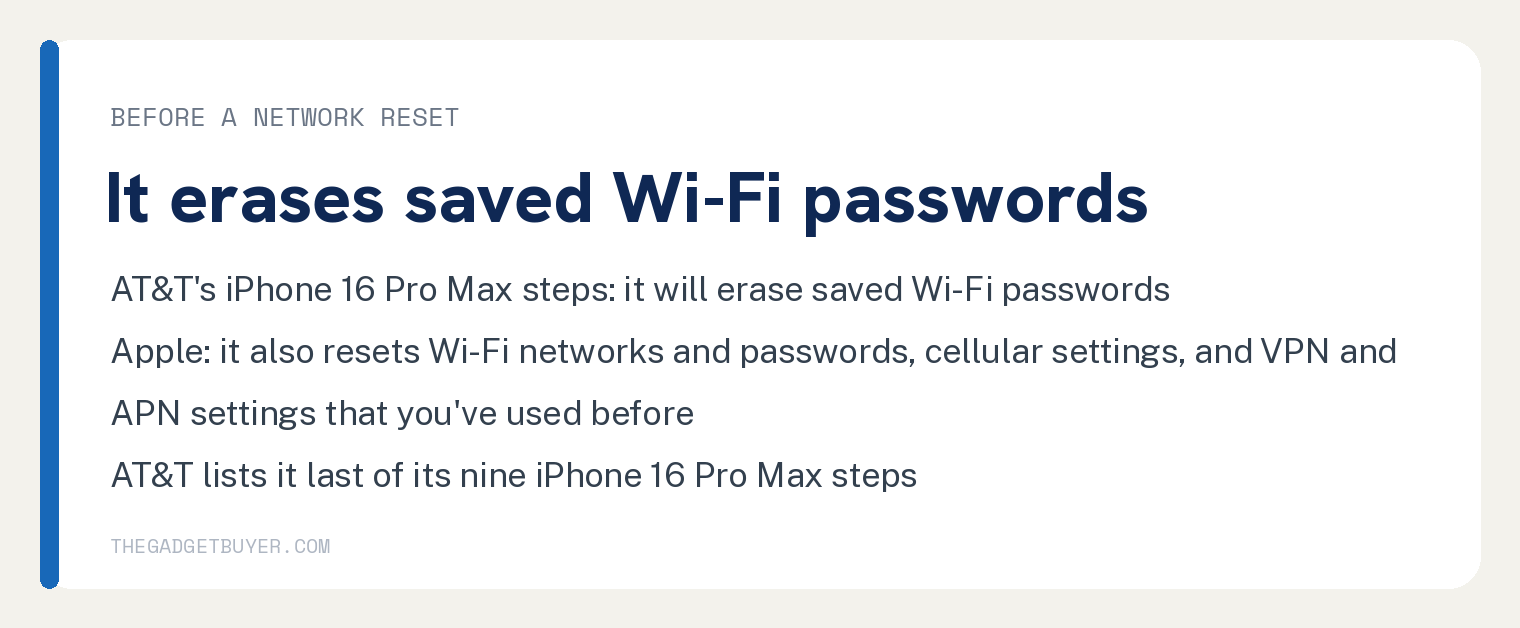
- Reset Network Settings. AT&T’s last step “may help resolve connectivity issues for hotspot” and comes with a warning: “This will erase saved Wi-Fi passwords.” The path on that page is Settings, General, Transfer or Reset iPhone, Reset, Reset Network Settings.
Apple’s Personal Hotspot help page lists Maximize Compatibility for an iPhone 12 model or later and certain iPad models, and says that with it on, “internet performance and Wi-Fi security might be reduced for devices connected to the hotspot.”
On Reset Network Settings, Apple’s Personal Hotspot help page reads: “This also resets Wi-Fi networks and passwords, cellular settings, and VPN and APN settings that you’ve used before.”
On another iPhone or a cellular iPad, follow Apple’s Personal Hotspot help page. It tells you to “Try connecting to Personal Hotspot again after each step,” and to stay on the Personal Hotspot screen until your other device connects to the Wi-Fi network.
Can I use USB or Bluetooth instead of Wi-Fi?
Yes. Per AT&T’s Use your device’s hotspot page, a hotspot connects other devices “through Wi-Fi®, Bluetooth®, or a USB cable.”
If a USB connection fails too, AT&T’s tethering and mobile hotspot plans page lists three things to try under “USB tethering connection isn’t working”.
- Try a different USB cable or port to rule out hardware issues.
- On Android devices, enabling USB Debugging in the Developer Options “might help the device recognize the connection for tethering.”
- Reset network settings. This can resolve lingering connectivity issues “but will erase all saved Wi-Fi networks and passwords.”
How many devices can connect to an AT&T hotspot?
It depends on the phone and carrier. According to AT&T’s tethering and mobile hotspot plans page, the number “varies by phone and carrier but typically ranges from five to ten,” and “connecting multiple devices may impact the internet speed for each device.”
For the iPhone 16 Pro Max, AT&T’s hotspot troubleshooting page for that phone reads: “iPhone supports 5 devices at max.”
Hotspot still down? Take it to AT&T
Contact AT&T and ask it to confirm that your plan includes hotspot data and that hotspot is enabled on your line. Tell the rep which checks you have already run.
If you are on the hotspot because your home service is down, see what to check when AT&T internet keeps dropping.
On T-Mobile instead? Our T-Mobile hotspot not working guide covers that carrier’s own checks.
Sources
- Use your device’s hotspot (AT&T Support)
- Check mobile hotspot data use (AT&T Support)
- AT&T tethering and mobile hotspot plans, explained (AT&T)
- Troubleshooting why my personal hotspot isn’t working (AT&T device help center, iPhone 16 Pro Max)
- If Personal Hotspot is not working on your iPhone or iPad (Wi-Fi + Cellular) (Apple Support)