
Verizon Call Forwarding Not Working With *72 or *73
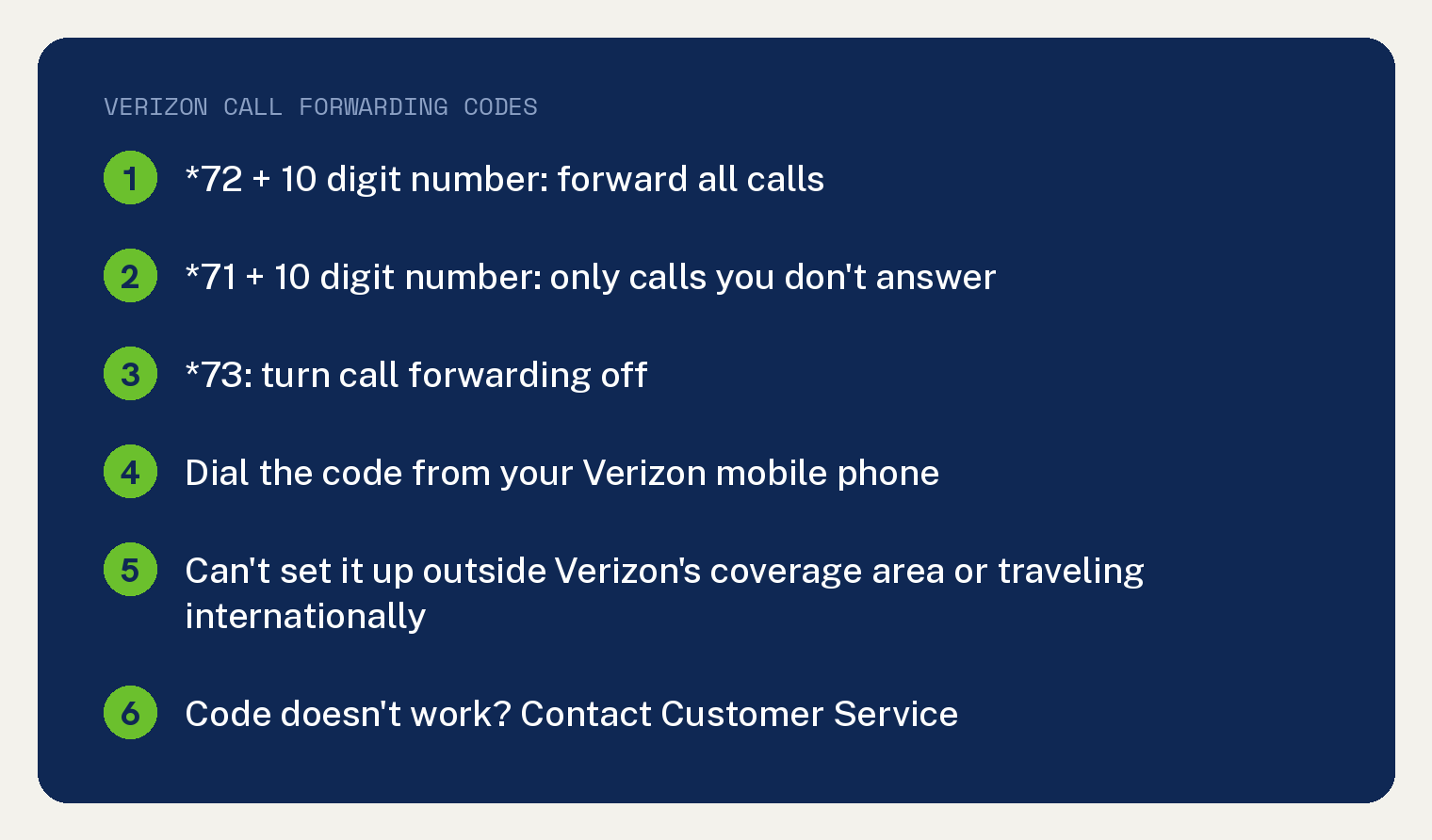
For Verizon call forwarding not working, redial the code from your Verizon phone. Use *72 plus the full 10 digit number to forward every call, or *73 to turn forwarding off, and contact Customer Service if the code still fails.
Why does my phone still ring with Verizon call forwarding on?
Your phone rings first when forwarding was set up with *71. Verizon’s Turn Call Forwarding On from Device page says this Conditional Call Forwarding sends a call on when your phone is “busy or unanswered after 3-6 rings instead of being sent to voicemail.”
To forward every call without a ring, use *72. Verizon’s Turn Call Forwarding On from Device page says that with Immediate Call Forwarding, “all calls are routed to the designated number instead of your phone.”
Verizon’s Call Forwarding FAQs say that when forwarding is turned on, “your mobile phone won’t ring when you receive a call.”
After you dial, Verizon’s Turn Call Forwarding On from Device page says to “Listen for a series of beeps then wait for call to automatically end.” It adds: “If you don’t have your device or *72 doesn’t work, contact Customer Service to turn Call Forwarding on/off.”
Why do callers get a busy tone after I forward my calls?
Check the forwarding number first. Verizon’s Call Forwarding FAQs say that if callers hear a busy tone, “you may want to check that the call was forwarded to the correct phone number.”
Verizon’s FAQs add that extra buttons sometimes get pressed during setup, and then “the number won’t be recognized.”
To fix it, set forwarding up again from your mobile phone. Dial *72 plus the forwarding number, with its area code.
For the User Busy message on an iPhone, see what User Busy on an iPhone means.
What numbers can Verizon forward calls to?
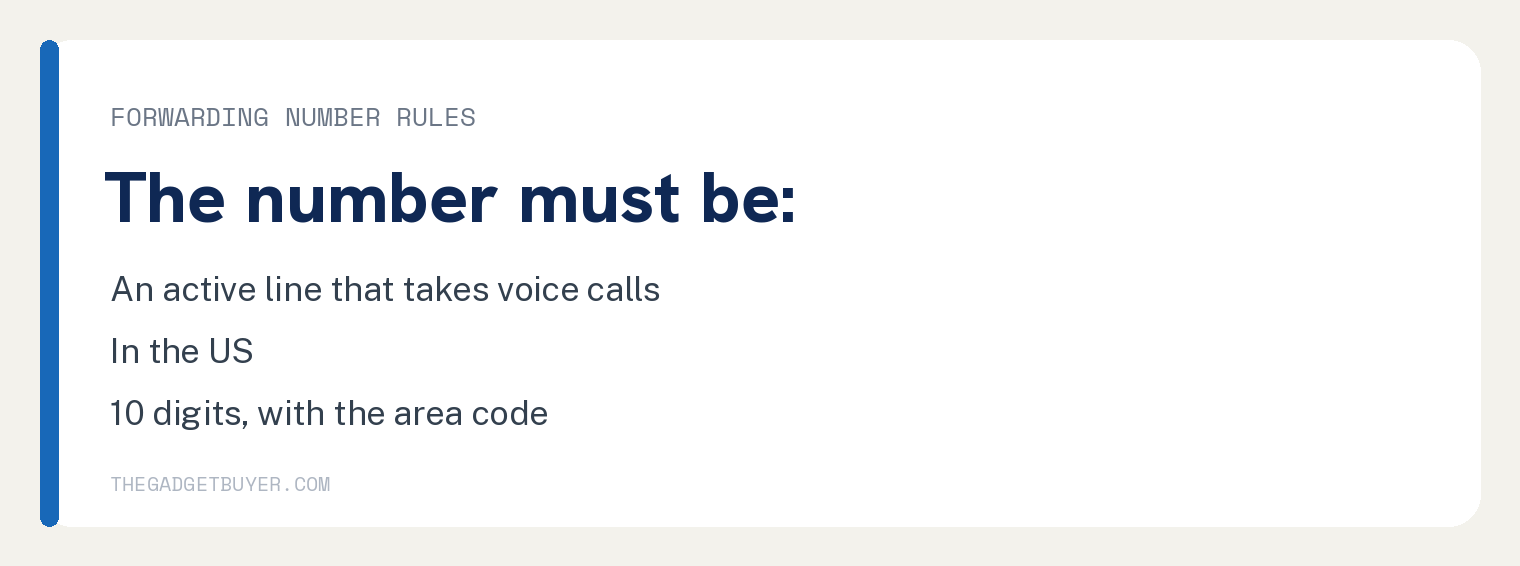
Verizon forwards calls to an active US line that takes voice calls, entered as 10 digits. Verizon’s Call Forwarding FAQs say the number you forward to must be:
- An active line that can take voice calls.
- In the US.
- 10 digits long, with the area code included even for a local number.
International numbers will not work. The FAQs say “Calls can’t be forwarded to an international number.”
Can I set up Verizon call forwarding while traveling?
Set it up before you leave Verizon’s coverage. Verizon’s Call Forwarding FAQs say “You won’t be able to set up Call Forwarding if you’re outside the Verizon mobile coverage area or traveling internationally.”
Forwarding you turn on before roaming “should continue to work while you’re traveling,” the FAQs add.
Verizon’s Turn Call Forwarding On from Device and Turn Call Forwarding Off from Device pages both say that outside the Verizon wireless coverage area, “use of a * (star) code may not be available.”
Why won’t Verizon call forwarding turn off?
Dial *73 from the phone whose calls are being forwarded, then listen for the beeps. Verizon’s Turn Call Forwarding Off from Device page gives that step for the device you want to stop forwarding.
The confirmation may sound like a busy signal. Verizon’s Call Forwarding FAQs say you “should hear a confirmation tone or message that may sound like a busy signal” once forwarding is off.
If *73 doesn’t work, the Turn Call Forwarding Off from Device page says to contact Customer Service.
If you still aren’t getting calls after that, Verizon’s Turn Call Forwarding Off from Device page says to check settings such as Do Not Disturb, blocking and Quiet Mode, and apps such as Verizon Family, that restrict incoming calls. For the iPhone side, see our guide to an iPhone not ringing on incoming calls.
Can I change call forwarding in My Verizon or without my phone?
Plan on using your phone or calling Customer Service. Verizon’s Call Forwarding FAQs answer the no phone question with “No, you can’t manage Call Forwarding without using your mobile phone.”
The FAQs then say “If you need immediate assistance, call Customer Service at 800-922-0204.”
A Verizon article, Call Forwarding: Everything You Need to Know, says “You can also activate Call Forwarding through My Verizon.” That article is labeled Last Reviewed 2.3.2023.
That article adds: “If you’ve left your phone at home, for example, you don’t have to make yourself late for work going back for it.”
The two Verizon pages differ on this, so our advice follows the support FAQ we read on November 25, 2026. Use the codes from your phone, and call Customer Service when a code fails or your phone is not with you. Both pages give the same Customer Service number.
Does the iPhone Call Forwarding setting work on Verizon?
It depends on your network type, according to Apple’s iPhone User Guide for iOS 27. The guide says “You can set up call forwarding on iPhone if you have cellular service through a GSM network.”
For a CDMA network, Apple says to “contact your carrier for information about setting up call forwarding.”
Apple’s path is Settings, then Apps, then Phone, then Call Forwarding. Apple also says “You must be in range of the cellular network when you set iPhone to forward calls, or calls won’t be forwarded.”
Does Verizon call forwarding forward text messages?
No, only calls. Verizon’s Call Forwarding FAQs say “Call Forwarding won’t forward text messages you receive on your mobile phone, only calls.”
To keep up with texts, the FAQs say that with Verizon Messages (Message+) set up on your phone, “you’ll be able to read your texts and reply to them online.”
More Verizon fixes: Verizon WiFi Calling not working and how to switch phones on Verizon.
Sources
- Call Forwarding FAQs (Verizon Support)
- Turn Call Forwarding On from Device (Verizon Support)
- Turn Call Forwarding Off from Device (Verizon Support)
- Call Forwarding: Everything You Need to Know (Verizon)
- Set up call forwarding on iPhone (Apple Support)