
When AT&T Internet Keeps Dropping, Check These First
If your AT&T internet keeps dropping, check for an outage first, then restart your Wi-Fi gateway or All-Fi Hub. Unplug it from the wall and the back of the device, wait 20 seconds, and plug it back in, because AT&T says restarting can fix many common internet issues.
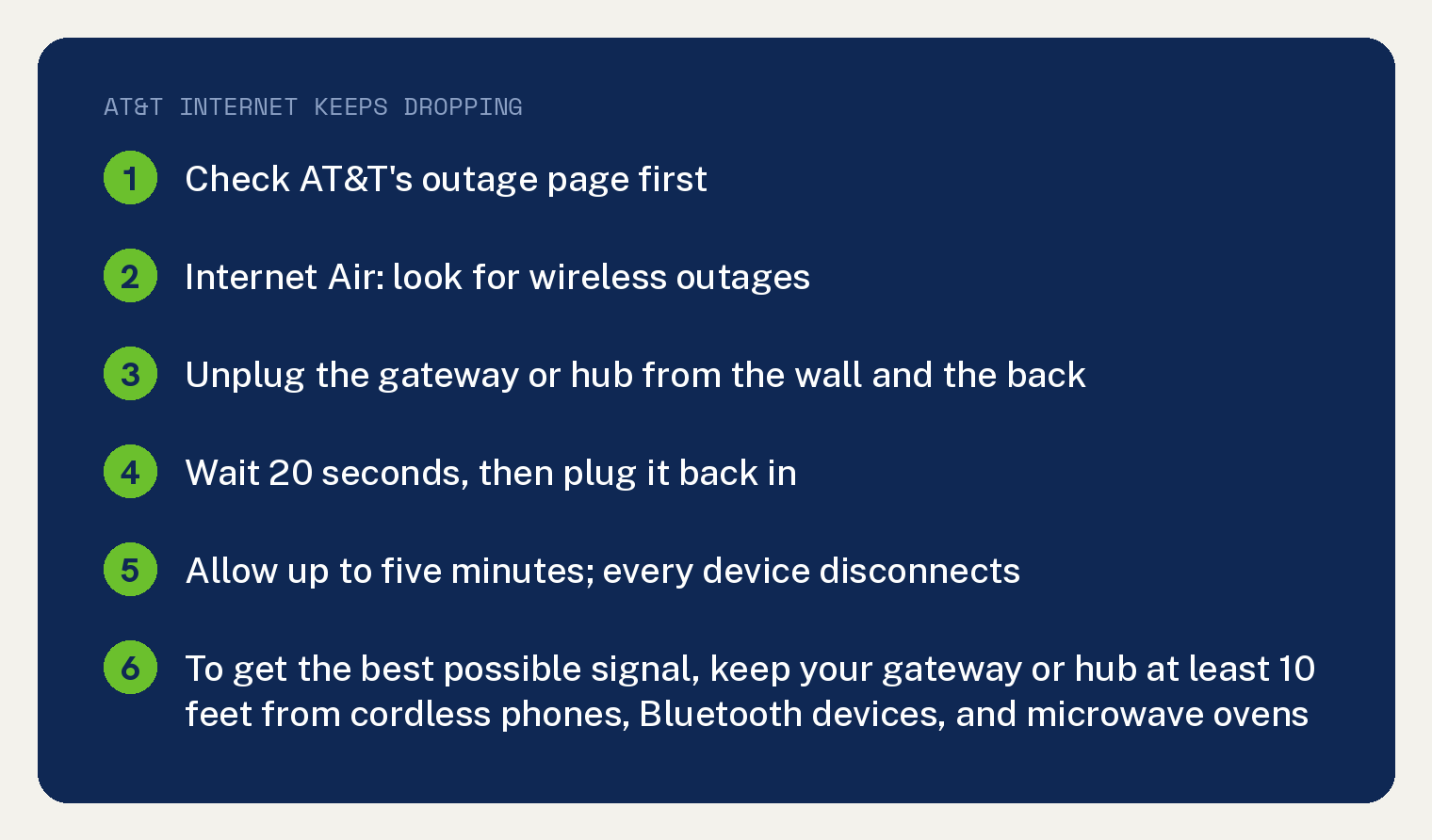
The order in this guide is ours. It starts with the check that changes nothing and ends with the reset that deletes your custom settings.
Is AT&T having an outage in your area?
Rule out an outage before you touch your equipment. Per AT&T’s Troubleshoot your internet page, “Sometimes widespread issues affect entire areas,” and that page links to AT&T’s outage page.
On the outage page, you sign in “to see if there are any service outages for your address or account.”
Have Internet Air? The Troubleshoot your internet page tells you to look for wireless outages.
How do I restart an AT&T gateway or All-Fi Hub?
Do a full power restart. These are AT&T’s steps from its Troubleshoot your internet page:
- Unplug the power cord from the back of the gateway or hub and from the wall. If it has an internal battery backup, remove the battery.
- Wait 20 seconds. Put the battery back in if you took one out.
- Plug the power cord back in. The restart may take up to five minutes.
All your devices lose their connection while it restarts. AT&T warns that a restart “will disconnect all devices from the internet or Wi-Fi®” and that it may take up to five minutes for your devices to reconnect.
Watch the lights once it is back. AT&T says the status lights on your device “give you valuable info about your internet status.” For a red light, see what AT&T broadband blinking red means.
Can I restart it from the Smart Home Manager app?
Yes, on the gateways and hubs AT&T lists as compatible. AT&T’s Restart or reset your All-Fi Hub or Wi-Fi gateway page gives these app steps:
- Open the Smart Home Manager app.
- Select Network (the Wi-Fi icon).
- Scroll to and select Restart Wi-Fi.
- Select Restart again.
The same Restart or reset page lists these gateways and hubs as compatible with Smart Home Manager:
- BGW720, BGW620, BGW320, BGW210
- BGW830, BGW530, CGW450
- NVG599, NVG589
- Pace 5268AC, Pace 5168, Pace 5031NV
- 2Wire 3600HGV, 2Wire 3801HGV, 2Wire 3800HGV-B
Where should my AT&T gateway sit for the best signal?
Put it out in the open, near the middle of your home. AT&T’s Maximize Wi-Fi networking page says that, depending on your building design, your gateway or hub “may not be able to reach certain areas.” Its tips for the best possible signal:
- Place the gateway or hub in a central spot, upright on a raised surface such as a desk or shelf.
- Keep the front clear and facing the space where you use most of your devices.
- Keep it at least 10 feet from cordless phones, Bluetooth devices and microwave ovens.
- Keep it away from heat sources, moisture, excessive dust, extreme cold and large metal objects.
To find weak spots, use Smart Home Manager. According to AT&T’s Explore Smart Home Manager page, the app can “test your Wi-Fi speeds and check for weak signals,” and that feature is available on the mobile app only.
The Explore Smart Home Manager page says: “You can use Smart Home Manager if you have AT&T Internet, Internet Air™, or Small Business Internet with select Wi-Fi® gateways or All-Fi™ Hubs.”
Do fewer Wi-Fi devices or a cable help?
Yes, for speed. On its Maximize Wi-Fi networking page, AT&T writes that “Direct wired connections provide the fastest speeds” and that they free up Wi-Fi bandwidth.
AT&T suggests plugging devices that stay in one place, such as PCs, game consoles, printers and smart TVs, into the gateway or hub with Ethernet cables.
AT&T adds that you can often find 10 or more devices on one Wi-Fi network, which “creates overcrowding and slows things down.” Turn off devices you are not using.
To size your plan for a busy home, see what internet speed you need.
What if only one device keeps dropping off?
Update that device. AT&T’s Maximize Wi-Fi networking page advises: “To improve your connection, make sure your Wi-Fi-enabled device and network adapter run the latest software updates and device drivers.”
AT&T’s Maximize Wi-Fi networking page adds: “To confirm you have the latest drivers available, visit your network card or device manufacturer’s website and look for a Support or Driver link.”
If it is an iPhone, see why an iPhone keeps disconnecting from WiFi. To sort out whether the trouble sits with your service or your equipment, read is it your internet or your router.
Should I factory reset my AT&T gateway?
Only after the restart and the placement tips, which is why it sits last in our order. AT&T’s Restart or reset your All-Fi Hub or Wi-Fi gateway page warns that a reset returns the gateway or hub to original factory settings and “will delete any custom settings such as custom Wi-Fi network names and passwords.”
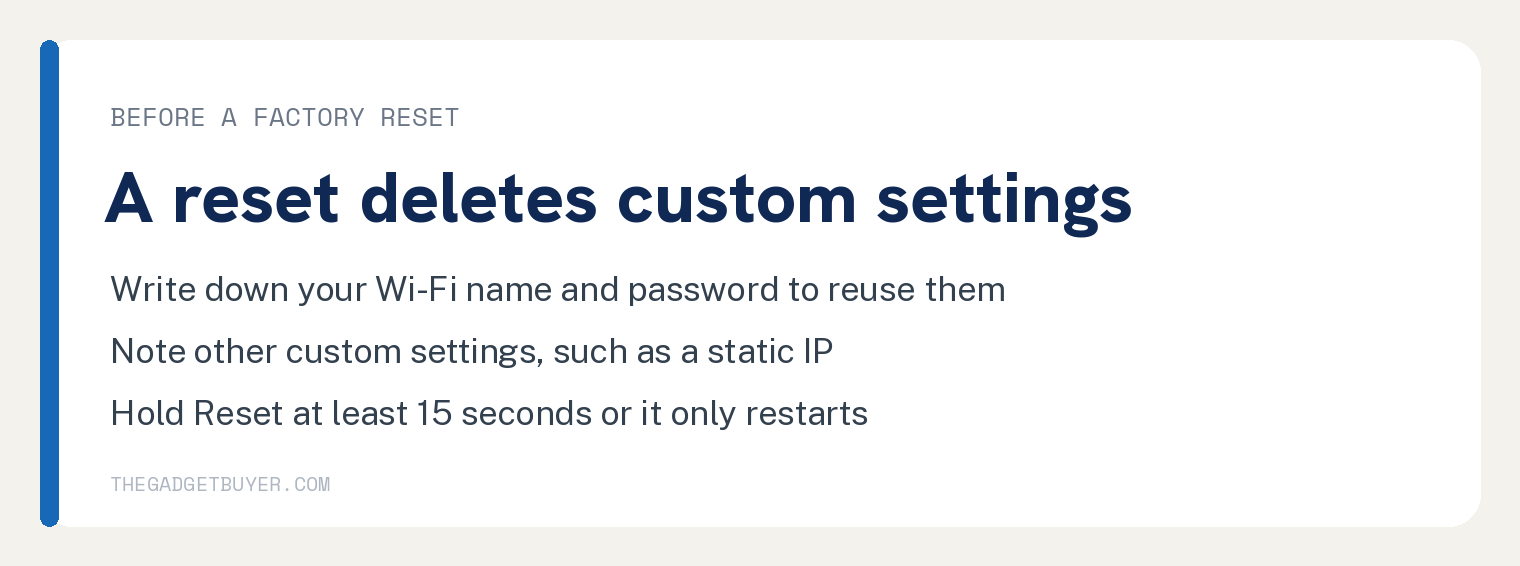
Before you reset, write down your Wi-Fi name and password if you want to use them again. Note any other custom settings too, such as a static IP address.
AT&T’s reset steps start with these three:
- Find the red Reset button on the hub or gateway. AT&T says “It’s usually found on the back of the device.”
- Press and hold Reset for at least 15 seconds. AT&T warns: “If you let go before 15 seconds, it will restart, but it won’t reset.”
- Wait for it to come back online. This may take up to 10 minutes.
After the reset, AT&T says that if you had a custom Wi-Fi name and password, change your Wi-Fi info so your devices can reconnect.
What if my AT&T internet still keeps dropping?
Ask AT&T’s virtual assistant. AT&T’s Explore Smart Home Manager page says to select the chat icon in the Smart Home Manager app to reach it.
The app works with AT&T Internet, Internet Air or Small Business Internet “with select Wi-Fi® gateways or All-Fi™ Hubs,” per that same Explore Smart Home Manager page.
Sources
- Troubleshoot your internet (AT&T Support)
- Restart or reset your All-Fi Hub or Wi-Fi gateway (AT&T Support)
- Maximize Wi-Fi networking (AT&T Support)
- Explore Smart Home Manager (AT&T Support)
- Service outage info (AT&T)