
iPhone Wi-Fi Calling Not Working Starts With Your Carrier
iPhone Wi-Fi Calling not working comes down to two checks Apple puts before you touch a single setting: confirm your carrier offers Wi-Fi Calling, and confirm the iPhone is on current software. If both are true and it still fails, Apple’s next step is to contact your carrier, and only after that call does Apple give you an eight step list for the phone itself.
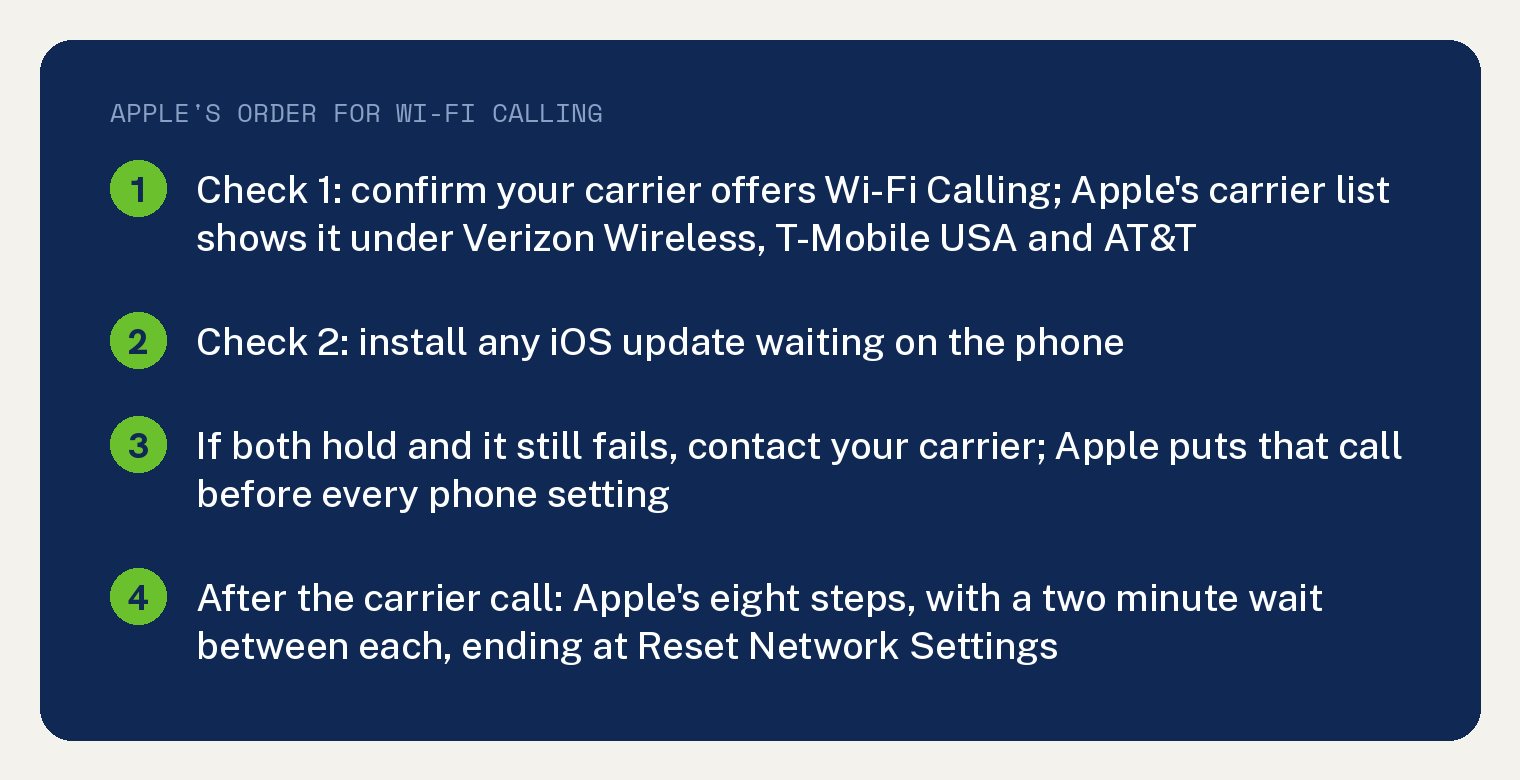
That order is Apple’s, and it puts the carrier ahead of every setting on the phone. Apple’s troubleshooting section opens with it: “If you can’t turn on or use Wi-Fi Calling, verify that your carrier offers Wi-Fi Calling and that your devices have the latest software”.
Apple’s page was published on October 07, 2026, so the steps below are current as of this writing.
Check 1: does your carrier offer it?
Apple keeps a page of US and Canadian carriers with the iPhone features each one supports, and Wi-Fi Calling is one of the lines. Find your carrier on it and look for Wi-Fi Calling under its name.
Under Verizon Wireless, T-Mobile USA and AT&T, Apple’s list shows Wi-Fi Calling, and each of those three also shows “Wi-Fi Calling on supported iCloud-connected devices”.
If you are on a smaller carrier or a prepaid brand, read its own entry on that page rather than assuming. The page is organised by country, and Apple’s instruction is to “Choose your country or region to learn about the wireless carriers available to you.”
Check 2: update the software, then call the carrier
The second check is software: Apple’s words are “your devices have the latest software”. Install any iOS update waiting on the phone before you go further.
With the carrier confirmed and the software current, the next stop is the carrier itself. Apple’s words: “If you’re unable to turn on or use Wi-Fi Calling, your device software is up to date, and your carrier supports Wi-Fi Calling, contact your carrier”.
Apple’s page prints no carrier account step and no carrier app step (counted on the page: zero hits for the phrases carrier app, account app, My Verizon, T-Mobile app and myAT&T). The carrier is the one to explain its own side.
Our Spectrum Wi-Fi Calling piece covers the home internet side of the same question.
Apple’s eight steps, after the carrier call
Apple’s step list is for one situation, and it says so: “If you contacted your carrier and can’t turn on Wi-Fi Calling or make a Wi-Fi call, follow these steps.” Apple adds a timing rule: “Wait two minutes before you go from one step to the next.”
In Apple’s order, with the two minute wait between each:
- “Open the Settings app, then tap Cellular. If your iPhone has multiple SIMs, tap the line you want to use Wi-Fi Calling.”
- “Tap Wi-Fi Calling and make sure that Wi-Fi Calling is on.”
- Restart your iPhone.
- “Connect to a different Wi-Fi network. Not all Wi-Fi networks work with Wi-Fi Calling.”
- “Turn Wi-Fi Calling off and then on again.”
- “Go back to Settings and tap General.”
- “Tap Transfer or Reset iPhone, then tap Reset.”
- “Tap Reset Network Settings.”
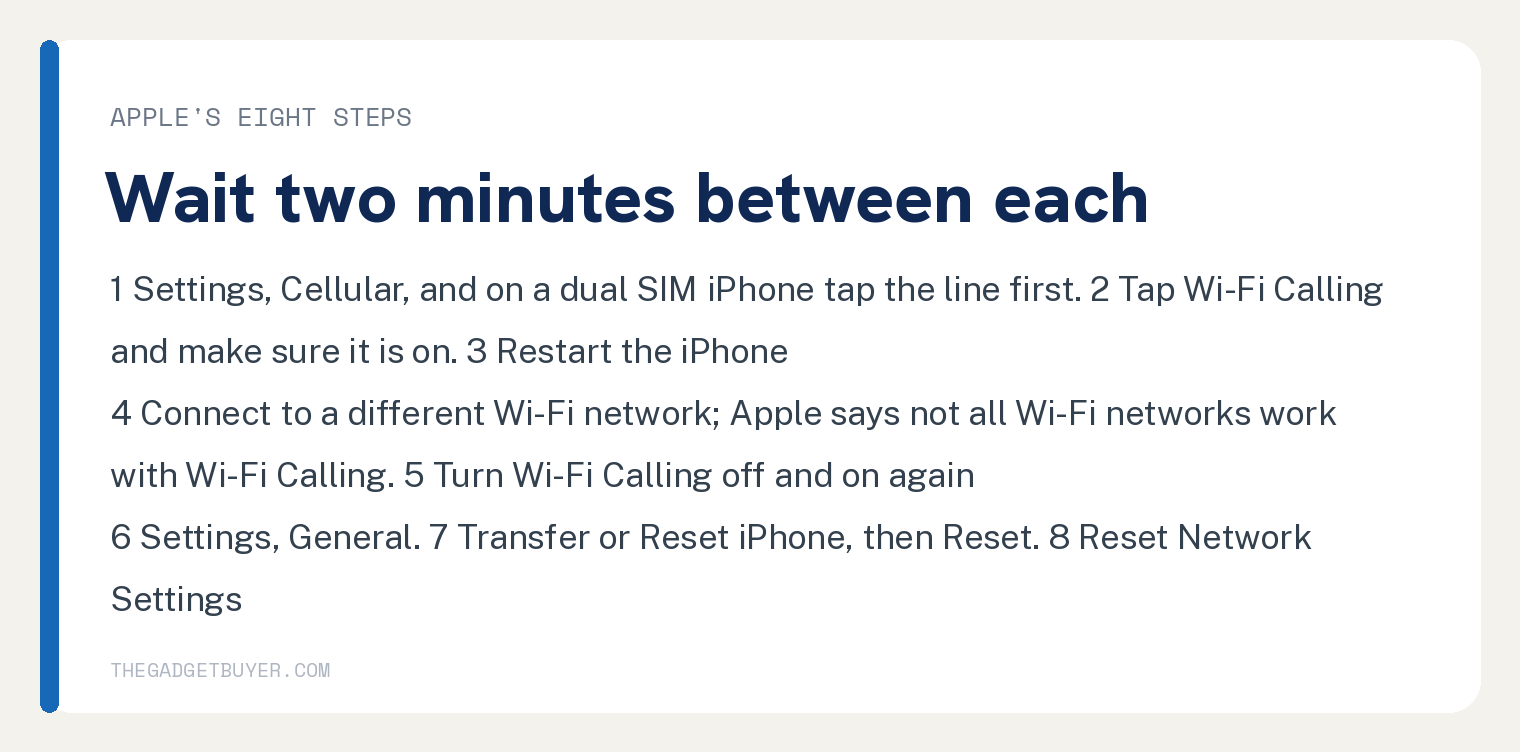
Step 1 carries the dual SIM detail. On an iPhone with two lines you tap the line you want before you look for the switch.
Step 4 is the one step that moves you to another Wi-Fi network. Apple’s own line is “Not all Wi-Fi networks work with Wi-Fi Calling”, and the page prints no router, modem or port setting to change (zero hits for router, modem and firewall, and zero for the standalone word port).
What step 8 removes before you tap it
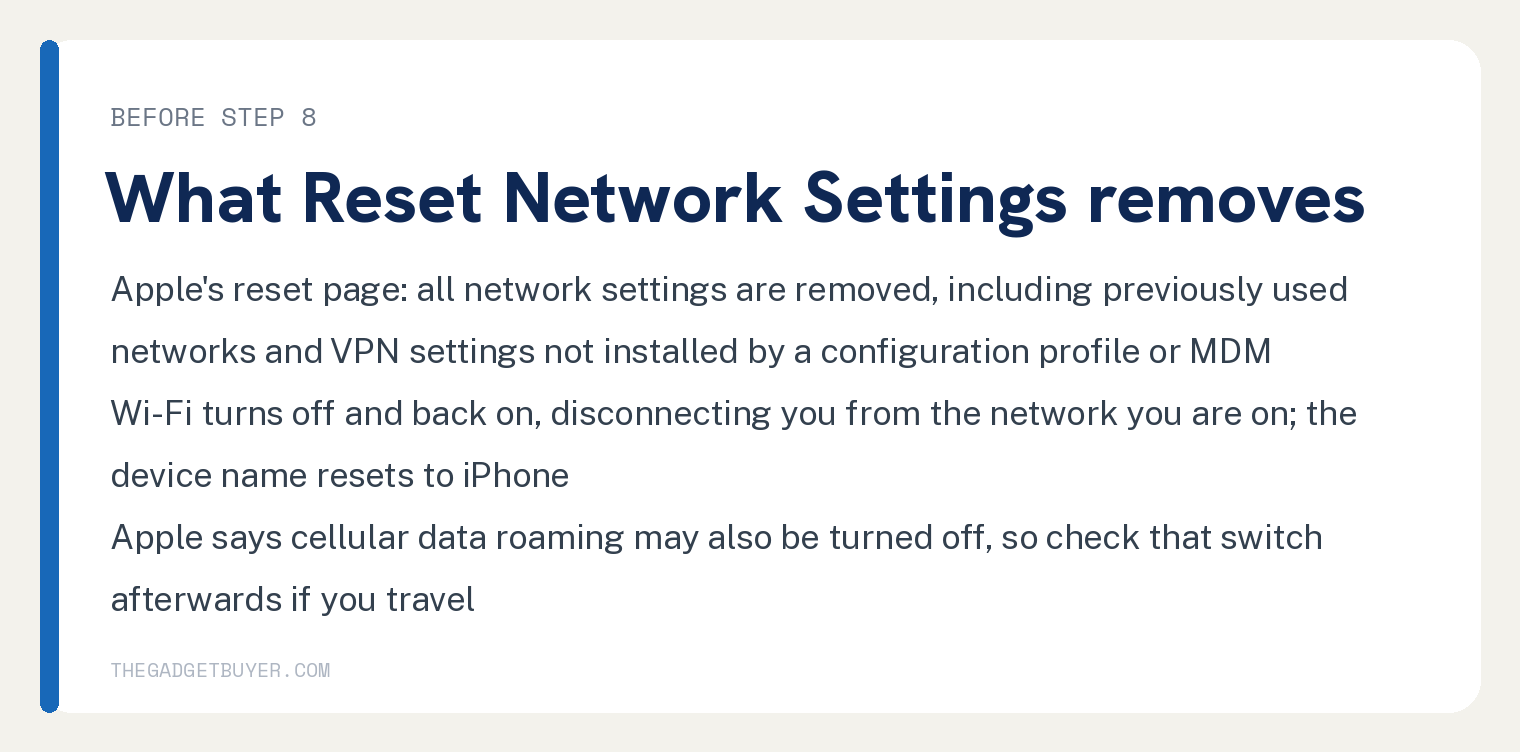
Reset Network Settings is Apple’s last step, and the Wi-Fi Calling page prints nothing beside it about what it clears. Apple’s iPhone User Guide does, on its reset page, and the first line is “All network settings are removed.”
The guide spells out what goes with that: “When you reset network settings, previously used networks and VPN settings that weren’t installed by a configuration profile or mobile device management (MDM) are removed. Wi-Fi is turned off and then back on, disconnecting you from any network you’re on.”
Two more lines from the same page are worth reading first. Apple says the device name is reset to iPhone and that “Cellular data roaming may also be turned off.”
Apple’s reset page says “If you want to save your settings, back up iPhone before resetting it.” It also prints that “The Wi-Fi and Ask to Join Networks settings remain turned on.”
Have your Wi-Fi passwords to hand before you tap it, and check the roaming switch afterwards if you travel.
How to tell it is working
Open Control Center and look at the status bar: “If Wi-Fi Calling is available, you’ll see” the word Wi-Fi there, and in Apple’s words from the same sentence, “Then your calls will use Wi-Fi Calling.”
If you are turning it on for the first time, the path under Apple’s heading “Turn on Wi-Fi Calling” is Settings, Cellular, then Wi-Fi Calling, then “turn on Wi-Fi Calling on This iPhone”. Apple’s last step there is “Tap Enable. You might need to enter or confirm your address for emergency services.”
That address is for emergency calls. Apple says that when cellular service is available the iPhone uses it for emergency calls, and that “If you turn on Wi-Fi Calling and cellular service isn’t available, emergency calls might use Wi-Fi Calling.”
If it works on the iPhone but not your iPad, Mac or Watch
Calls on other devices are a separate carrier feature. Apple’s condition is “If your carrier supports Wi-Fi Calling on iCloud-connected devices”, which is the second Wi-Fi Calling line under Verizon Wireless, T-Mobile USA and AT&T on the carrier list above.
When a device will not add, Apple’s list under “If you can’t add a device” has two items. First, “On your iPhone, make sure that Wi-Fi Calling and Allow Calls on Other Devices are on and that your device appears under Allow Calls On.”
Second, “Make sure that you’re using the same Apple Account for FaceTime and iCloud on your iPhone and your other device.”
If the phone is not ringing at all rather than failing over Wi-Fi, start with iPhone not ringing on incoming calls. A Last Line No Longer Available message on a dual SIM iPhone has its own fix in Last Line No Longer Available on iPhone, and if you just moved your line to this phone, how to switch phones on Verizon covers the activation steps.
Frequently asked questions
Why is there no Wi-Fi Calling option in my iPhone settings?
Apple’s first check covers this: verify that your carrier offers Wi-Fi Calling. Apple’s carrier support page shows the iPhone features each listed carrier supports, with Wi-Fi Calling as one of the lines, and on a dual SIM iPhone the switch sits under each line, so scroll to the line you want to use first.
Does Wi-Fi Calling work on every Wi-Fi network?
No. Apple’s own line is “Not all Wi-Fi networks work with Wi-Fi Calling”, and its step for that case is to connect to a different Wi-Fi network. Apple’s page prints no router or port setting to change.
Will Reset Network Settings delete my photos or apps?
No. Apple’s reset page says “You can return your iPhone settings to their defaults without erasing your content.” For Reset Network Settings it says “All network settings are removed.”, the device name is reset to iPhone, and “Cellular data roaming may also be turned off.”
What is the error message when Wi-Fi Calling fails?
Apple’s Wi-Fi Calling page prints no error message text (zero hits for the words error, unavailable, could not and failed). It describes the failure as being unable to turn on or use Wi-Fi Calling, and the checks above are its answer for both.