
Why Your AirPods Keep Switching Between Devices
Your AirPods keep jumping to another device because a feature called Automatic Switching is turned on. Turn it off on each device in Settings, and your AirPods will stay put.
The full steps are below, plus why it happens and how to make the switch work smoothly when you do want it.

Why your AirPods switch on their own
Apple built AirPods to follow your audio. When you start a video on your iPad, the AirPods hop from your iPhone to the iPad on their own.
This only happens when your devices are signed into the same Apple Account. That is why your own iPhone, iPad, and Mac all try to grab the AirPods, but a friend’s phone does not.
The idea is helpful in theory. In real life it often grabs the AirPods at the wrong moment, like when a Mac notification steals them from a phone call.
How to stop AirPods from switching
You turn this off one device at a time. Start with the device that keeps stealing your AirPods.
- Put your AirPods in your ears and make sure they are connected to that device.
- Open the Settings app (the gray gear icon).
- Tap Bluetooth near the top.
- Find your AirPods in the list and tap the letter i inside a circle next to them.
- Tap Connect to This iPhone. On an iPad it reads Connect to This iPad.
- Tap When Last Connected to This iPhone.
That switches it from Automatically to manual. Now the AirPods stay with that device until you connect them somewhere else yourself.
You have to repeat these steps on every device you own, since the setting lives on each one separately.
When you should leave switching on
Automatic Switching is worth keeping if you bounce between devices all day and rarely fight it.
It shines when you finish a show on the iPad and pick up a call on the iPhone without touching a thing. If that describes you, leave it set to Automatically.
The manual setting is better if you mostly use one device and hate surprise handoffs.
What to do if it still switches
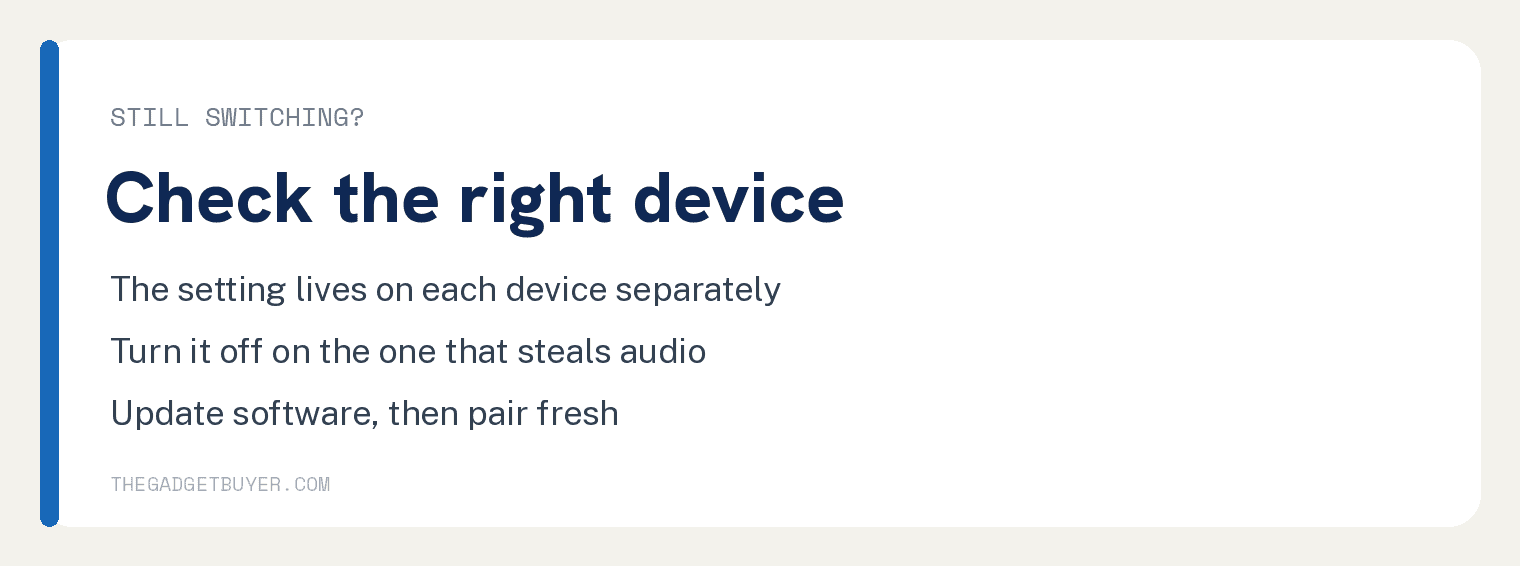
If your AirPods still wander after you change the setting, work through these in order.
First, make sure you turned the setting off on the exact device that keeps grabbing them, not just your main phone.
Second, update each device to the latest software, since an old version can ignore the setting.
Third, if one device keeps hijacking audio, open its Bluetooth settings, tap the letter i next to the AirPods, and tap Disconnect when you are not using it there.
As a last step, you can pair the AirPods again. Forget them on the trouble device, then set them up fresh.
- Go to Settings, then Bluetooth, and tap the letter i next to your AirPods.
- Tap Forget This Device and confirm.
- Put the AirPods in the case and reset them. On most models you hold the setup button until the light blinks, but on AirPods 4 and AirPods Pro 3 you double tap the front of the case instead. Then connect them again.
Does this work on every AirPods model
Automatic Switching works on AirPods second generation and later, all AirPods Pro, AirPods Max, and the newer AirPods 3, 4, and Pro 3.
The first generation AirPods do not have it, so they will not auto switch in the first place.
If your AirPods act up in other ways too, our guide on AirPods that keep pausing covers a related annoyance.
Frequently asked questions
Why do my AirPods keep connecting to my iPad instead of my iPhone? Automatic Switching sent them to whichever device last played audio. Turn the setting to manual on the iPad to stop it.
Do I have to change this on every device? Yes. The switching setting is stored on each device, so turn it off on your iPhone, iPad, and Mac separately.
Will turning it off hurt anything? No, your AirPods still work the same. They just wait for you to pick the device instead of guessing.
Why does one AirPod act differently from the other? That is usually a separate issue. See our guide on one AirPod being quieter than the other.
My AirPods are just getting old, is that the cause? Switching is a setting, not age. If they also die fast, see how long AirPods usually last before you replace them.