
Why One AirPod Is Louder Than the Other and What to Do First
When one AirPod is louder than the other, the fix is usually quick and free.
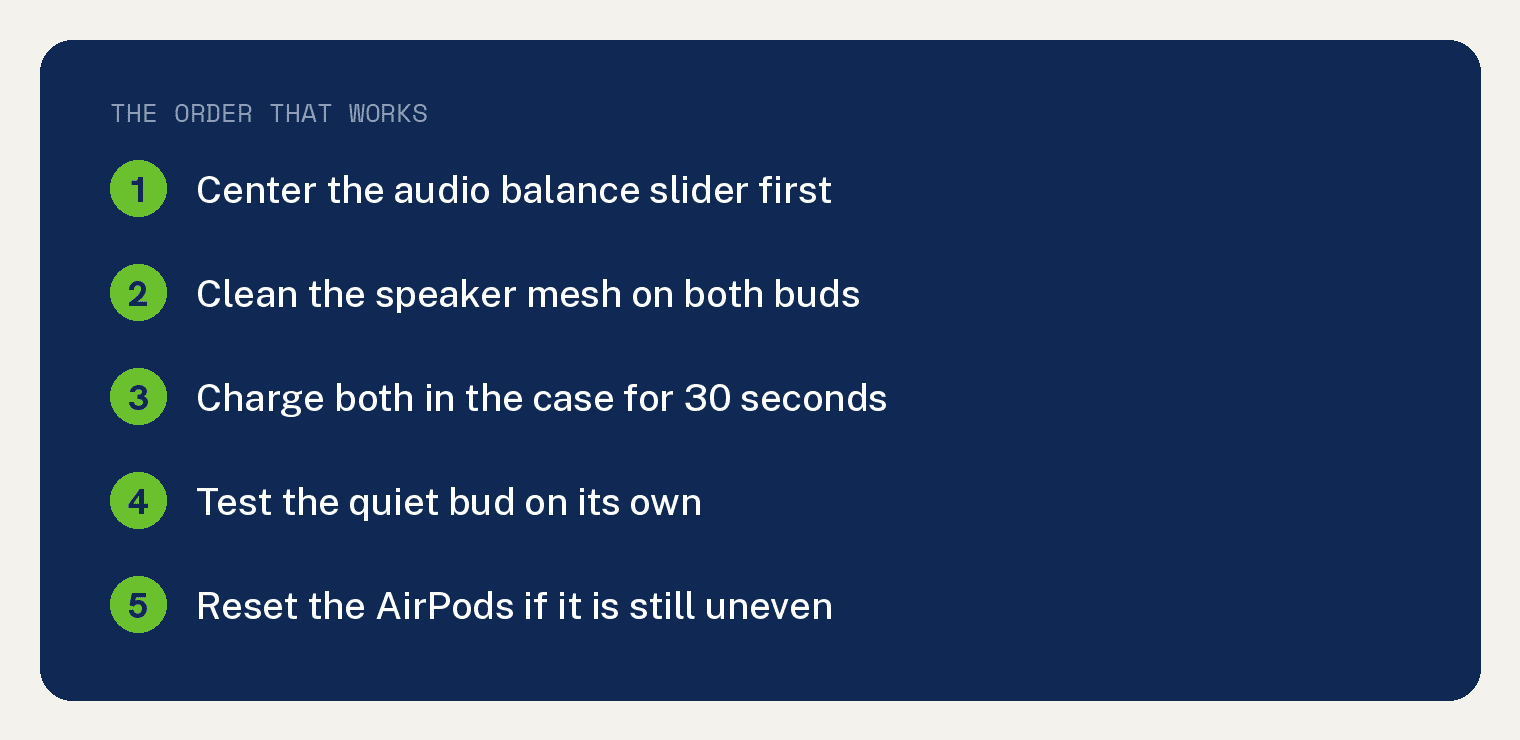
The most likely cause is earwax or dust blocking the speaker mesh, and the quickest fix is checking your audio balance slider, then cleaning the mesh.
Apple lists both steps on its official troubleshooting page for a left or right AirPod that is not working.
Steps confirmed against Apple’s AirPods support documentation, checked July 2026. They apply to AirPods paired with an iPhone or iPad.
Why is one AirPod louder than the other?
Three causes explain almost every case.
The most common is debris. Earwax and pocket lint collect on the speaker mesh over months and muffle one side before the other.
The second is a settings problem. Your iPhone and iPad have a balance slider that can shift audio toward one ear, and it is easy to move by accident.
The third is a charge or software hiccup in one earbud. A charge cycle or a full reset clears that.
How do you check the audio balance slider?
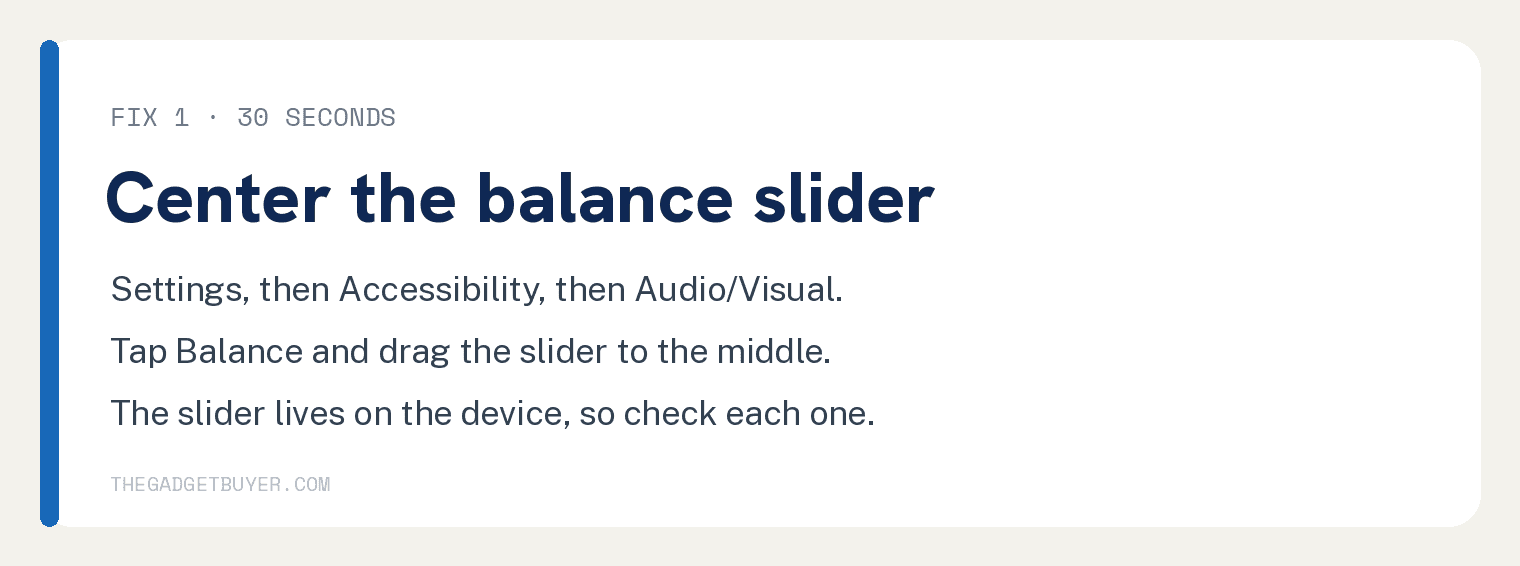
Start here because it takes 30 seconds and costs nothing.
- Open the Settings app (the gray gear icon) on your iPhone or iPad.
- Tap Accessibility.
- Tap Audio/Visual.
- Tap Balance. You should see a slider with L on one end and R on the other.
- Drag the slider to the middle if it sits off center.
Apple confirms this path on its left or right AirPod troubleshooting page.
The slider lives on the device, not inside the AirPods. So check it on every iPhone or iPad you listen on.
How do you clean the speaker mesh?
If the balance was already centered, wax on the mesh is the next suspect.
- If you have AirPods Pro, pull off the silicone ear tips to expose the mesh.
- Look at the speaker mesh on both earbuds under good light. Compare the quiet side against the loud side.
- Wipe the body of each AirPod with a soft, dry, lint free cloth.
- For debris stuck on the mesh, follow Apple’s cleaning guide. Its method uses a soft bristled brush lightly wetted with micellar water, followed by a distilled water rinse. Apple documents this method for AirPods 3 and later and AirPods Pro 2 and later.
- Let the AirPods dry for at least two hours before they go back in the case.
Never poke the mesh with anything sharp or abrasive. Apple says never to use either on AirPods.
The full instructions live in Apple’s official AirPods cleaning guide.
What if one AirPod is much quieter or almost silent?
Apple has a specific test sequence for this, and it doubles as a charge check.
- Make sure the charging case has a charge.
- Place both AirPods in the case and let them charge for 30 seconds.
- Open the lid near your iPhone or iPad. You should see the AirPods battery card pop up on screen.
- Check that card to confirm each AirPod is charging.
- Put the quiet AirPod in your ear.
- Close the lid with the other AirPod still inside the case.
- Play audio and listen to the quiet AirPod on its own.
- If it sounds normal now, put both back in the case for 30 seconds, then test the pair together.
No battery card popping up at all? See our fixes for when your iPhone can’t find your AirPods.
How do you reset your AirPods?
If the volume gap survives cleaning and charging, a factory reset is the last software fix.
- Put both AirPods in the case, close the lid, and wait 30 seconds.
- On your paired iPhone or iPad, open Settings, then tap Bluetooth.
- Tap the More Info button next to your AirPods, tap Forget This Device, then confirm.
- Open the lid of the case.
- For AirPods 1, 2, or 3, or AirPods Pro 1 or 2: press and hold the setup button on the back of the case for about 15 seconds, until the light flashes amber, then white.
- For AirPods 4 or AirPods Pro 3: double tap the front of the case while the light is on, double tap again when it flashes white, then double tap a third time when it flashes faster. The light flashes amber, then white.
- Hold the open case near your device and follow the steps on the screen to reconnect.
The amber then white flash confirms the reset worked, per Apple’s AirPods reset instructions.
Real AirPods status lights flash white, amber, or green. If yours glow blue, read our explainer on what a blue light on AirPods means.
AirPods Max reset differently. If you own the over ear model, start with our AirPods Max connection fixes instead.
What if nothing worked?
A volume gap that survives a balance check, a cleaning, and a reset usually means a damaged speaker. No setting repairs that.
Contact Apple Support and describe what you tried. If your AirPods are under warranty or AppleCare+, service on the bad earbud may cost nothing.
Out of warranty, Apple says you may be able to replace them for a fee, and a single earbud can be replaced without buying a whole new set. A lone survivor still works too: here is how to connect AirPods if you only have one.
Thinking about used AirPods as a cheap replacement? First read how to remove AirPods from a previous owner’s iCloud.
Frequently asked questions
Why does one AirPod slowly get quieter over months?
Gradual fading on one side usually means wax and dust building up on the speaker mesh. A careful cleaning with Apple’s method brings most of that volume back.
Will resetting my AirPods delete anything important?
A reset clears the pairing between your AirPods and your devices, nothing more. You reconnect in about a minute by opening the case lid near your iPhone and following the steps on the screen.
Can a firmware update fix uneven volume?
Sometimes, since Apple ships bug fixes in firmware. Updates install on their own: keep your AirPods in their case with the case charging near your connected iPhone or iPad on WiFi, and give it at least 30 minutes.
Does the balance slider affect other headphones too?
Yes, it is a device setting, so it tilts everything that iPhone or iPad plays, not just AirPods. If every pair of headphones sounds lopsided, that slider is the first thing to check.