
Apple Watch Not Tracking Sleep Means One Switch First
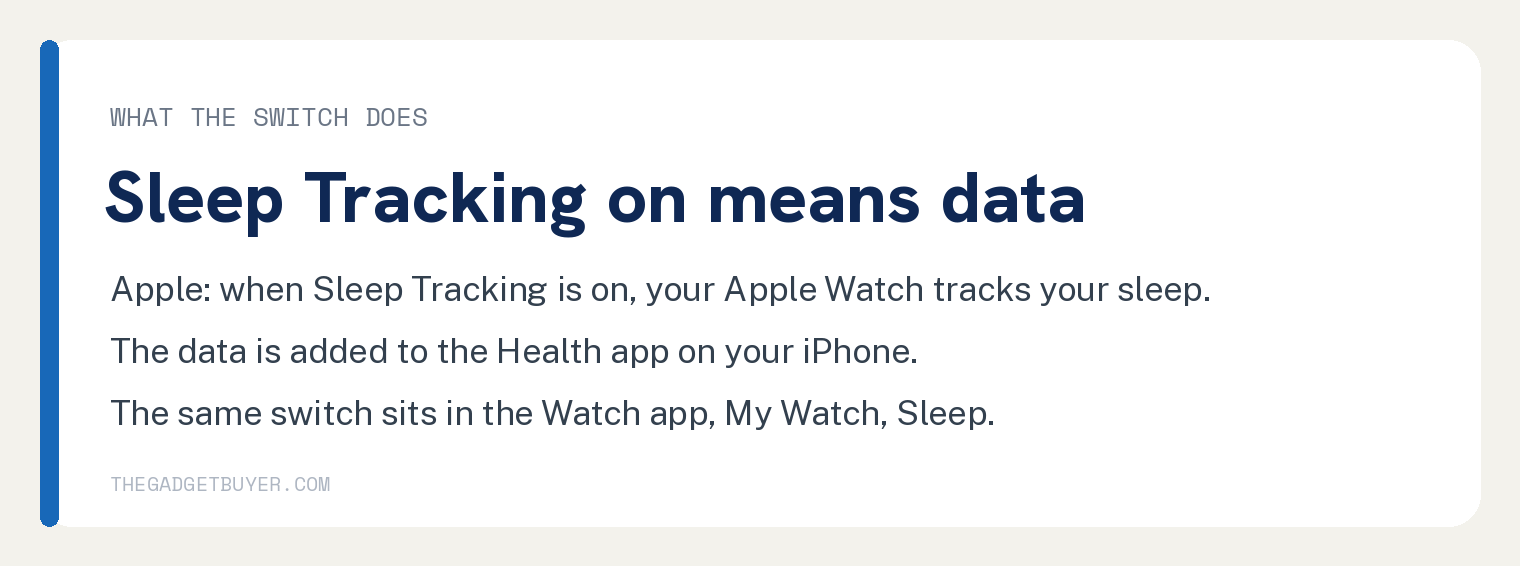
An Apple Watch not tracking sleep comes down to one switch first: on the watch, open Settings, tap Sleep, and check that Sleep Tracking is on. Apple’s own words for what that switch does: “When Sleep Tracking is on, your Apple Watch tracks your sleep and adds sleep data to the Health app on your iPhone.”
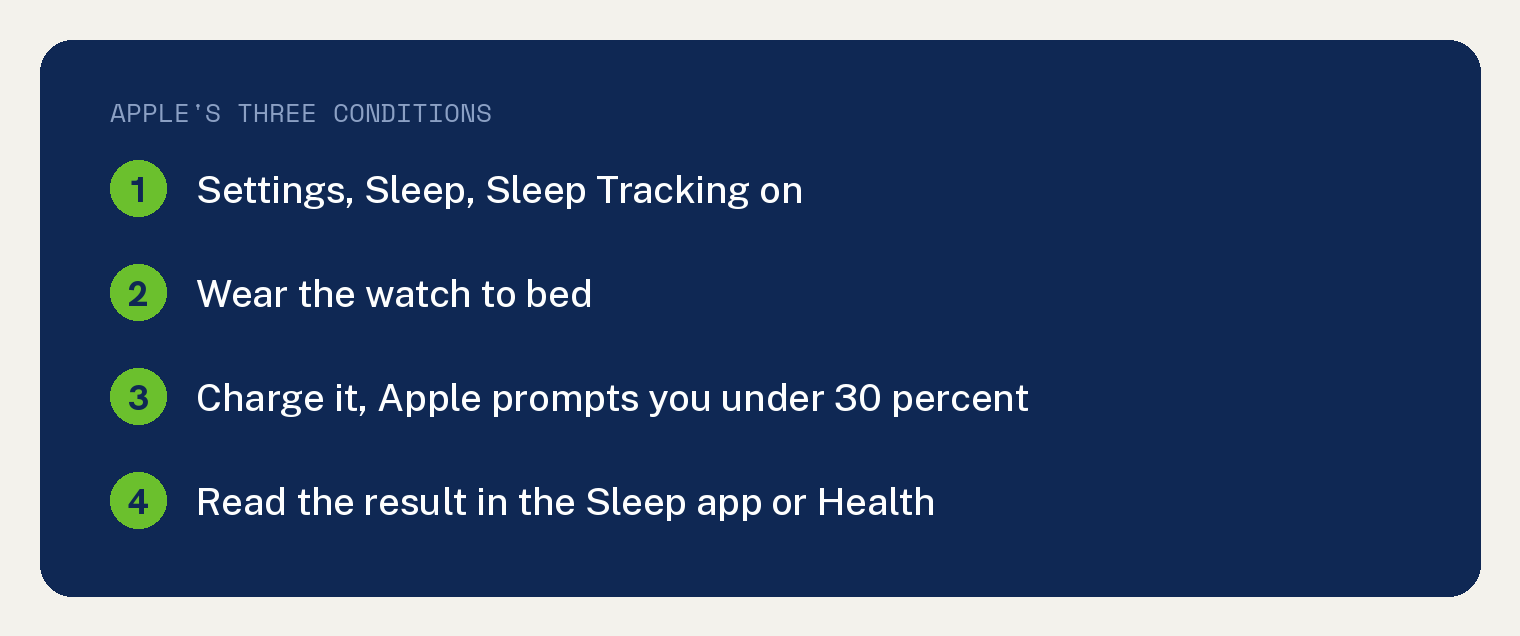
After the switch, Apple’s two Apple Watch User Guide pages name two more conditions: you wore the watch to bed, and it had charge. The checks below are quoted from those two pages, and the end of the article says plainly what they do not cover.
Check 1: the Sleep Tracking switch
Apple’s path, under “Change sleep settings”: “Go to the Settings app on your Apple Watch.” Then “Tap Sleep, then adjust these settings:” and, below the three named settings, “Turn Sleep Tracking and Charging Reminders on or off.”
The same switch is reachable from the phone. Apple: “You can also change these sleep options on your iPhone. Open the Apple Watch app on your iPhone, tap My Watch, then tap Sleep.”
Apple describes two of the three settings named on that screen as “Sleep Screen: Your Apple Watch display and iPhone Lock Screen are simplified to reduce distractions.” and “Turn On at Wind Down: By default, the Sleep Focus begins at the wind down time you set in the Sleep app. If you’d prefer to control the Sleep Focus manually in Control Center, turn this option off.”
Check 2: you wore it to bed
Apple’s tracking page opens with: “Wear your watch to bed, and Apple Watch can estimate the time you spent in each sleep stage—REM, Core, and Deep—as well as when you might have woken up.”
Check 3: it had charge before bed
Apple’s schedules page: “If your Apple Watch is charged less than 30 percent before you go to bed, you’re prompted to charge it. In the morning, just glance at the greeting to see how much charge remains.”
The reminder is its own switch, next to Sleep Tracking. Apple: “Turn on Charging Reminders to have your Apple Watch remind you to charge your watch before your wind down time and notify you when your watch is fully charged.”
Where the data shows up when it works
On the watch, Apple says: “Go to the Sleep app on your Apple Watch to see your sleep score, the time you spent in each sleep stage, the amount of sleep you got the night before, and your sleep average over the last 14 days.”
On the phone: “To see your sleep history and sleep score on iPhone, go to the Health app on iPhone, tap Browse, then tap Sleep.”
If that screen is empty for the night you wore the watch with the switch on and charge in it, Apple’s two pages have nothing further for that case. The honest next step is Apple Support.
Set up the Sleep app if you never did
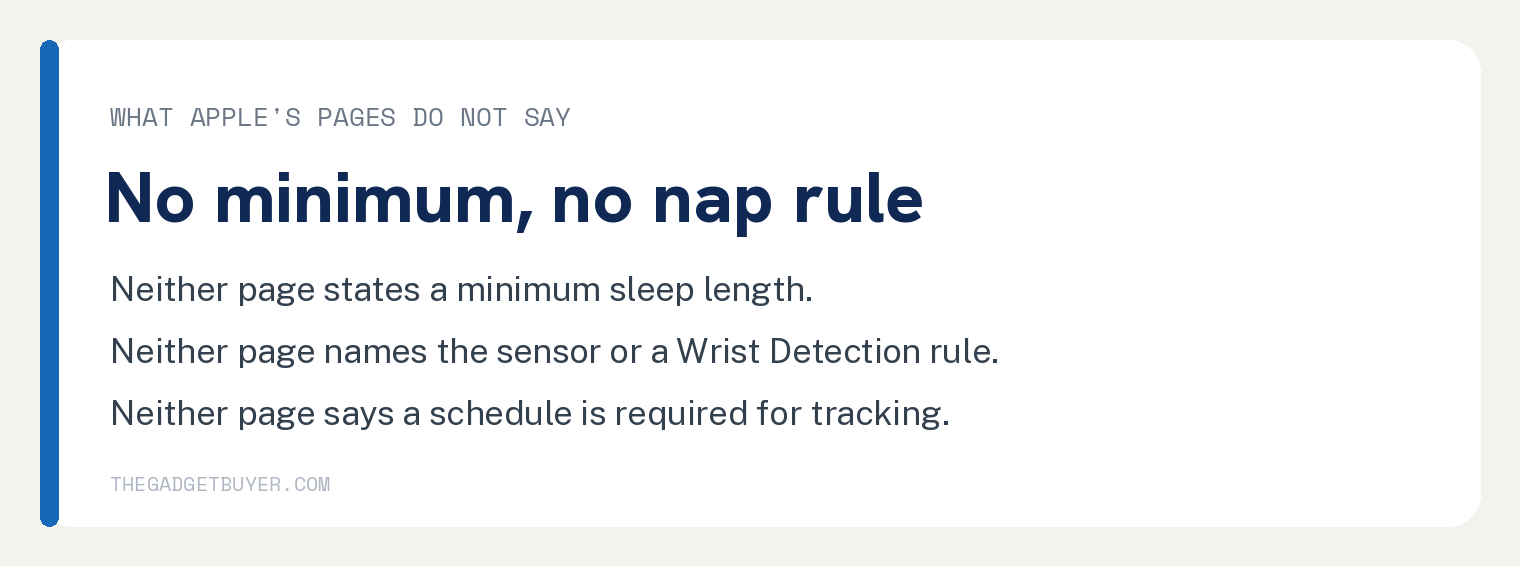
Neither page says a schedule is required for tracking.
Apple’s schedules page: “When you first open the Sleep app, you can set a sleep goal and your first recurring sleep schedule.” Its steps begin “Go to the Sleep app on your Apple Watch.” and “Tap Continue.”, then the schedule screen, then “Tap Next, then choose to turn on overnight vitals” and “Tap Done to finish setting up Sleep.”
From the phone instead: “You can also go to the Health app on iPhone, tap Browse, tap Sleep, tap Sleep again, then tap Get Started (below Set Up Sleep).”
Apple states the purpose of the app in one line: “With the Sleep app on Apple Watch, you can create sleep schedules to help you meet your sleep goals.”
What the Sleep Focus does, and does not do
Apple: “The Sleep Focus turns off the watch display and limits distractions before your scheduled bedtime.” If you want it gone, our guide to turning off Sleep Mode on Apple Watch covers it, and it is a separate setting from Sleep Tracking.
Apple’s schedules page: “If you need to skip your sleep schedules—for example, while you’re on vacation—you can turn them off or delete them altogether.” Apple’s list under “Add or change a sleep schedule” includes “Turn off your sleep schedule: Turn off Sleep Schedule.”
If notifications also went quiet overnight, our guide to Apple Watch not getting notifications covers that separately.
Questions readers ask
Does a nap or a short sleep get recorded
Neither Apple page cited here states a minimum sleep length or a nap rule. The strings minimum, hours and nap return zero on both pages, measured on October 11, 2026. If your short sleep produced no entry, Apple’s two pages do not cover that case.
Do I need a sleep schedule turned on for tracking to work
Neither page says a schedule is required. The switch Apple ties to recording is Sleep Tracking: “When Sleep Tracking is on, your Apple Watch tracks your sleep and adds sleep data to the Health app on your iPhone.”
Which sensor does the watch use for sleep
Neither watchOS 27 page cited here names the sensor or a Wrist Detection requirement. The strings motion, accelerometer and Wrist Detection return zero on both.
Is the sleep data medical
Apple’s note on the Track your sleep page, attached to breathing rate: “Apple Watch is not a medical device, and Respiratory Rate measurements are not intended for use in medical diagnosis, treatment, or for any other medical purpose.”
Is a newer watch needed
Neither page names a model requirement for sleep tracking. If you are choosing a watch, our guide to which Apple Watch to buy covers the lineup.
Sources
- Track your sleep on Apple Watch, Apple Watch User Guide, watchOS 27. Read October 11, 2026.
- Set up sleep schedules on Apple Watch, Apple Watch User Guide, watchOS 27. Read October 11, 2026.