
Fix Find My iPhone Location Not Updating
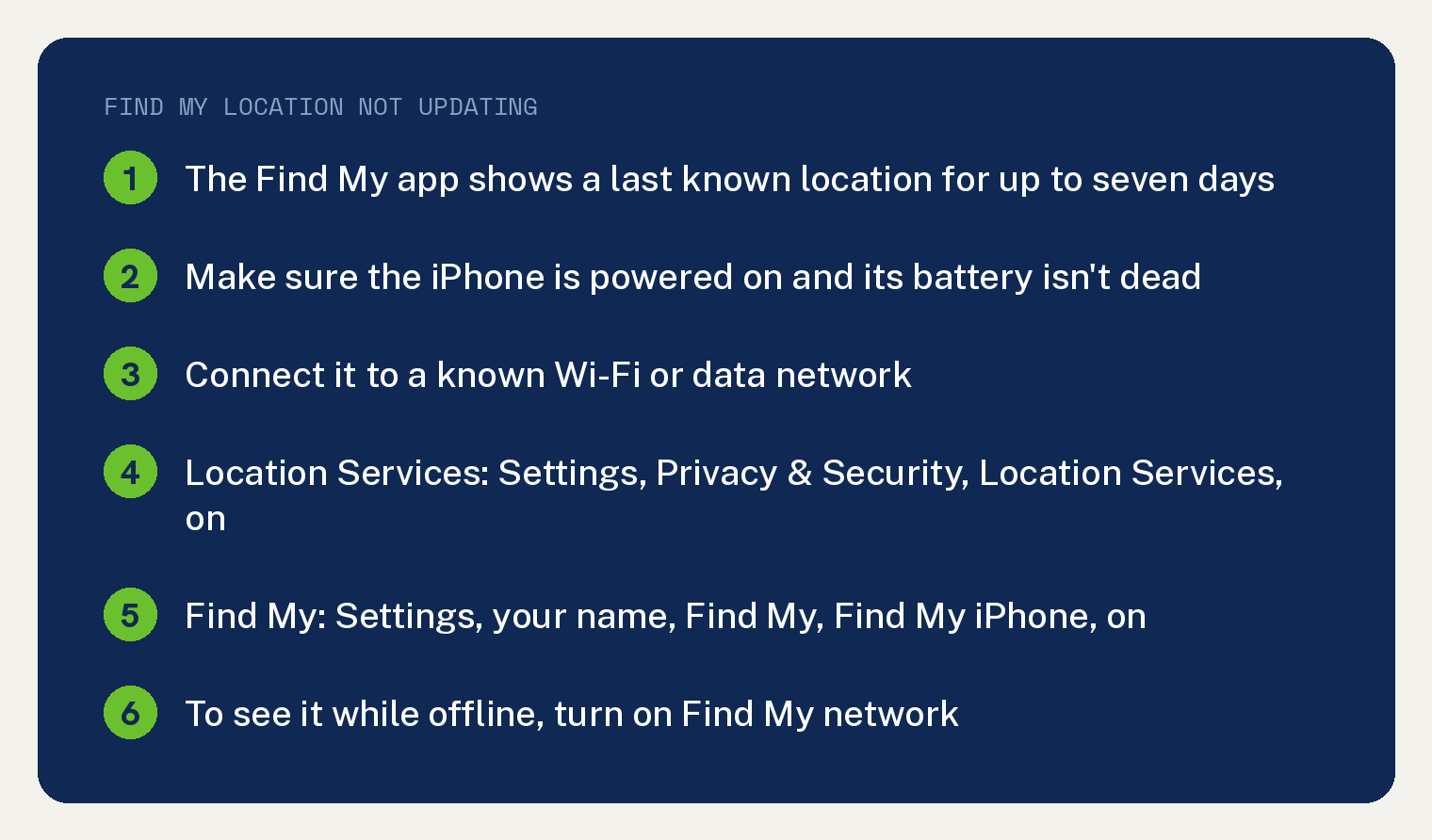
Find My iPhone location not updating means Find My is showing the last place your iPhone reported, because it can’t get a current location. Apple’s Find My page says that in this case “you can see its last known location for up to seven days in the Find My app.”
On iCloud.com, Apple’s Find My page says your device’s location shows “if it’s powered on and has a network connection.” So start with the battery, Wi-Fi or cellular data, and Location Services.
Why is my iPhone’s location old in Find My?
An old pin is a last known location.
Apple’s Find My offline page gives four reasons a device shows as offline:
- It’s powered off, or its battery has run out.
- It isn’t connected to a known Wi-Fi or data network.
- Send Last Location is on, and more than 24 hours have passed since it connected to a Wi-Fi or data network.
- You might be in a region where Apple doesn’t offer the feature because of technical limitations or local law.
Apple’s main Find My page uses a dead battery as its example of a time Find My can’t display the current location.
What each Find My status label means
Read the words under your iPhone’s name first. This table pairs three labels from Apple’s pages with Apple’s reason and a check that fits, and the pairing is ours.
| The label | What Apple says it means | What to check |
|---|---|---|
| “Offline” on iCloud.com | The device can’t be located; its last known location shows for up to 24 hours | Power, battery, a known Wi-Fi or data network |
| “No location found” | More than seven days passed since the device last sent its location through the Find My network | Power and a network connection, then the Find My network |
| “Not sharing location • Online” | The device is online but can’t send its location, for example because of a Location Services issue | The Location Services switch |
Apple’s Find My page puts the seven day limit this way: “If more than seven days have passed since your device last sent its location to Apple through the Find My network, Find My can’t display a location.”
How do I get Find My to update my iPhone’s location?
Work on the iPhone itself. Apple’s Find Devices on iCloud.com guide says Find My must already be set up on the device and “the device must be online.”
- Charge the iPhone and turn it on. Apple’s offline list says: “Your device is powered off or its battery has run out.”
- Connect it to Wi-Fi or cellular data. Apple’s offline list names a known Wi-Fi or data network.
- Check Location Services. Open the Settings app, tap Privacy & Security, then select Location Services, and make sure Location Services is on.
- Check Find My. Go to Settings, tap your name, then tap Find My. Tap Find My iPhone, then turn on Find My iPhone.
The Location Services step is our suggestion. Apple’s Find My page gives “an issue with Location Services” as its example of an iPhone that is online but can’t send its location.
If the iPhone keeps dropping its connection, our guide to an iPhone that keeps disconnecting from WiFi covers that problem.
Not sure Find My iPhone was ever on? Our guide on how to tell if Find My iPhone is enabled walks through the check.
Why does iCloud.com say Offline when the Find My app shows a location?
Apple’s Find Devices on iCloud.com guide says: “If the device can’t be located: ”Offline” appears below the device’s name. The last known location is displayed for up to 24 hours.”
That guide also says that with the Find My network turned on, the Find My app on any device signed in to the same Apple Account shows your device’s location even when it’s offline. There, the last known location is stored “for up to 7 days.”
So one iPhone can sit on the map in the Find My app and show Offline on iCloud.com at the same time.
How do I turn on the Find My network and Send Last Location?
Go to Settings, tap your name, then tap Find My, then tap Find My iPhone, where you can turn either one on or off.
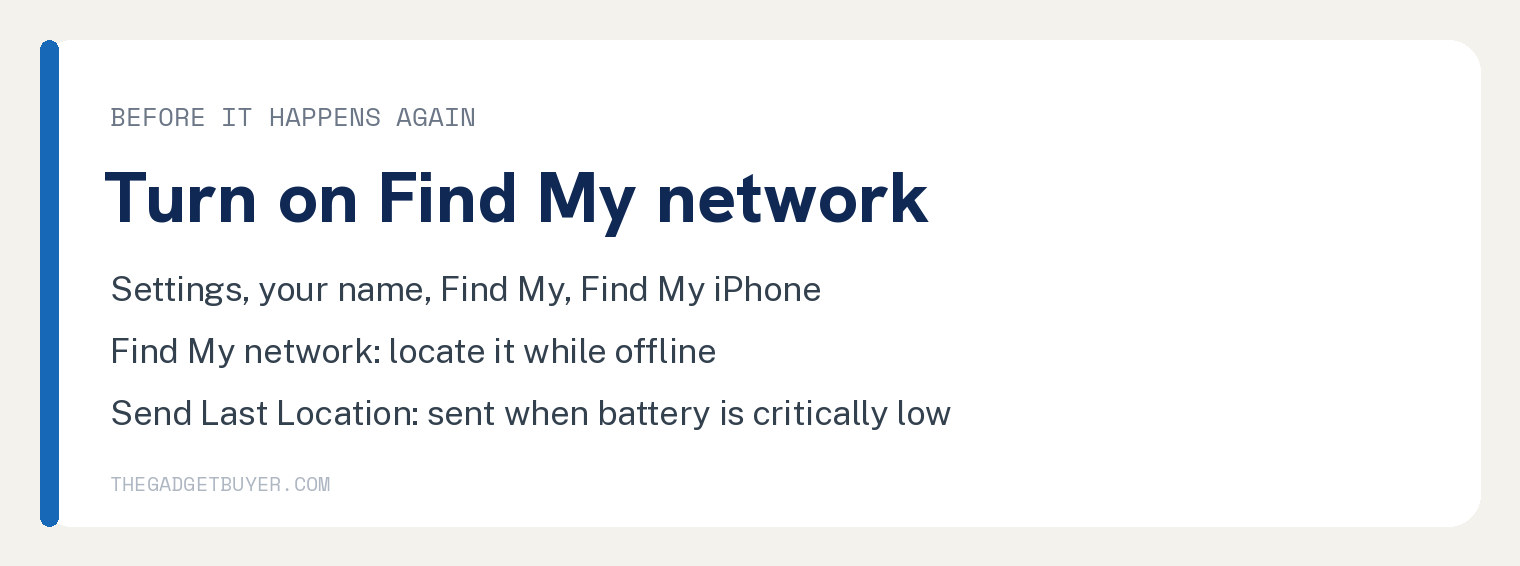
Find My network: Apple’s iPhone User Guide says that if your iPhone is offline, not connected to Wi-Fi or cellular, Find My can locate it using the Find My network. On a supported iPhone, it lets you locate the iPhone “for up to 24 hours after it’s turned off, or up to 5 hours when it’s in power reserve mode.”
Send Last Location: if the battery charge level becomes critically low, the iPhone sends its location to Apple automatically.
What if my iPhone isn’t in Find My at all?
Apple’s offline page gives four checks for a device that doesn’t appear in Find My while you have it with you:
- Check that you signed in to iCloud on the iPhone with your Apple Account. Tap Settings, and if you see “Sign in to your [device],” tap it and sign in.
- Make sure you signed in to iCloud with the same Apple Account on all your devices.
- Check that the iPhone has a cellular or Wi-Fi connection. If it does and you still can’t see it, turn Airplane Mode on and off, and restart the iPhone if it’s still missing.
- Go to Settings, tap General, then tap Date & Time, and check that Set Automatically is on.
For a device that isn’t listed, Apple’s main Find My page also says to update to the latest iOS. The offline page says you have to set up Find My before you can see the iPhone in the Find My app or on iCloud.com.
Can I still use Find My while the location is stuck?
Yes. Apple’s offline page says you can still play a sound, send a message, issue a lock request or start an erase of your iPhone with Find My, and “Your device receives the command after you turn on your device and connect to the Internet.”
Erase is the last resort. Apple’s Find My page says: “Before you erase your device, make sure that you try everything else. Erasing your device can’t be undone.”
Apple’s Find My page also says: “If you erase a device with iOS 15 or later, or iPadOS 15 or later, you can still use Find My to find the device. Otherwise, you won’t be able to find your device after you erase it.”
To hear when the iPhone turns up, sign in at iCloud.com and select it in the list of devices. If Offline appears below its name, select Notify me when found to get an email when it’s online again.
If the problem is a person’s shared location, our guide on Location Not Available in Find My Friends covers that. For lost earbuds, see our guide to finding AirPods with Find My.
Why can’t I see my iPhone’s location after changing my password?
Stolen Device Protection can hide it for a while. Apple’s Find My page says: “If you turned on Stolen Device Protection for your iPhone and use it to change your Apple Account password while in an unfamiliar location, the location of your devices may not be visible at icloud.com/find.”
Apple’s iCloud.com guide says that with Stolen Device Protection on and a changed password, your device locations “may not be visible for a period of time.”
Sources
- Use Find My to locate your lost Apple device or AirTag (Apple Support)
- If Find My is offline or not working (Apple Support)
- Add your iPhone to Find My (iPhone User Guide)
- Turn Location Services and GPS on or off on your iPhone (Apple Support)
- Locate a device in Find Devices on iCloud.com (iCloud User Guide)