
How to Fix iPhone Apps Stuck on Waiting
For iPhone apps stuck on Waiting, start on the Home Screen: touch and hold the app, then choose Prioritize Download from the menu. If it still won’t finish, restart your iPhone and check again.
Still stuck? Apple’s other tips are to update the app by hand in the App Store, add a payment method, clear a billing message, and confirm your age if you’re asked.
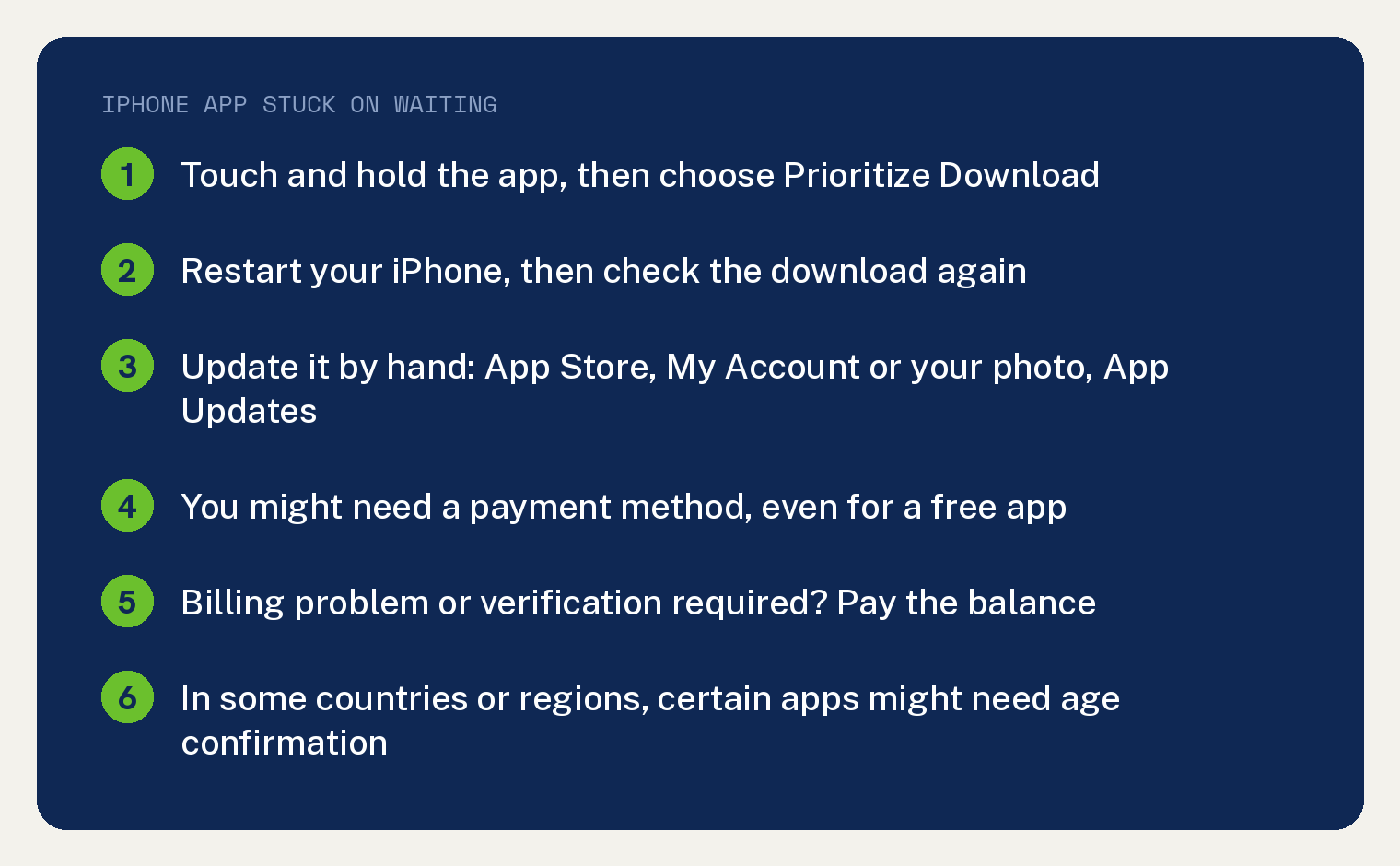
Which fix matches what you see?
Pick the row that matches your screen. Apple’s download help page says: “Try these tips if you have an issue when you update or download apps from the App Store on your iPhone or iPad.”
The table below puts them in one place, and the match of each situation to a fix is ours.
| What you see | What to do |
|---|---|
| An app on Waiting, no message | Touch and hold the app, choose Prioritize Download, then restart the iPhone |
| An app update that won’t finish | App Store, then My Account or your photo, then App Updates, then Update |
| No payment method on file | Settings, your name, Payment & Shipping, Add Payment Method |
| A billing problem or verification required message | Settings, your name, Payment & Shipping, Fix Payment Information, Try Again |
| A prompt to confirm you’re an adult | Check your status in Settings, your name, Personal Information, Age Confirmation |
| None of these worked | Contact Apple Support |
The order of this article is ours too. The first two fixes need no change in Settings, so they come first.
What should I try first for an app stuck on Waiting?
Use Prioritize Download on the app itself. Apple’s steps: “From the Home Screen, touch and hold the app. From the menu that appears, choose Prioritize Download.”
Apple lists this as one of six tips for apps that won’t download or update on iPhone or iPad.
Restart buttons for each iPhone model
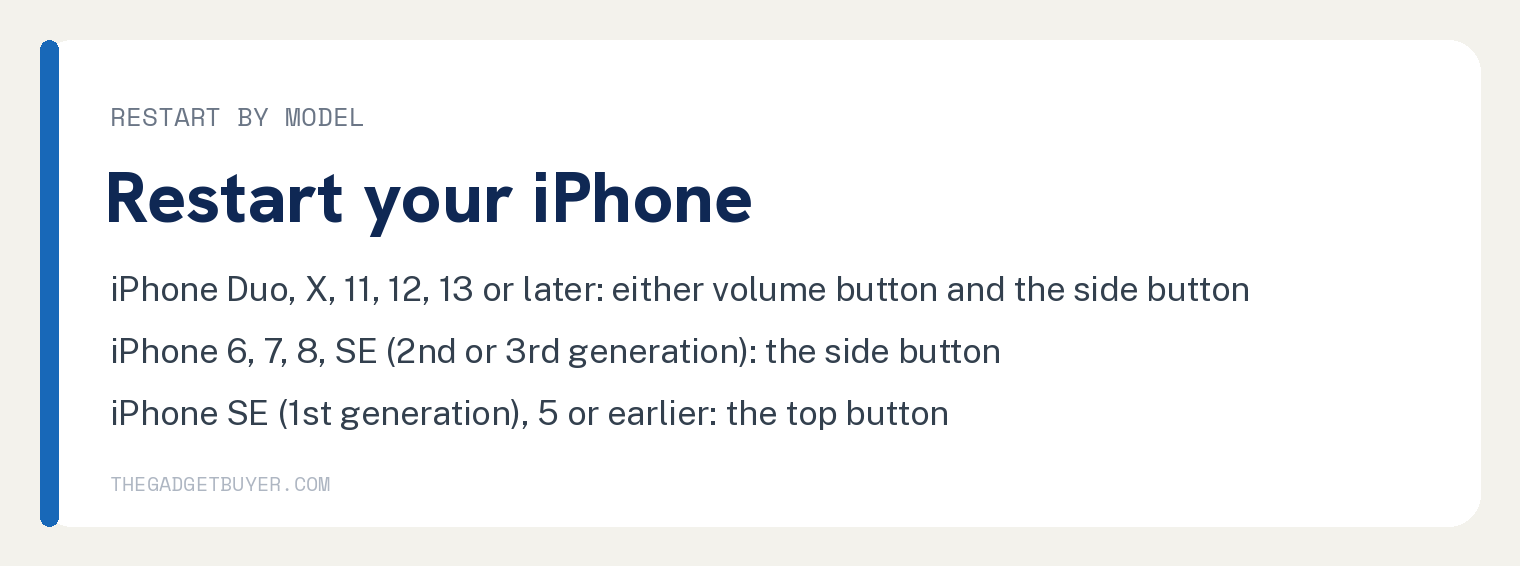
Turn the iPhone off and back on, then check whether the app will download or update. The buttons depend on your model:
- iPhone Duo, or iPhone X, 11, 12, 13, or later: press and hold either volume button and the side button until the power off slider appears. Drag the slider, wait 30 seconds, then press and hold the side button until you see the Apple logo. On iPhone Duo, Apple’s turn on step reads: “To turn your device back on, press and hold the side button (the top button on the right side of your iPhone) until you see the Apple logo.”
- iPhone 6, 7, 8, or SE (2nd or 3rd generation): press and hold the side button until the slider appears. Drag it, wait 30 seconds, then press and hold the side button until you see the Apple logo.
- iPhone SE (1st generation), 5, or earlier: press and hold the top button until the slider appears. Drag it, wait 30 seconds, then press and hold the top button until you see the Apple logo.
A phone that won’t respond needs a different step. Apple’s Restart your iPhone page says: “If your device is frozen or unresponsive, force restart your device.”
If the phone then sits on the Apple logo, our guide to an iPhone stuck on the Apple logo walks through what to do.
What if an app update won’t finish?
Update that app by hand in the App Store. Apps from the App Store update automatically by default on iPhone, and Apple’s How to manually update apps from the App Store page adds that “if there’s an issue, you can update an app manually.”
- Open the App Store.
- Tap the My Account button or your photo at the top of the screen.
- Tap App Updates, then tap Update next to the app, or tap Update All.
Automatic updates live in Settings, then Apps, then App Store, where you turn App Updates on or off. With them off, you receive notifications from the App Store each time an update for one of your apps is released.
If the update that’s stuck is iOS itself, our guide to an iPhone stuck on Preparing Update covers those screens.
Why does a free app need a payment method?
A free app might still need a payment method on file. Apple’s tip reads: “You might need to have a valid payment method on file, even if the app that you want to download is free.”
To add one on iPhone:
- In Settings, tap your name.
- Tap Payment & Shipping. You might be asked to sign in to your Apple Account.
- Tap Add Payment Method.
- Enter the details, then confirm that your name, billing address and other information are spelled correctly and match what your financial institution has on file.
- Tap Done.
If Apple declines the payment method, our guide on why your payment method was declined on Apple covers that next.
What does “billing problem with a previous purchase” mean?
It means you owe Apple for an earlier purchase. Apple’s billing page says either that message or “verification required” means “you have an unpaid balance.”
Until you pay it, Apple says you might be unable to make new purchases, download free apps or use subscriptions. Apple’s download tips word the message as “billing problem with previous purchase”.
To try your current payment method again:
- On your iPhone, open the Settings app and tap your name.
- Tap Payment & Shipping. You might be asked to sign in with your Apple Account.
- Tap Fix Payment Information.
- Tap Try Again to retry your purchase.
You can also add a new, valid payment method and remove the old one. Apple’s billing page adds: “The new payment method is charged automatically.”
A gift card is the third route. Buy and redeem an Apple Gift Card or App Store Card, then go to Settings, your name, Media & Purchases and View Account (you might be asked to sign in), then Purchase History.
Tap the order with red text that says Amount You Owe, then tap Pay with Apple Account Credit. Gift cards aren’t available in all countries or regions.
In Family Sharing with purchase sharing turned on, the family organizer’s payment method is charged for all family members’ purchases, unless the family member buying has a valid payment method. If you’re the organizer, change your payment method.
If you’re not, add your own valid payment method, ask the organizer to change theirs, or redeem a gift card and pay your unpaid order.
Paying it lets you buy again. From Apple’s billing page: “After you pay your outstanding balance, you can make new purchases or use subscriptions again.”
Why is my iPhone asking me to confirm I’m an adult?
In some places the law requires it. Apple’s age page says: “This is required by law in some states, countries and regions.”
Apple’s tip: “In some countries or regions, you might have to confirm that you’re an adult before you can download certain apps.”
To check your status, open the Settings app, tap your name, tap Personal Information, then tap Age Confirmation.
If you skip it, you can keep using your device. Apple’s age page adds that “you need to confirm before you can turn off certain safety settings or download apps that are rated 18+.”
If you can’t confirm on your device, Apple lists three steps: update your software, use a supported method such as a credit card that belongs to you, and on a Mac, Apple Watch, Apple TV or Apple Vision Pro, try your iPhone or iPad. Debit cards and gift cards aren’t supported.
If you’re not an adult: “Depending on where you live, you might be required to connect to a Family Sharing group with an adult who has confirmed their age to take certain actions on your Apple Account”.
If the app still won’t download
Contact Apple Support. That is the last step on Apple’s page for apps you can’t download or update, and Apple’s billing page also says to contact Apple Support if you still can’t resolve an unpaid balance.
Fixing this on an iPad? Apple’s tips cover iPhone and iPad, and our guide on why you can’t download apps on an iPad covers that device.
Sources
- If you can’t download or update apps on your iPhone or iPad (Apple Support)
- Restart your iPhone (Apple Support)
- Add a payment method to your Apple Account (Apple Support)
- If a message says billing problem with a previous purchase or verification required (Apple Support)
- If you’re asked to confirm that you’re an adult (Apple Support)