
Fix iPhone Contacts Not Syncing With iCloud
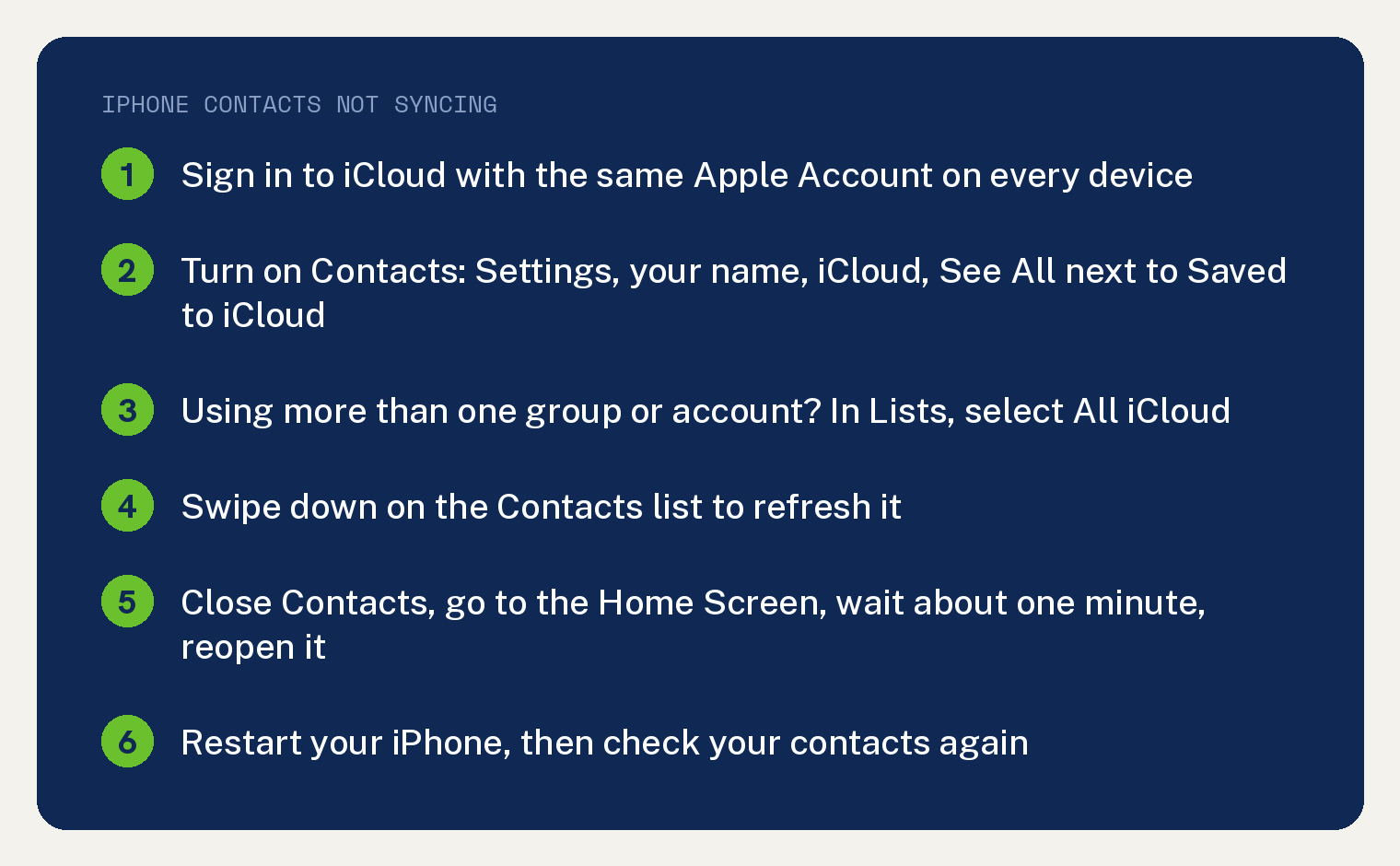
iPhone contacts not syncing with iCloud? Make sure you’re signed in to iCloud with the same Apple Account on all your devices, and that Contacts is turned on in your iCloud settings. On iPhone, that switch is in Settings, your name, iCloud, then See All next to Saved to iCloud.
Then open Contacts and swipe down on the list to refresh it. If you use more than one group or account in Contacts, tap Lists and make sure All iCloud is selected.
Where to fix contacts that won’t sync
Apple’s sync help page splits its steps by device. The table below matches each symptom to the device whose steps apply, and that match is ours.
| The symptom | Where to fix it |
|---|---|
| A new iPhone contact is missing on your other devices | iPhone: Contacts switch in iCloud settings, same Apple Account |
| iCloud contacts are missing on the iPhone | iPhone: Lists, All iCloud, then the default account |
| Contacts on the Mac don’t update | Mac: Contacts, Accounts, iCloud tab |
| Changes don’t show on iCloud.com | Browser: clear the cache, sign out and back in |
| Outlook on a PC doesn’t update | iCloud for Windows and Outlook settings |
Apple’s page has a watchOS section too. Its steps force sync Calendar data on Apple Watch, so this guide leaves them out.
What to check first on every device
Apple’s page lists five things to check before the device steps. Its first one: “Check the system status of iCloud Contacts, Calendars or Reminders for service outages or connection issues.”
- Look at Apple’s system status page for iCloud Contacts.
- Make sure your iPhone has the latest version of iOS, your iPad the latest iPadOS, and your Mac the latest macOS.
- Make sure you signed in to iCloud with the same Apple Account on all your devices, then check that Contacts is turned on in your iCloud settings.
- Check that the date and time settings on your device are correct for your current location.
- If you use iCloud for Windows to sync Contacts with Outlook on a PC, update to the latest version of Windows, then sign out and sign back in.
To update an iPhone, back it up with iCloud or your computer, plug it into power and connect to Wi-Fi. Then open Settings, tap General, tap Software Update, and if an update is available, tap Download and Install, then follow the onscreen instructions.
For the date and time, make sure the iPhone is connected to the internet. Then open Settings, tap General, tap Date & Time, then turn on Set Time Automatically. Apple’s time zone page notes that “The option to set the date and time automatically might not be available on all devices.”
If two iPhones share one Apple Account and you want them to stop sharing, our guide to unsyncing two iPhones covers that instead.
How do I turn on Contacts in iCloud on my iPhone?
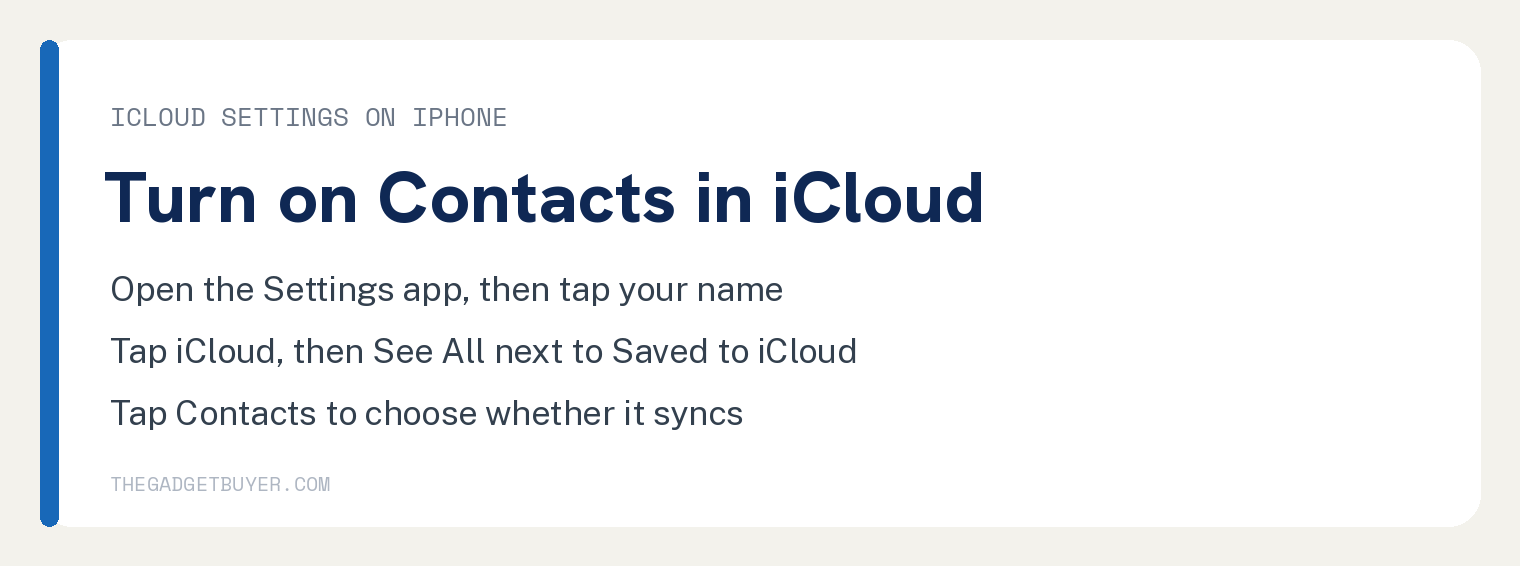
Open the Settings app, tap your name, then tap iCloud. Tap See All next to Saved to iCloud, then tap Contacts to choose whether it syncs.
Leave it off and the contacts stay only on that device. Apple’s iCloud settings page says: “When you turn off iCloud for an app, the app no longer connects with iCloud, so your data exists only on your device.”
On a Mac, choose Apple menu, click System Settings, click your name, then click iCloud. Under Saved to iCloud, choose the apps to use with iCloud, and click See All if you don’t see one. In macOS Sonoma or earlier, click Apps Using iCloud, then click Show More Apps if you don’t see an app.
If the iPhone keeps asking for your password while you sign in, our guide on an iPhone that keeps asking for the Apple ID password walks through it.
Why don’t my iCloud contacts show up on my iPhone?
A contact you can’t find might be stored in a different account. In the Contacts app, tap the back arrow or Lists in the upper corner, then select All iCloud to see your contacts in iCloud.
To check each other account, tap Lists in the upper left corner, then tap All and the account name.
If your contacts sit in a third party account such as Google or Yahoo, you can make iCloud the default account. Apple’s sync help page adds: “Changing your default account to iCloud won’t move your existing information from a third-party service to iCloud.”
- Tap Settings, tap Apps, then tap Contacts. In iOS 17 or earlier, tap Settings, then Contacts.
- Tap Default Account.
- Select iCloud.
To move those older contacts, Apple says you can import them into iCloud if you have a copy from the other service in vCard format version 3.0 or later.
Refresh the Contacts app and restart your iPhone
Close Contacts, return to your Home Screen, wait about one minute, then open the app again. Apple says to check your contacts after each step.
- iPhone X and later: from the Home Screen, swipe up from the bottom of the screen and pause in the middle. Swipe right or left to find Contacts, then swipe up on its preview.
- iPhone SE, iPhone 8 and earlier: double click the Home button to show your recent apps. Swipe right or left to find Contacts, then swipe up on its preview.
To refresh, open Contacts and swipe down on the list. For contact groups, tap the back arrow or Lists in the upper corner, then swipe down on that list.
Still missing? Restart the iPhone. The buttons depend on your model:
- iPhone Duo, or iPhone X, 11, 12, 13, or later: press and hold either volume button and the side button until the power off slider appears, then drag it.
- iPhone 6, 7, 8, or SE (2nd or 3rd generation): press and hold the side button until the slider appears, then drag it.
- iPhone SE (1st generation), 5, or earlier: press and hold the top button until the slider appears, then drag it.
Wait 30 seconds for the iPhone to turn off, then press and hold the same side or top button until you see the Apple logo. Apple’s Restart your iPhone page adds: “If your device is frozen or unresponsive, force restart your device.”
If the phone then sits on the Apple logo, our guide to an iPhone stuck on the Apple logo covers the next steps.
iPhone contacts not showing on a Mac
Make iCloud the default Contacts account on the Mac. Apple’s macOS steps apply “If you use multiple accounts on your Mac like iCloud, Gmail, and Yahoo”.
- Open the Contacts app.
- Choose Contacts and click Accounts.
- Click the iCloud tab. Make sure you’re signed in to your Apple Account and that Contacts is turned on under Saved to iCloud.
Then restart the Mac. Apple’s macOS step reads: “After you restart your computer, check if you fixed the issue.”
Contact changes not showing on iCloud.com
Apple gives three steps for iCloud.com if all your updates don’t appear or you have another issue:
- Update your browser and clear the cache on an iPhone or iPad, or clear the cache on a Mac.
- If updates from other devices don’t appear, open another app on iCloud.com, like Mail, then go back to Contacts.
- Sign out of iCloud.com, then sign back in.
iCloud contacts not syncing with Outlook on a Windows PC
Start with the Refresh button in Outlook. Next, open iCloud for Windows, deselect Calendars and Contacts, and click Apply.
Wait a few seconds, select Calendars and Contacts again, click Apply, then open Outlook.
In Outlook 2010 and later, make sure the iCloud Outlook Add-in is active:
- Click the File menu, then click Options in the left panel.
- Click Add-Ins in the left panel of the Outlook Options window.
- Look at the list in the Active Application Add-Ins section, and select the iCloud Outlook Add-in.
Also in Outlook 2010 and later, click the File menu, select Info and click Account Settings, then click Data Files. Apple’s step: “If iCloud is the default account in the Comments column, select a different account, and click Set as Default.”
On the iPhone and Mac, Apple’s steps set iCloud as the default Contacts account. This Outlook step moves the default away from iCloud, and setting the two side by side is our note; Apple gives each in its own device section.
If Outlook still isn’t syncing, close Outlook and open iCloud for Windows, then click Sign out. Sign in with your Apple Account email address or phone number and password, click Calendars and Contacts, click Apply, and restart the computer.
Want a copy of your contacts on the PC instead? Our guide to transferring contacts from an iPhone to a PC covers the vCard and Outlook routes.
Sources
- If your iCloud Contacts, Calendars, or Reminders won’t sync (Apple Support)
- Change which apps sync and store data with iCloud (Apple Support)
- Update your iPhone or iPad (Apple Support)
- If you can’t change the time or time zone on your Apple device (Apple Support)
- Close an app on your iPhone or iPod touch (Apple Support)