
How to Change Your Apple ID Email Address
Want to change your Apple ID email address? You can do it in a couple of minutes right from your iPhone or iPad.
Open Settings, tap your name at the top, go to Sign In and Security, tap your email address, and swap in a new one. Apple sends a code to the new address to confirm it.
Apple now calls your Apple ID your Apple Account, so you may see that name on newer devices. The steps are the same. Here is the full walk through, plus a few rules that trip people up.
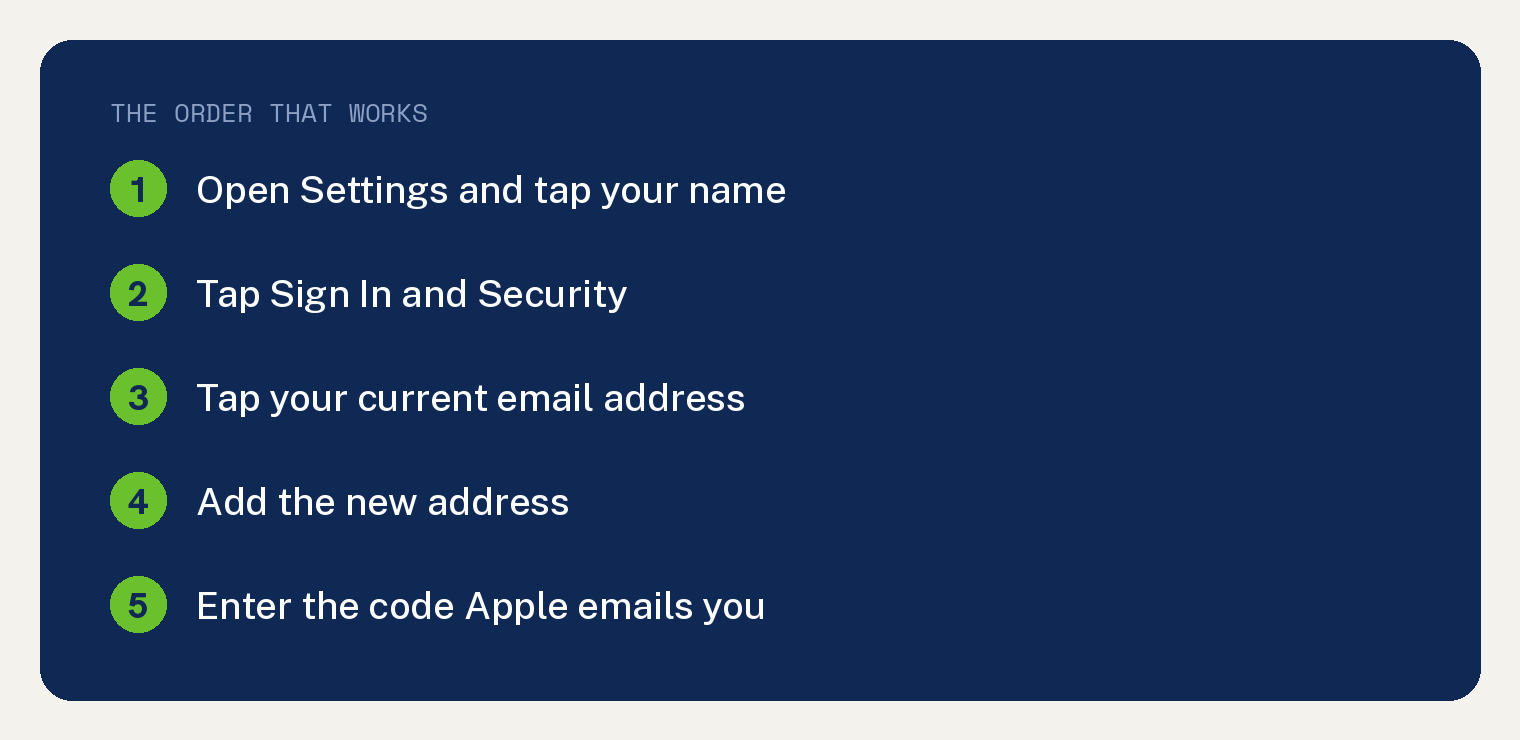
How to change your Apple ID email on iPhone or iPad
This is the easiest and safest way, since your device is already trusted.
- Open the Settings app (the gray gear icon).
- Tap your name and photo at the very top of the screen.
- Tap Sign In and Security.
- Tap your current email address to make changes.
- Tap Remove from Account to drop that address. If you want to keep it but use a different one as your main, turn off Primary Email instead.
- When Apple asks, pick another email already on your account, or tap Add Email to enter a new one.
- Type the new address and follow the prompts.
- Open the new email inbox, find the code Apple sent, and type it in.
Once the code is accepted, your new email is set. Sign in with it from now on.
How to change your Apple ID email on a computer
You can also do this in any web browser.
- Go to account.apple.com and sign in.
- Click Sign In and Security.
- Click your email under Email and Phone Numbers.
- Follow the prompts to remove the old address and add the new one.
- Enter the code Apple emails to the new address.
The web steps match the ones on your phone.
What kind of email can I use?
You can use most personal email addresses, like a Gmail, Yahoo, or Outlook address.
You can also change an Apple given address that ends in at icloud.com, at me.com, or at mac.com, as long as your device runs iOS 18.1, iPadOS 18.1, or macOS 26.4 or later. On those versions you will see Change Email Address instead of Remove from Account, and it swaps your iCloud address for a new one. If you want to know more, see our guide on whether your Apple ID has to be an email address.
Rules to know before you switch
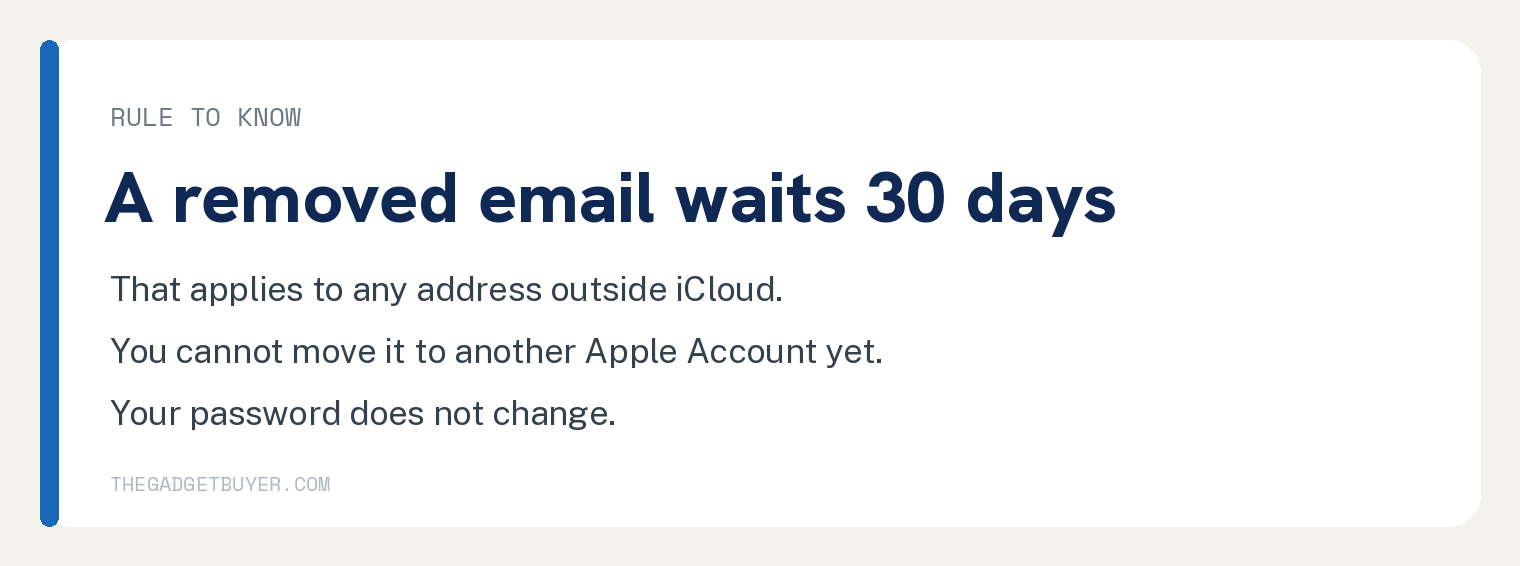
A few Apple rules catch people off guard, so read these first.
You must be able to open the new inbox, because the code goes there. No code, no change.
When you remove an email that is not an iCloud address, it is locked out of any Apple Account for 30 days. So you cannot move it to a different Apple Account right away.
Changing the email does not change your password. Your old password still works after the switch.
What happens to my purchases and photos?
Nothing is lost. Your apps, music, photos, and iCloud data all stay with the same account.
You are only changing the address you sign in with, not the account itself. Everything you bought stays yours.
After the change, sign in again on your other Apple devices with the new email so they all match.
Frequently asked questions
Will I lose my apps or photos if I change my Apple ID email?
No. Your purchases, photos, and iCloud content stay on the same account. Only the sign in address changes.
Can I use a Gmail address for my Apple ID?
Yes. Most personal addresses like Gmail work fine, as long as it is not already tied to another Apple Account.
Why will not Apple let me remove my email?
If your only address is an iCloud one, you will see Change Email Address instead of Remove from Account, on iOS 18.1 or later. If it is a regular email, make sure you can receive the verification code, since that is required.
Do I need my password to change my Apple ID email?
Yes, you sign in first. If your device keeps asking for it, see our guide on an iPhone that keeps asking for your Apple ID password. You can also check where your Apple ID is signed in.