
iPad Screen Not Rotating? 6 Fixes That Work
An iPad screen not rotating is almost always Rotation Lock, a setting that is one accidental tap away.
Swipe down from the top right corner of the screen to open Control Center, then tap the padlock icon with the circular arrow around it so it stops glowing.
Turn the iPad sideways. If it still will not rotate, work down this list.
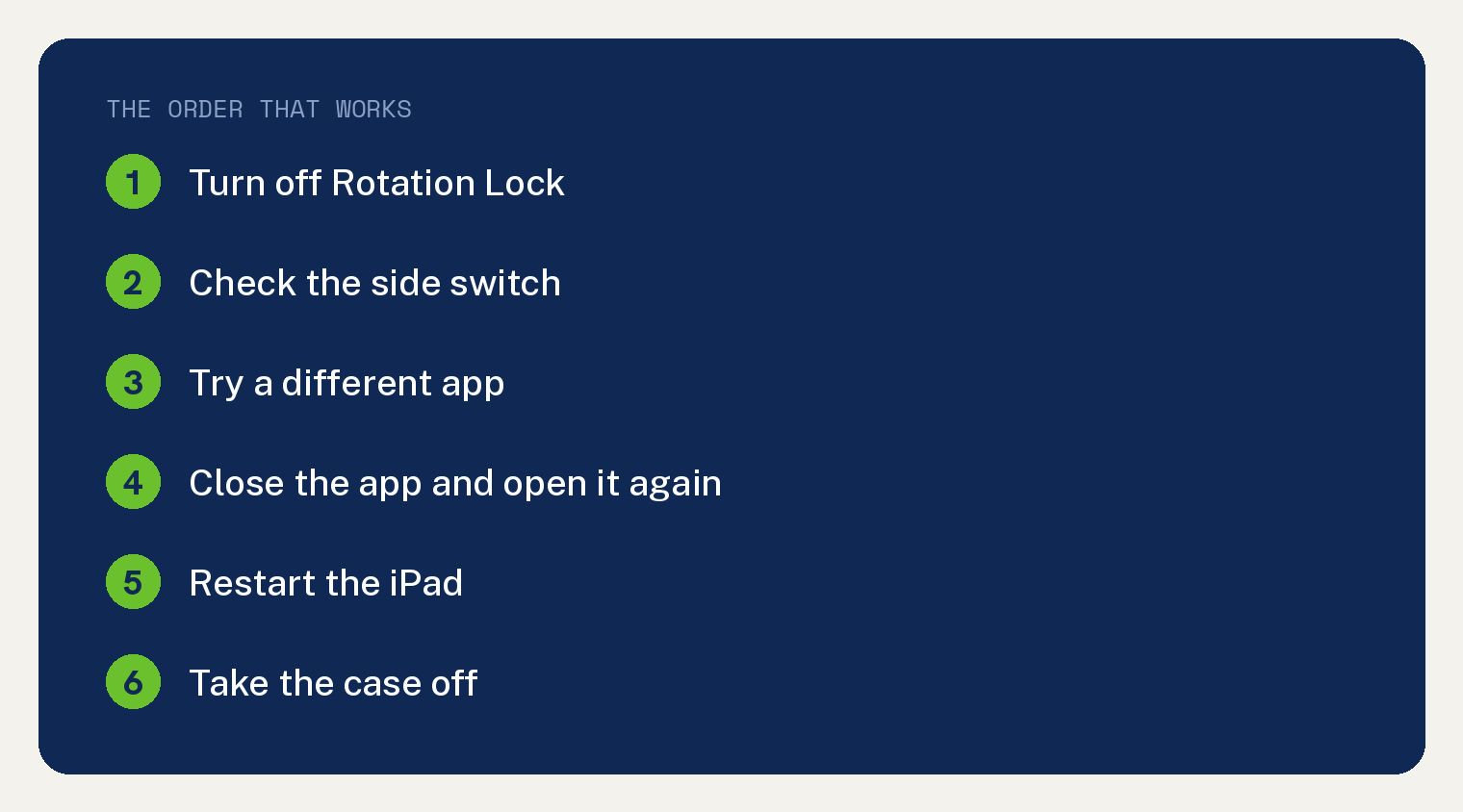
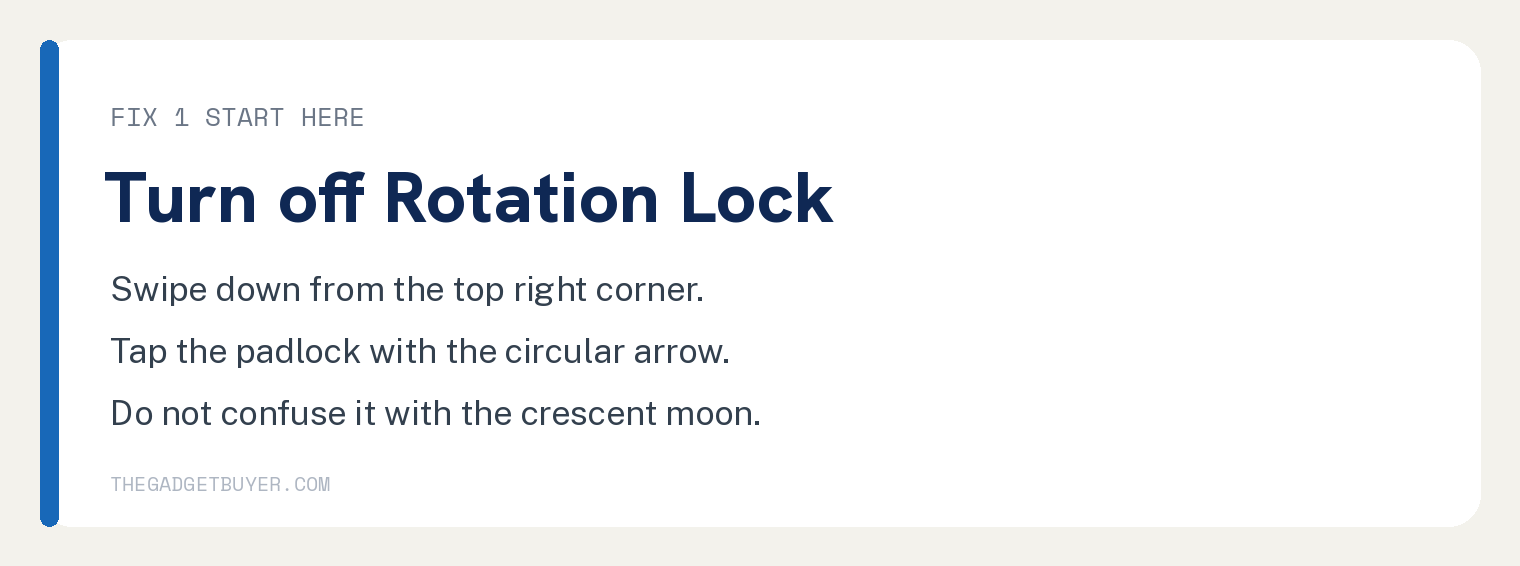
Fix 1: Turn off Rotation Lock
Start here every time. It is the cause in most cases.
- Swipe down from the top right corner of the screen. Control Center slides in.
- Look for a padlock with a circular arrow around it.
- If that button is highlighted, Rotation Lock is on. Tap it once.
- The button goes dark and a small banner says Rotation Lock Off.
- Swipe up or tap an empty area to close Control Center.
- Turn the iPad sideways.
Do not confuse it with Do Not Disturb, which is a crescent moon. They sit near each other, and people tap the wrong one constantly.
Fix 2: Check the side switch
Older iPads have a small physical switch above the volume buttons. That switch can be set to lock rotation.
If you do not see a Rotation Lock button in Control Center at all, you almost certainly have one of these iPads.
- Find the small switch on the right edge, above the volume buttons.
- Flick it the other way and try rotating the iPad.
- To change what the switch controls, open Settings and tap General.
- Under Use Side Switch To, pick Lock Rotation or Mute.
Fix 3: Try a different app
Apple says it plainly: some apps do not support rotation. The iPad is fine, the app just does not turn.
- Go to your home screen.
- Open Safari or Messages. Both work in landscape.
- Turn the iPad sideways.
If Safari rotates and your game does not, nothing is broken. That app was built for one orientation.
Report it to the app developer if it bothers you. There is no setting on your end that overrides it.
Fix 4: Close the app and open it again
Apps sometimes get stuck holding an orientation they set earlier.
- Swipe up slowly from the bottom edge of the screen and pause in the middle. The app switcher appears.
- Find the stuck app.
- Swipe up on its card to close it.
- Open the app again from your home screen.
This costs ten seconds and fixes more rotation problems than it has any right to.
Fix 5: Restart the iPad
Apple’s own next step when the screen still will not rotate.
On an iPad without a Home button:
- Press and hold the top button and either volume button until a slider appears.
- Drag the slider to the right.
- Wait 30 seconds.
- Hold the top button until the Apple logo appears.
On an iPad with a Home button, hold the top button alone until the slider appears, then do the same.
If your iPad restarts on its own without being asked, that is a different problem. Our guide on an iPad that keeps restarting covers it.
Fix 6: Take the case off
A heavy folio case, a magnetic keyboard, or a stand can hold the iPad at an angle the accelerometer reads as flat.
An iPad lying flat on a table does not know which way is up, so it does not rotate.
- Take the iPad out of the case.
- Hold it upright, straight in front of your face.
- Turn it slowly, like a steering wheel.
If it rotates now, the case or the angle was the problem. Some keyboard cases also lock the iPad to landscape on purpose.
If nothing worked
Update iPadOS. Open Settings, tap General, tap Software Update, and install anything waiting there.
Then try one last check: open Safari, hold the iPad upright, and slowly turn it while watching the screen. If nothing moves in any app after a restart and an update, the accelerometer may have failed.
That is a hardware repair. Book an appointment with Apple rather than opening the iPad, because the sensor sits under the screen.
A screen that will not respond at all is a different story, and so is an iPad that will not power up. Our guides on an iPad that will not turn on and an iPad that will not charge cover those.
Frequently asked questions
Where is the Rotation Lock button on an iPad?
Swipe down from the top right corner of the screen to open Control Center. Rotation Lock is the padlock icon with a circular arrow around it. It glows when the lock is on.
Why does my iPad rotate in Safari but not in my app?
Because that app does not support rotation. Apple confirms that some apps only run in one orientation, and no iPad setting changes that.
Does the iPad home screen rotate?
On most current iPads, yes, as long as Rotation Lock is off. A few older models kept the home screen locked to portrait.
Why did my iPad stop rotating after an update?
Updates sometimes turn Rotation Lock on. Check Control Center first, then restart the iPad before you assume the update broke something.
Can a screen protector stop rotation?
No. Rotation is handled by a motion sensor inside the iPad, not by the screen surface. A case that props the iPad flat can stop it, though.
My iPad rotates the wrong way. What now?
Restart it. The sensor reading gets stuck occasionally, and a restart clears it. If it persists in every app, the sensor needs service.