
iPhone Volume Buttons Not Working: What to Check First
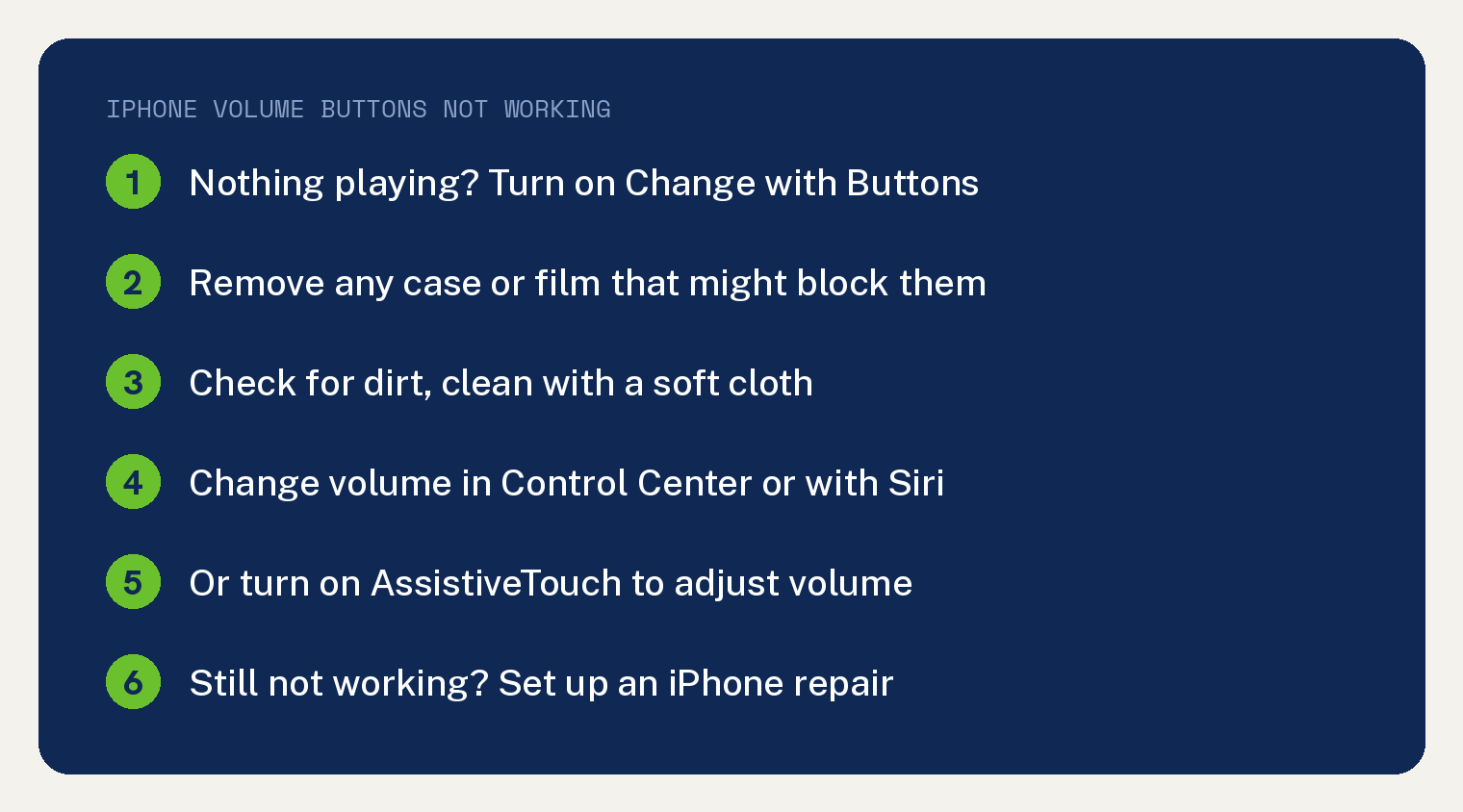
The first check for iPhone volume buttons not working is the Change with Buttons setting, then the case and the dirt around the buttons. Apple’s volume page says that when the Change with Buttons setting is off, “the volume buttons only control media playback.”
If a button still isn’t working after the case and cleaning checks, Apple says you can set up a repair. Until then, Control Center, Siri and AssistiveTouch all change the volume.
Do the volume buttons change the ringer or only media?
It depends on what is playing and on one setting. Apple’s volume page says the buttons “control media volume while audio is playing; when no audio is playing, the volume buttons control ringer and alert volume.”
Change with Buttons decides the second half. With it off, Apple says the volume buttons only control media playback, which means a press with nothing playing leaves your ringer where it was.
This is our reading of those two Apple lines, side by side:
| When you press a volume button | Change with Buttons on | Change with Buttons off |
|---|---|---|
| Audio is playing | Media volume | Media volume |
| Nothing is playing | Ringer and alert volume | Media playback only |
To turn it on, open the Settings app and tap Sounds & Haptics. Below Ringtone, Apple’s sounds page says to “Turn Change with Buttons on or off,” and you can drag the volume slider there to set the ringer.
If calls stay silent even with the ringer up, our guide to an iPhone not ringing on incoming calls covers Silent mode and Focus.
Take off the case and clean around the buttons
Start with the case. Apple’s buttons page says: “Remove any protective films or cases that might block the button or switch.”
Then look for dirt. Apple’s next step is to check for debris or dirt around the button or switch and “clean with a soft cloth.”
That page covers the side button and other buttons and switches on iPhone and iPad. If your Home button is the one that sticks, our guide to a stuck iPhone Home button goes further.
Change the volume without the buttons
Use Control Center, Siri or AssistiveTouch. Apple’s volume page says that when iPhone is locked or when you’re using an app, you can open Control Center and drag the volume slider.
Siri handles it by voice. Apple’s example request is “Turn down the volume.”
AssistiveTouch puts a menu button on your screen. Apple’s AssistiveTouch page says “You can also use AssistiveTouch when you need to press iPhone buttons,” and lists Adjust the volume on iPhone among its actions.
To set it up, go to Settings > Accessibility > Touch > AssistiveTouch and turn on AssistiveTouch. Then tap the menu button and choose an action.
Here are routes from Apple’s pages that skip the volume buttons, in one table we built:
| What you need | Route with no volume button | Apple page |
|---|---|---|
| Change volume | Control Center, Siri or AssistiveTouch | Adjust the volume, Use AssistiveTouch |
| Set the ringer | Settings, Sounds & Haptics, volume slider | Change sounds and vibrations |
| Turn off | Settings, General, Shut Down | Turn iPhone on or off |
| Restart | AssistiveTouch, Restart iPhone | Use AssistiveTouch |
Our guide to iPhone swipe up not working also uses AssistiveTouch, there to reach the Home Screen.
How do I restart an iPhone when the volume buttons don’t work?
Turn it off in Settings, then turn it back on. Apple’s Turn iPhone on or off page says to tap General, scroll down, then tap Shut Down, and drag the slider.
That same page says you can try restarting “by turning it off, then turning it back on” when your iPhone isn’t working as expected.
To turn it back on, press and hold the side button until the Apple logo appears.
The button method needs a volume button on some models. For an iPhone with Face ID or iPhone Duo, Apple says to “Simultaneously press and hold the side button and either volume button until the sliders appear, then drag the Power Off slider.”
Either one works, so a single good volume button still does the job. On iPhone SE, Apple’s step uses the side button alone.
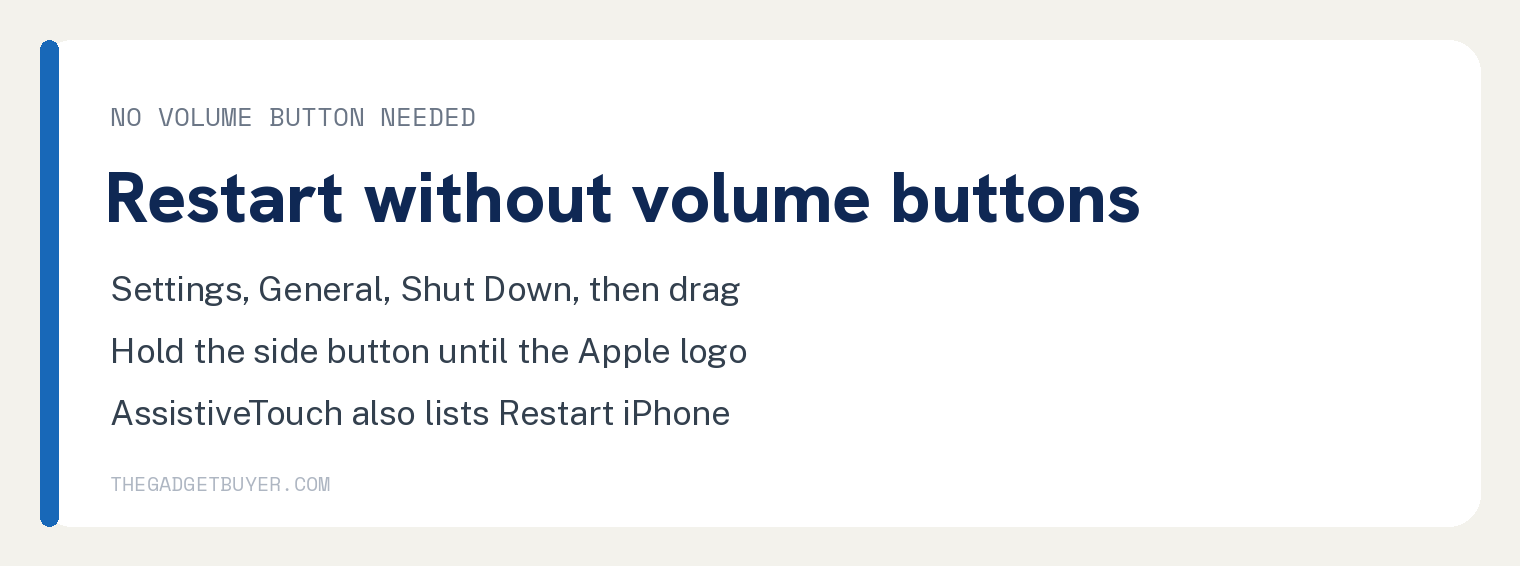
AssistiveTouch is a third route, since Apple lists Restart iPhone among its actions.
Why won’t my iPhone volume go any higher?
Check for a volume limit. That is our suggestion when the level stops short of full, and Apple’s volume page says “You can limit the maximum volume of sound that plays through headphones or the built-in speaker on your iPhone.”
Both limits sit in the Settings app under Sounds & Haptics. For the speaker, look under Built-In Speaker, tap Volume Limit, and see whether Limit Maximum Volume is on.
For headphones, look under Headphones, tap Headphone Safety, and check Reduce Loud Audio.
Apple’s volume page also lists: “Soften loud sounds from the speaker: Under Built-In Speaker, turn on Reduce Loud Sounds.”
Apple says that if you set up Screen Time for a family member, “you can prevent them from changing the Speaker Volume Limit level.”
When should I set up an iPhone repair?
Set one up when the case and cleaning checks don’t help. Apple’s buttons page says: “If the button or switch still isn’t working, is damaged, or works intermittently, you can set up a repair.”
The page links to Set up an iPhone repair for that. Until the repair, Control Center still changes the volume.
Sources
- If the side button or another button isn’t working on your iPhone (Apple Support)
- Adjust the volume on iPhone (iPhone User Guide)
- Change iPhone sounds and vibrations (iPhone User Guide)
- Use AssistiveTouch on iPhone (iPhone User Guide)
- Turn iPhone on or off (iPhone User Guide)