
What to Do When Apple TV Keeps Buffering
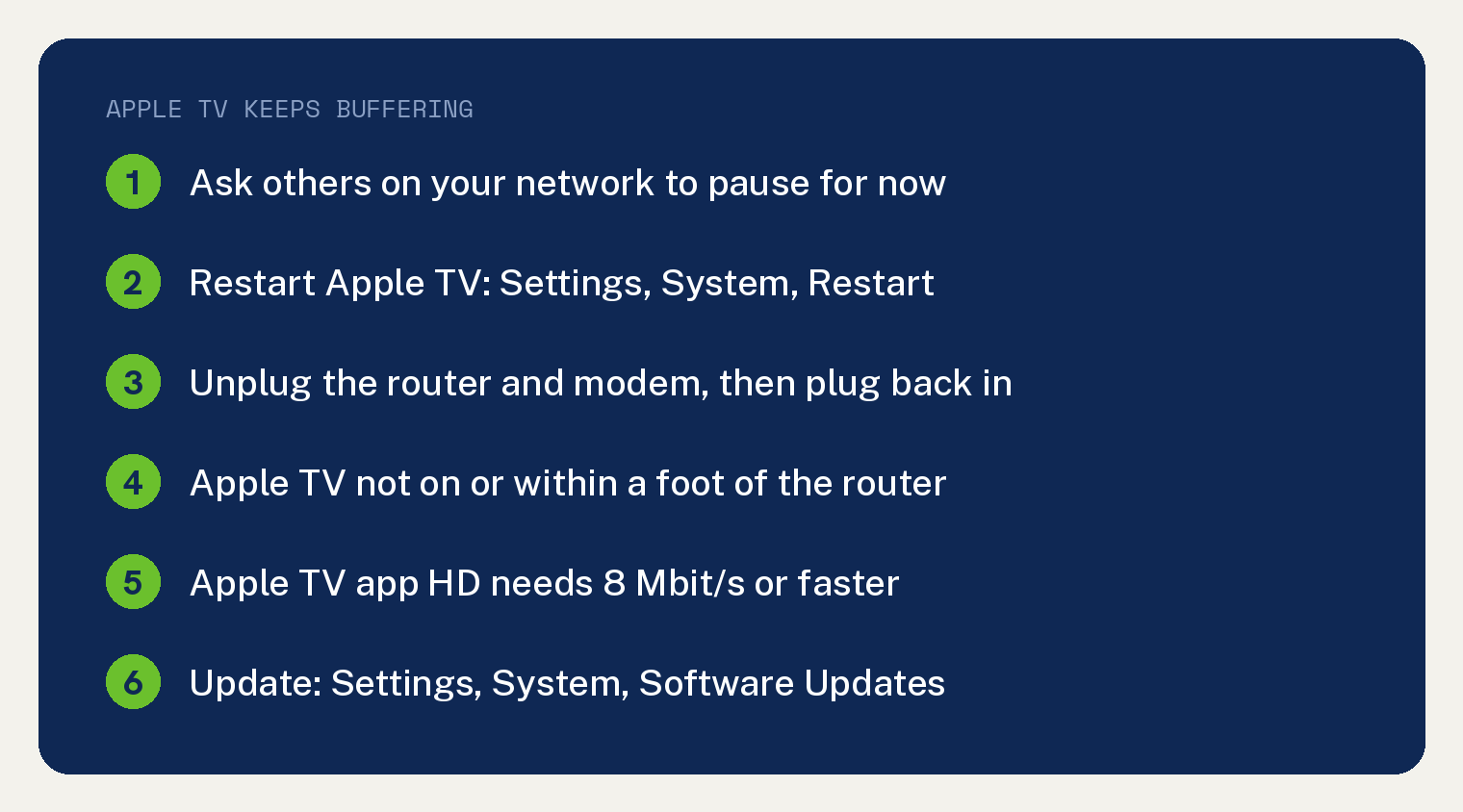
When your Apple TV keeps buffering, work on the connection first. Ask others on your network to pause their internet use for now, restart Apple TV and your router, and move Apple TV off and away from the router.
Apple’s playback page puts this problem under “If the video quality is bad or it stops playing” and says busy networks are one reason: “your connection speed might slow down.”
Do Apple’s playback tips work on Apple TV?
Two of the three do. Apple’s page covers the Apple TV app on phones, computers, smart TVs and streaming devices alike, so we sorted its three tips for an Apple TV box.
| Apple’s tip for a video that stops | On Apple TV 4K or Apple TV HD |
|---|---|
| Ask others on your network to pause their internet activities for now | Yes. This is Apple’s first tip for a video that stops. |
| Turn a streaming device off and back on, or restart an Apple device | Yes. Apple TV has its own Restart setting, shown in the next section. |
| Download the title instead | No. Apple TV 4K and Apple TV HD can only stream from the Apple TV app. |
The download tip starts “If you’re on a device that can download content.” Apple’s download page rules the box out: “You can’t download content from the Apple TV app on Apple TV 4K, Apple TV HD, smart TVs, streaming devices, and on tv.apple.com.”
How do you restart Apple TV and your router?
Restart Apple TV from its menu, then power cycle your network gear. Apple’s Apple TV Wi-Fi page gives both steps and says to check after each device whether you still need help.
- On Apple TV, open Settings, tap System, then select Restart.
- Unplug your router and your cable or DSL modem from power.
- Plug them back in.
The same page also asks you to make sure your router is connected to your modem and that both are powered on.
Does it matter where Apple TV sits?
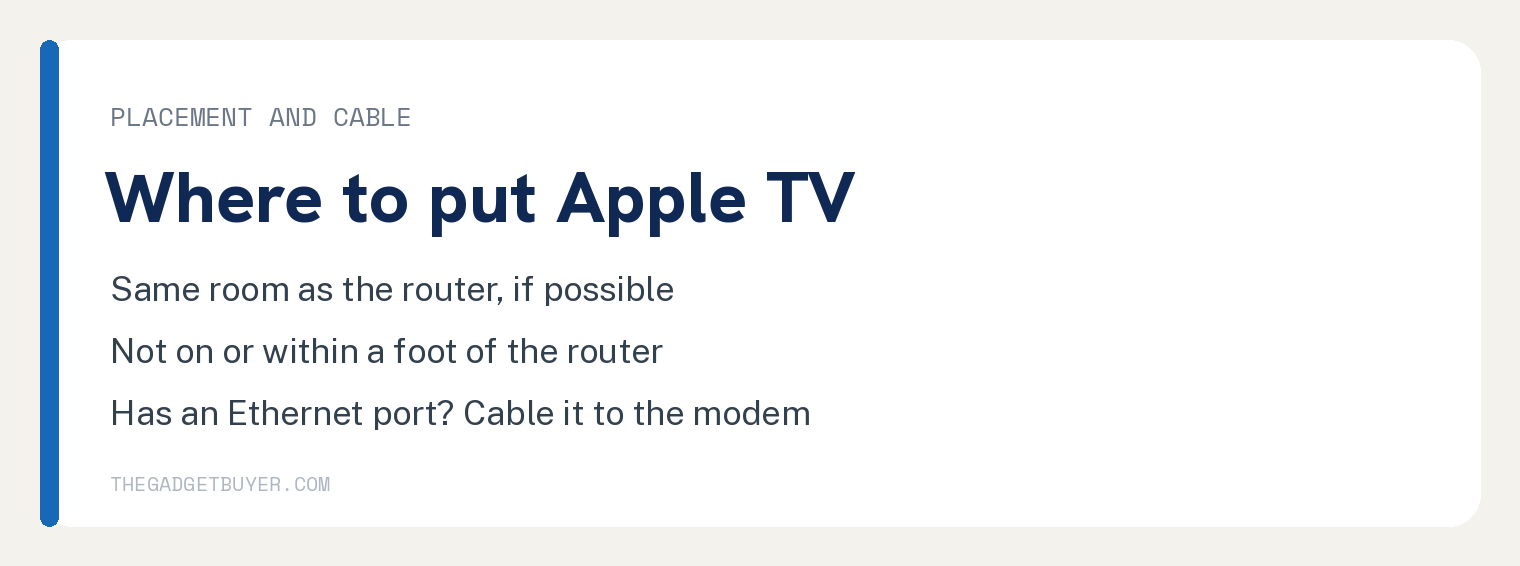
Yes. Apple’s Apple TV Wi-Fi page says to keep Apple TV and your router in the same room if possible, and to avoid things in the signal’s path, especially metal surfaces.
It also says: “don’t place your Apple TV directly on or within a foot of your router.”
A cable is Apple’s other answer. If your Apple TV has an Ethernet port, the page says to connect it directly to the modem with an Ethernet cable “for the best experience.”
Once the cable is in, “Apple TV automatically uses that connection instead of your Wi-Fi network.” One model has no Ethernet: Apple’s Apple TV 4K User Guide says “Ethernet is not available on Apple TV 4K (3rd generation) Wi-Fi.”
For the Wi-Fi and Ethernet menus themselves, see our guide to connecting Apple TV to Wi-Fi or Ethernet.
How fast does your internet need to be for Apple TV?
For HD in the Apple TV app, Apple prints a minimum. “Streaming HD content requires 8 Mbit/s or faster,” its playback page says, and slower tiers of Wi-Fi connections might not be fast enough to stream HD video content.
The same page notes that your Wi-Fi router should be 802.11a/g/n/ac compatible.
Among its checks for a video that won’t start playing, Apple suggests watching on a different device using the same Wi-Fi or cellular connection. If that fails too, Apple says to contact your internet service provider to see if there’s an issue with your network.
If your Wi-Fi drops on other devices as well, our guide to Wi-Fi that keeps cutting in and out covers the home network side.
Could too many people be streaming on one account?
Check it if several people share your subscription. Apple lists this among its checks for a video that won’t start playing: if others are watching an Apple TV subscription or Apple TV channels, make sure it doesn’t exceed the limits for streaming on multiple devices.
Apple’s download and streaming page sets the Apple TV subscription limit this way: “For most content, one subscription allows you to enjoy 6 simultaneous streams.” It adds that some titles might be available to stream on fewer devices at the same time.
Apple TV channels allow up to 3 simultaneous streams for most channels, and some channels might allow more or less.
Apple’s won’t start checks also send you to the System Status page, or a third party provider’s website, for service interruptions. If there are any, Apple says to try to stream or watch the video later.
What if only Netflix or another app keeps buffering?
Apple’s playback page covers the Apple TV app. For “another streaming app that you purchased from the App Store,” it says you can contact the app developer.
To set Netflix up on Apple TV in the first place, see how to get Netflix on Apple TV.
If the video comes from an iPhone or Mac over AirPlay, see our AirPlay on Apple TV fixes.
Should you update tvOS?
Apple’s playback page starts with updates. It says to update your Apple device to update the Apple TV app.
On Apple TV, Apple’s Wi-Fi page gives the path: go to Settings, tap System, then tap Software Updates. If there’s an update, install it.
Sources
- If you can’t watch or stream movies, TV shows, or sports in the Apple TV app (Apple Support)
- If your Apple TV can’t connect to Wi-Fi (Apple Support)
- Download and stream shows, movies, sports, and events from your Apple TV subscription (Apple Support)
- Change network settings on Apple TV 4K (Apple TV 4K User Guide)