
Aria Air Not Syncing Starts With the App Open on Your Phone
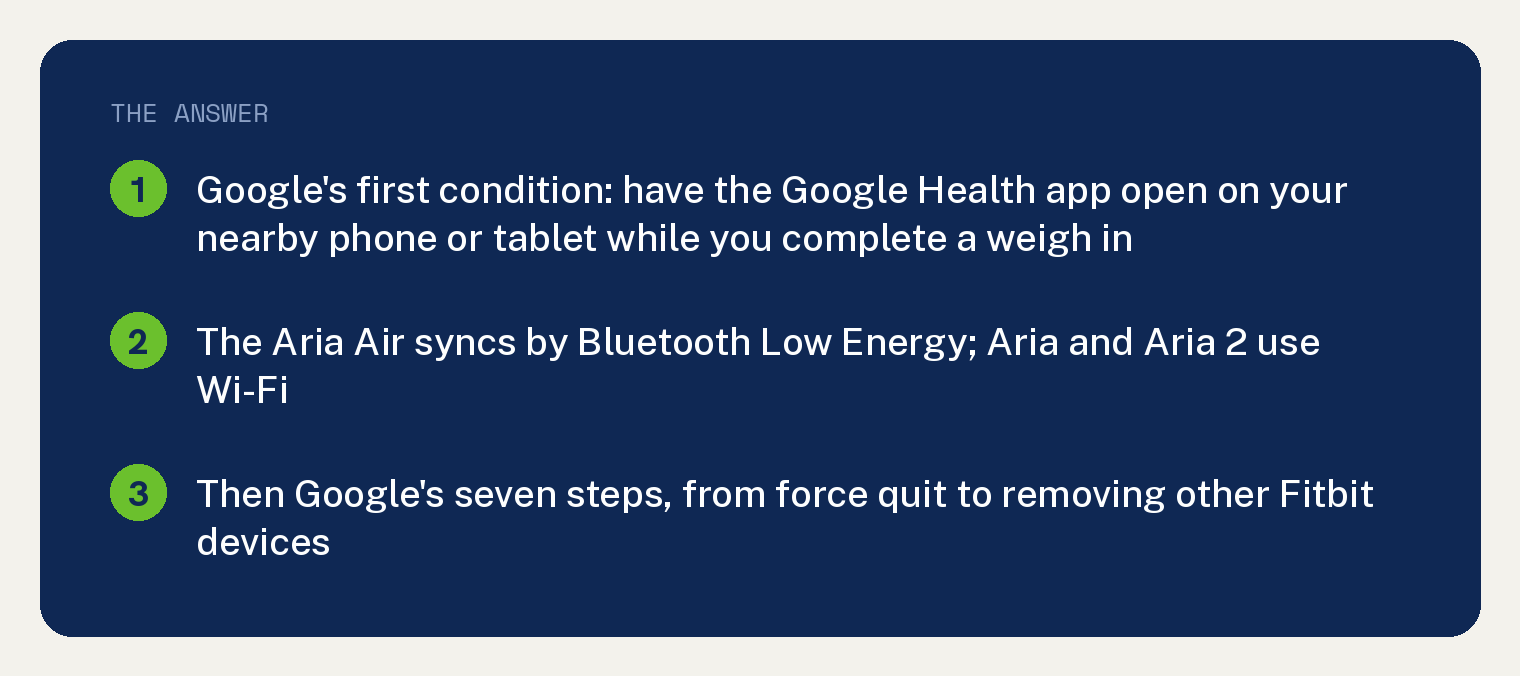
Google’s first condition for an Aria Air not syncing, under “Before you start, you must:”, is “Have the Google Health app open on your nearby phone or tablet while you complete a weigh-in.” Google prints five more conditions and seven troubleshooting steps for the Aria Air, the last two printed beneath the fifth, and every one is quoted below.
Every Google statement in this article is quoted from one Google Health Help page, “Fix syncing issues with Google Health”. The six conditions and the troubleshooting steps sit under its “Troubleshoot Scales” heading and its “Aria Air” subheading, and Google prints the conditions first, then the steps.
Why the Aria Air is different from the older Aria scales
Google’s page says: “Fitbit trackers, watches, and Fitbit Aria Air use Bluetooth Low Energy (BLE) technology to sync with phones and tablets.” The next sentence covers the older scales: “Fitbit Aria and Fitbit Aria 2 use Wi-Fi to connect directly to your router.”
The page’s “Aria and Aria 2” section covers the Wi-Fi scales, and this article does not quote it.
Google’s six conditions before you troubleshoot
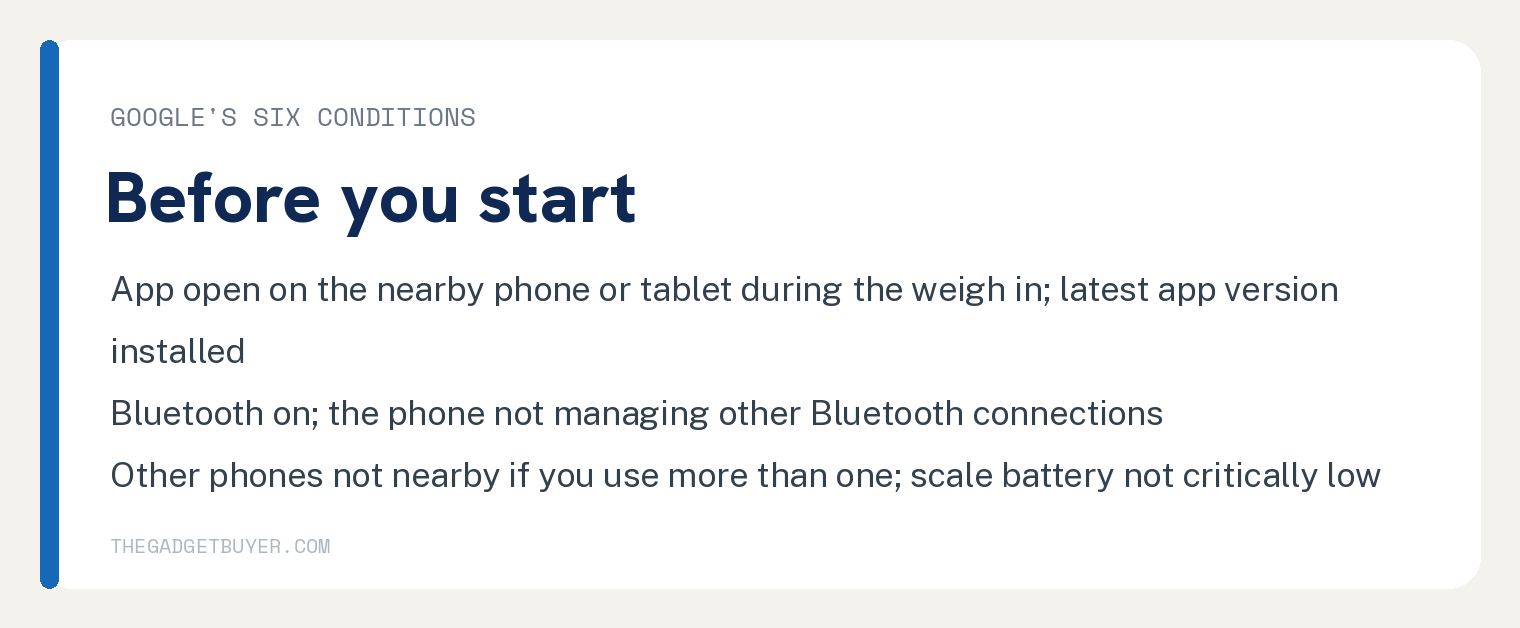
Under “Aria Air”, Google’s lead in reads “Before you start, you must:” and lists six items. They are quoted here in Google’s order.
- “Have the Google Health app open on your nearby phone or tablet while you complete a weigh-in.”
- “Install the latest version of the Google Health app on your phone or tablet.”
- “Turn on Bluetooth on your phone or tablet.”
- “Make sure your phone or tablet isn’t managing other Bluetooth connections.”
- “Make sure the other device isn’t nearby if you use more than one phone or tablet to sync your scale.”
- “Your scale’s battery isn’t critically low.”
Google’s troubleshooting steps for the Aria Air, in Google’s order
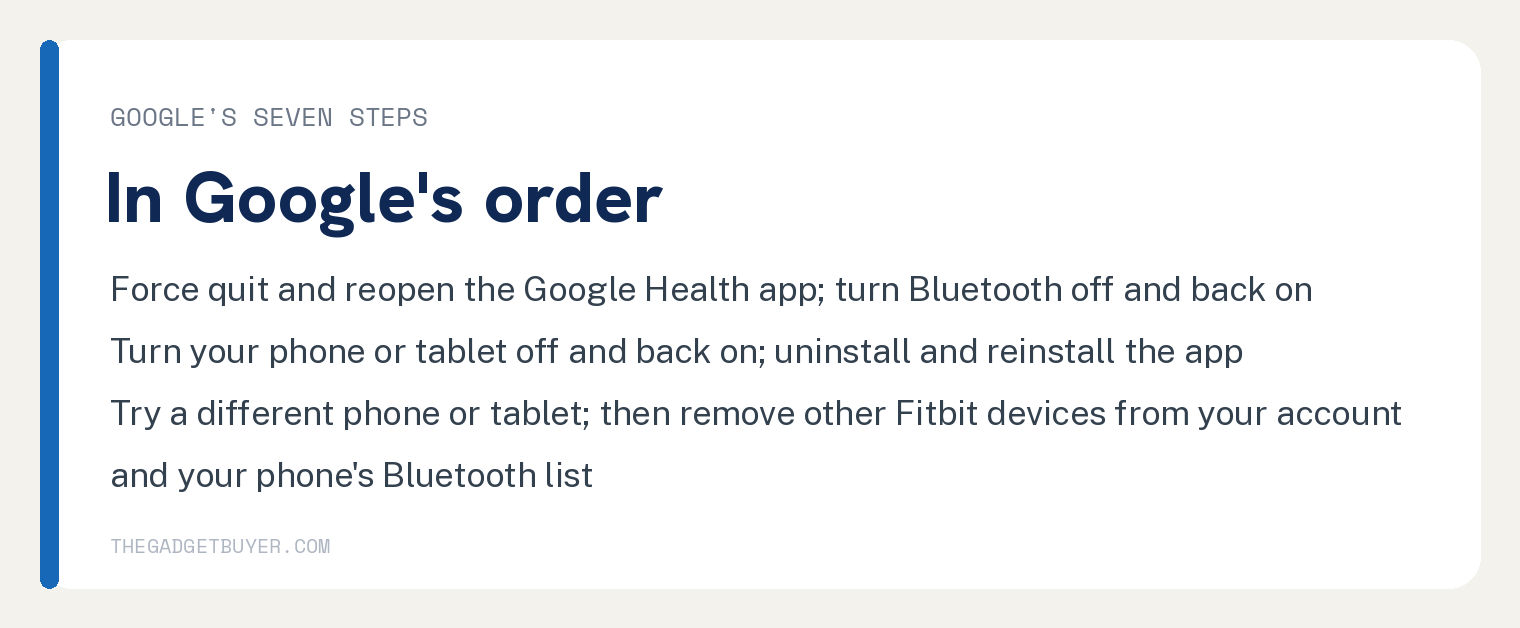
Under the “Troubleshooting steps” heading in the same section, Google prints five numbered steps, with two more steps printed beneath the fifth. All seven are quoted here in Google’s order and numbered one to seven.
- “Force quit and then reopen the Google Health app”
- “On your phone, open the Settings app” “and tap Bluetooth”
- “Turn Bluetooth off and back on.”
- “Turn your phone or tablet off and back on.”
- “Uninstall and reinstall the Google Health app.”
- “If your Fitbit scale won’t sync after you reinstall the app, uninstall the app and try to log in to your Google Health account on a different phone or tablet and try to sync.”
- “If it still doesn’t sync, remove other Fitbit devices from your account and the list of connected Bluetooth devices on your phone and try to sync.”
Google’s Aria Air section ends with the seventh step quoted above. For a tracker or watch that will not sync, which has its own section on the same page, this site covers a Fitbit not syncing in the Google Health app.
If you moved your account recently
Google’s page carries this note at the top: “If you recently moved your account to the Google Health app, historical data might not appear immediately. Large historical transfers may take up to 48 hours.”
For the move itself, this site covers a Fitbit account that will not move to Google and where the Fitbit app went.
Frequently asked questions
Does the Aria Air show a check mark when it syncs?
Google’s page prints a check mark for the older scales only: “Fitbit Aria or Fitbit Aria 2 automatically syncs your stats to the Google Health app after every weigh-in. A checkmark appears after data is synced.” The strings checkmark and check mark each print once on the page, both for Fitbit Aria and Fitbit Aria 2, and the Aria Air section prints neither.
Do I need to reset the Aria Air or change its batteries?
Google’s syncing page prints no reset step and no battery type for the Aria Air; the strings reset your scale, factory reset, pairing mode and AAA appear nowhere on it. Its one battery sentence for the Aria Air is condition six: “Your scale’s battery isn’t critically low.”
Can I use two phones with the Aria Air?
Google’s fifth condition covers it: “Make sure the other device isn’t nearby if you use more than one phone or tablet to sync your scale.”
How close does the scale need to be?
Google’s page prints no distance for the Aria Air. Its condition is “on your nearby phone or tablet”, and the page’s Important box reads: “Proximity: Your Fitbit device must remain near your phone to sync.”