
Hidden iPhone 17 Pro Features You Probably Didn’t Know Were There
Apple’s latest iPhone 17 Pro arrived with the usual fanfare and feature announcements. But tucked away in the settings and buried in the fine print are some truly powerful tools that didn’t make it onto the keynote stage.
Your iPhone 17 Pro can do way more than Apple told you about, and learning these hidden features will transform how you use your phone every day. From display tricks that ease eye strain to professional video tools that rival expensive cameras, these lesser-known capabilities are sitting in your pocket right now waiting to be discovered.
You’re about to learn how to tap the back of your phone to launch shortcuts, sync your camera with pro video equipment, and customize buttons to work exactly how you want them to. These aren’t just neat party tricks. They’re practical tools that can save you time, protect your eyes, and unlock creative possibilities you didn’t know existed.
1) ProMotion 120Hz Display on iPhone 17 base model for silky smooth scrolling
You know that buttery-smooth feeling when you scroll through your phone and everything just glides? That’s what you’re finally getting with the base iPhone 17’s ProMotion display.
For years, Apple kept this feature locked behind the Pro models. But now, even the regular iPhone 17 comes with a 120Hz refresh rate. Think of it like the difference between watching a slideshow and watching a movie. Your screen refreshes twice as fast as older iPhones, so scrolling feels incredibly smooth.
The iPhone 17’s larger 6.3-inch display includes ProMotion technology with an adaptive refresh rate. This means your phone can scale from 1Hz all the way up to 120Hz depending on what you’re doing. Reading a still page? It drops to save battery. Scrolling through Instagram? It jumps to 120Hz for that silky experience.
Playing games and viewing animations become significantly smoother with this upgrade. Your iPhone feels more responsive to every swipe and tap.
2) Back Tap feature lets you double or triple tap the back of your phone to trigger shortcuts
Your iPhone has a hidden shortcut that feels like magic once you try it. You can literally tap the back of your phone to make things happen.
Back Tap is an accessibility feature that turns the back of your iPhone into a button. Double-tap or triple-tap it, and you can take screenshots, open your camera, turn on the flashlight, or launch any shortcut you want.
It works even if you’re using a case. Think of it like knocking on a door—your phone recognizes the pattern and responds.
You can set up Back Tap to trigger almost anything your phone can do. Want faster selfies? Set double-tap to open your front camera. Need quick access to your flashlight in the dark? Triple-tap can handle that.
The feature was introduced in iOS 14 and works by using sensors already built into your phone. You’ll find it buried in your accessibility settings, which is why most people never discover it.
Once you start using it, you’ll wonder how you ever lived without it.
3) ProRes RAW video recording on iPhone 17 Pro for next-level video editing
Your iPhone just became a serious filmmaking tool. The iPhone 17 Pro is the first smartphone to offer ProRes RAW video recording, which is a huge deal if you care about video quality.
Think of regular video like a baked cake. It’s done. ProRes RAW is more like having all the ingredients separated so you can adjust the recipe later.
With ProRes RAW, all your camera sensor data gets preserved—things like ISO, shutter speed, and especially white balance. That means you can change colors and lighting when you’re editing instead of being stuck with what you shot.
You’ll need apps like Final Cut Camera to record in ProRes RAW. The native camera app won’t do it.
This format gives you filmmaker-grade control in editing software like Final Cut Pro and DaVinci Resolve. You can tweak every detail without losing quality.
Fair warning: these files are huge. You’ll burn through storage fast and probably need an external drive.
4) Always-On Display keeps essential info visible without unlocking your phone
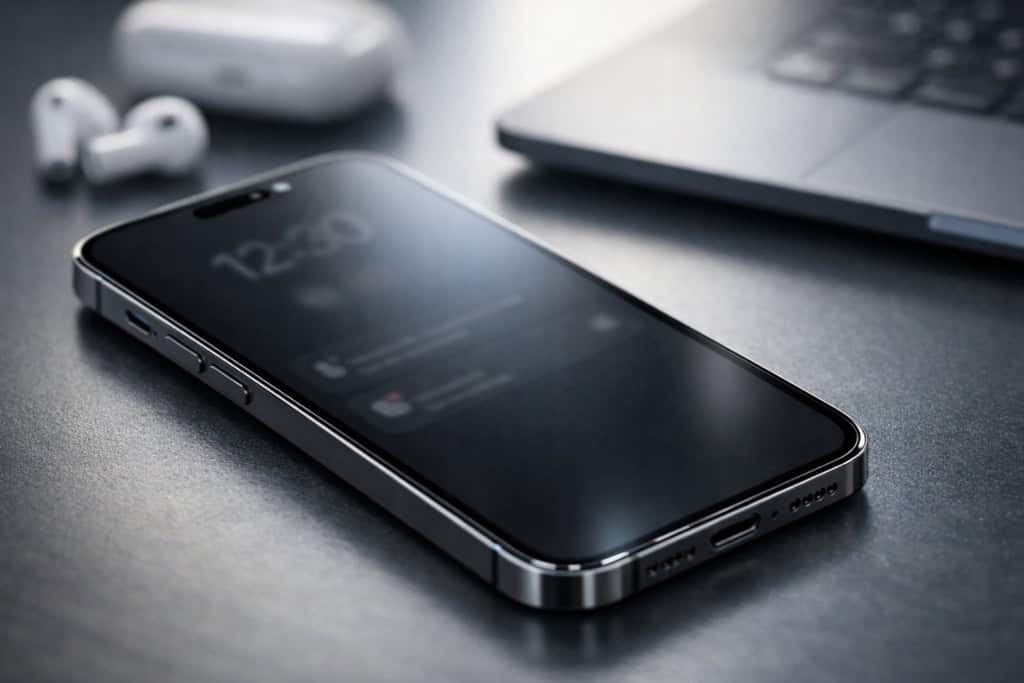
You know that moment when you just want to check the time or see if you got that text back, but your phone screen is totally black? The iPhone 17 Pro fixes that with its Always-On Display feature.
Think of it like leaving your nightlight on. Your lock screen stays dimly visible even when your phone is locked, showing you the essentials without draining your battery like crazy.
You can glance at the date, time, notifications, and even your lock screen widgets without touching your phone. No more tapping the screen fifty times a day just to check if it’s almost lunchtime.
The cool part? Your iPhone uses special OLED tech that only lights up specific pixels, so it uses minimal power while keeping info visible. It’s smart enough to know when you’re not looking and dims itself even more.
If you want to customize how it looks or turn it off completely, you can do that in Settings. Some people love it, others find it distracting. Your phone, your choice.
5) GenLock syncs your iPhone 17 Pro camera with professional video gear effortlessly
Ever tried filming with multiple cameras and ended up with footage that’s just slightly off? Like everyone’s almost in sync, but not quite? That’s where GenLock comes in to save the day.
Your iPhone 17 Pro now has GenLock support built right in, which is a first for any smartphone. Think of GenLock like a conductor keeping all your cameras perfectly in time with each other. It sends out a reference signal that tells every camera exactly when to capture each frame.
This means you can mix your iPhone with professional cameras on set and everything stays perfectly synced. No more spending hours trying to line up clips frame by frame.
You’ll need hardware like the Blackmagic Camera ProDock to connect everything with professional BNC cables. Apps like Final Cut Camera 2.0 support it right out of the box.
For filmmakers shooting with LED walls or multi-camera setups, this feature is huge. Your iPhone can now play with the big cameras like it belongs there.
6) Eye comfort mode reduces screen flicker to help PWM-sensitive users
Ever notice your eyes feeling tired or getting a headache after using your phone at night? You’re not imagining it. OLED screens use something called PWM (pulse width modulation) to dim the display, and it can cause invisible flickering that bothers some people’s eyes.
The good news? Apple finally added a PWM toggle in iOS 26 for the iPhone 17 Pro. It’s called Display Pulse Smoothing, and it’s tucked into the Accessibility settings.
Think of PWM like a strobe light that flashes so fast you can’t consciously see it. But your eyes and brain still notice. When you turn on Display Pulse Smoothing, your iPhone switches to a different dimming method that’s easier on sensitive eyes.
This new accessibility option works at low brightness levels, which is exactly when PWM flicker is strongest. If you’ve been dealing with eye strain, headaches, or fatigue from your screen, this little toggle could make a huge difference.
7) Macro photography mode that kicks in automatically for stunning close-ups
You know that feeling when you spot something tiny and beautiful—like a flower petal or a dewdrop—and you want to capture it up close? Your iPhone 17 Pro has your back.
Macro photography features automatically activate when you get within about 2 centimeters of your subject. The camera uses its Ultra Wide lens to capture those tiny details in sharp focus. No button to press. No special mode to hunt down in your settings.
When you move your phone close enough, a small yellow flower icon appears on your screen. That’s your cue that macro mode is working its magic.
This feature works for photos, Live Photos, and even videos, including slow-motion and time-lapse. You can capture the texture of a leaf, the details of an insect, or even tiny text that’s hard to read with your eyes alone.
The best part? Your phone does all the switching for you. Just get close and tap to focus. That’s it. You’re suddenly a macro photographer without needing expensive equipment or confusing settings.
8) Customizable Action Button on iPhone 17 Pro to launch your favorite tools instantly
You know that little button on the side of your iPhone 17 Pro where the old silent switch used to be? It’s not just for muting anymore.
The Action Button replaces the traditional mute switch and lets you program it to do pretty much whatever you want. Think of it like a shortcut key for your phone—one quick press and you’re launching your camera, turning on your flashlight, or opening your favorite app.
Setting it up is super easy. Just head to Settings, tap Action Button, and swipe through the options until you find what works for you. You can assign shortcuts, toggle settings, or even launch apps with a single press.
The best part? You’re not stuck with one choice forever. Change it whenever your routine changes. Maybe you need quick access to Voice Memos during the week and your camera on weekends.
It’s one of those features that feels small until you start using it. Then you wonder how you ever lived without it.
9) Spatial Audio with dynamic head tracking for immersive sound adventures
You know that feeling when you’re watching a movie and a car zooms past from left to right? Now imagine hearing that same movement through your headphones, but the sound actually follows where you turn your head. That’s spatial audio with head tracking.
Your iPhone 17 Pro takes this tech to the next level. When you move your head while listening, the audio stays anchored to your device or screen. Turn left, and the sound adjusts so it still feels like it’s coming from the right direction.
It’s like the difference between watching a band on TV versus sitting in the actual concert hall. Dynamic head tracking headphones adjust sound placement as you move, creating a more realistic experience.
This works with movies, games, and even FaceTime calls. Your AirPods Pro or compatible headphones use sensors to track your head movements in real time. The iPhone processes this info instantly to shift the audio around you.
Advanced features like dynamic head tracking require compatible hardware, but once you try it, regular stereo sound feels flat in comparison.
10) Adaptive island that shows interactive notifications and timers in new ways
You know that little pill-shaped thing at the top of your iPhone 17 Pro? It’s called Dynamic Island, and it just got way smarter.
Think of it like a helpful assistant that pops up exactly when you need it. Setting a timer while cooking? It floats right there so you can glance at the countdown without opening anything.
The iPhone 17’s Dynamic Island 2.0 adapts to what you’re actually doing. Playing music? It shows your track. Ordering food? It tracks your delivery. Running a timer? You can see it tick down in real time.
Here’s the cool part: you can touch and hold it to expand the info, or just tap once to jump into the app. It’s fast and intuitive, like your phone is reading your mind.
The interactive notifications mean you don’t have to hunt through your apps anymore. Everything important surfaces right where you can see it. It’s genuinely one of those features that makes you wonder how you lived without it.
Why Hidden iPhone 17 Pro Features Matter
Apple tends to spotlight the flashy stuff at launch events, but some of the most useful tools are tucked away in menus you’d never think to open. These hidden features can make your iPhone 17 Pro feel like a completely different device once you know where to look.
Unlocking the Real Power of Your Phone
You paid a lot of money for your iPhone 17 Pro. But if you’re only using the features Apple showed off on stage, you’re leaving some serious capability on the table.
Think of it like buying a fancy blender that can also heat soup, but you only use it for smoothies because nobody told you about the other buttons. The iPhone 17 Pro has enhanced Dynamic Island controls and real-time privacy monitoring that most people never discover.
These aren’t just gimmicks. They’re practical tools that can change how you use your phone every single day. ProRes RAW video recording and GenLock support turn your phone into professional-grade equipment for creators. Gesture shortcuts speed up tasks you do a hundred times a day.
Once you tap into these features, you’ll wonder how you ever managed without them.
How These Hidden Settings Can Save the Day
Here’s where things get really useful. The stuff Apple doesn’t talk about can actually solve problems you deal with constantly.
Your battery dying at 2pm? There are improved battery management tools buried in settings that most people never touch. Worried about apps tracking you? Real-time privacy monitoring shows you exactly who’s watching, when.
Offline Siri means you can still get answers when your signal drops. Smarter photo cleanup powered by AI helps you find that one picture from three months ago without scrolling forever.
These aren’t features you think about until you desperately need them. And when that moment comes, you’ll be glad you took five minutes to learn where they live.
How to Discover iPhone 17 Pro Secrets
Apple doesn’t hand you a map to all the cool stuff hiding in your iPhone 17 Pro. You’ll need to dig through settings menus and test features without worrying you’ll break anything.
Making Sense of Apple’s Sneaky Settings
Apple loves tucking powerful features three menus deep where most people never look. The Settings app is like a giant filing cabinet, and the good stuff is rarely in the drawer you’d expect.
Start by tapping into Settings and scrolling past the obvious options. Look for sections like Accessibility, which sounds boring but actually holds powerful capabilities and shortcuts that can change how you use your phone. Camera settings hide under both the Camera app and the main Settings menu, so check both places.
Key places to explore:
- Control Center: Long-press any icon to see if it has hidden options
- Face ID & Passcode: Security features you probably set up once and forgot
- Battery: Detailed stats about what’s draining your power
- Developer options: Not just for nerds anymore
The iPhone 17 Pro packs truly professional new features that Apple barely mentioned during launch. You just have to know where they’re hiding.
Tips for Experimenting Without Fear
Here’s the truth: you’re not going to brick your iPhone by poking around in settings. The worst that happens is you turn something on, don’t like it, and turn it back off.
Take screenshots before you change anything major. That way you can remember what the original setting looked like if you want to go back. Just press the volume up and side button together.
Try one new feature at a time so you can actually tell what’s different. If you flip 10 switches at once, you won’t know which one made things better or worse.
Safe ways to experiment:
- Change a setting
- Use your phone normally for a day
- Notice what feels different
- Keep it or revert it
You can always reset specific settings without losing your data. Go to Settings > General > Transfer or Reset iPhone > Reset, then pick what you want to reset. Your photos and apps stay put.