
How to Get iPad Split Screen Back on iPadOS 26
If your iPad split screen is not working after the update to iPadOS 26, open Settings, tap Multitasking & Gestures, and select Windowed Apps. Then, in Apple’s words: “When an app is in full screen, you can drag another app from the Dock, App Library, or Spotlight to the left or right edge of the screen to use them side by side.”
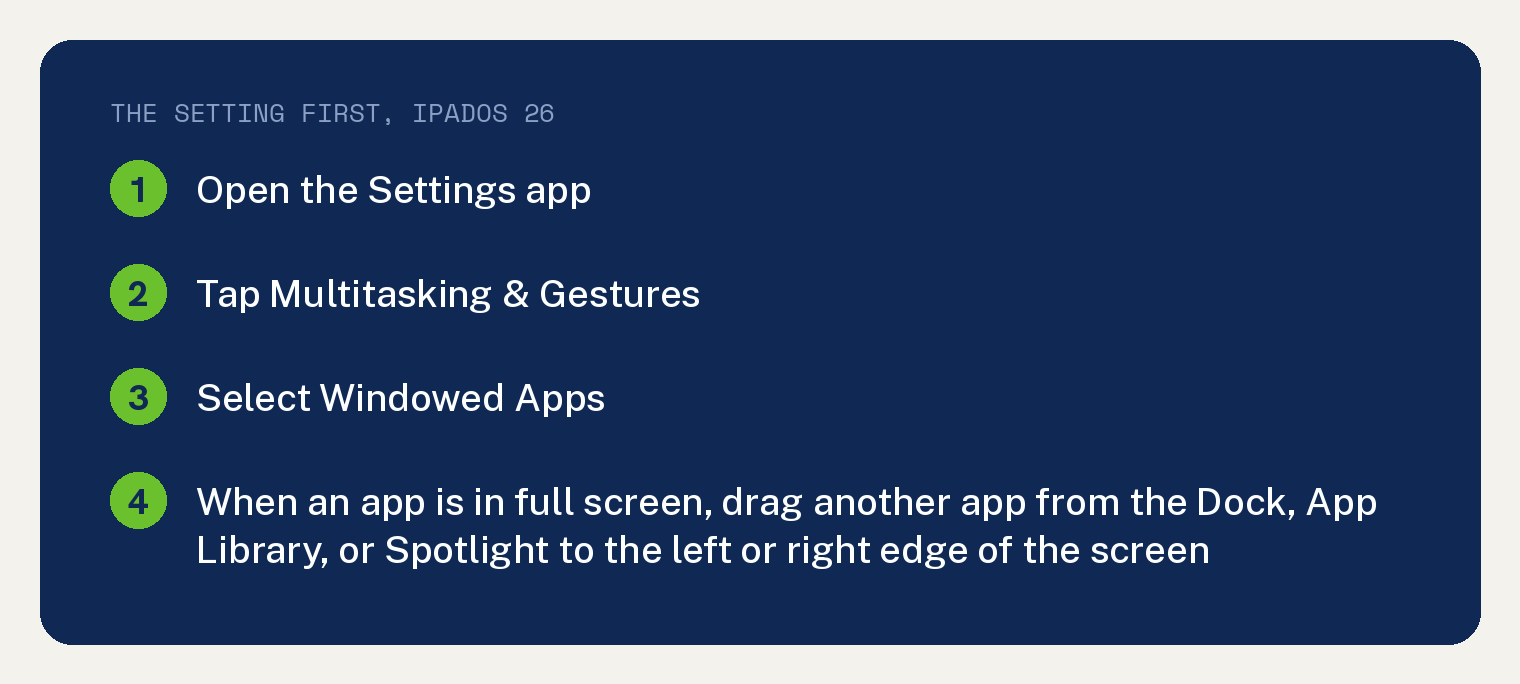
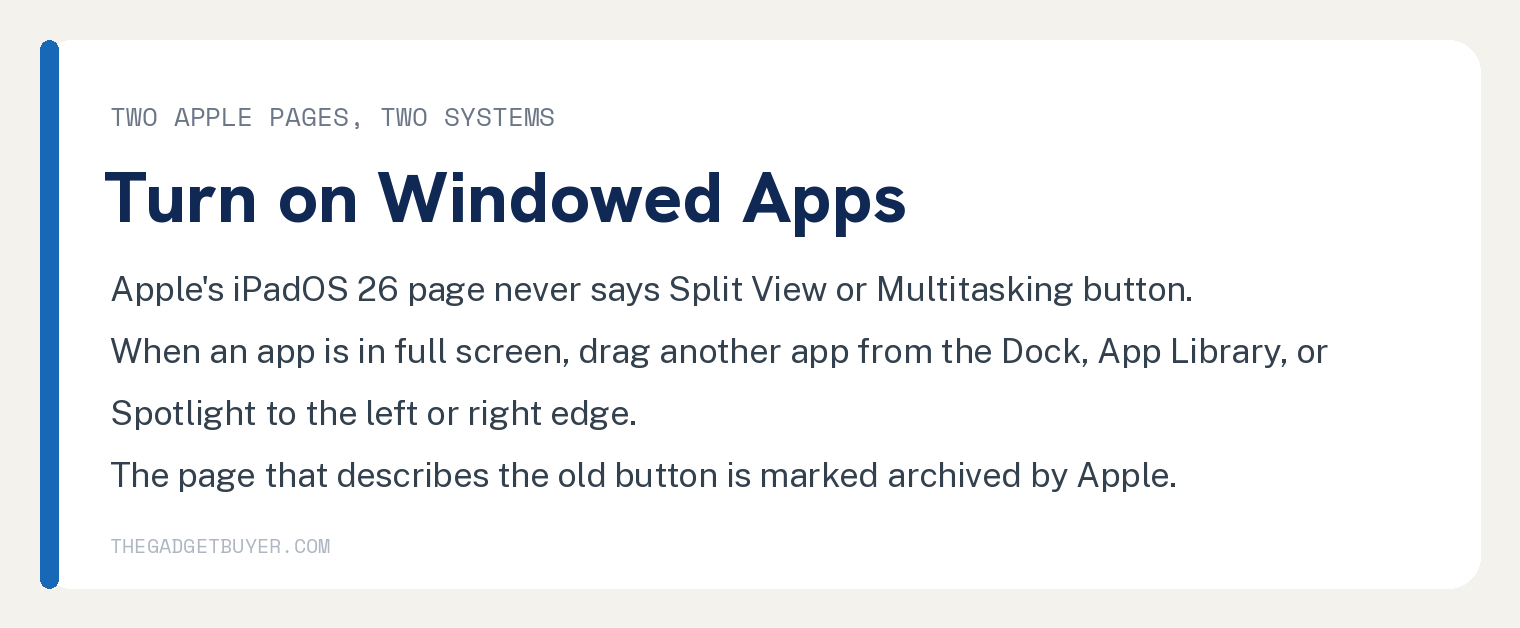
Apple’s current multitasking page, written for iPadOS 26 or later, never uses the words Split View or Multitasking button. Of the two Apple pages cited in this article, those words appear only on the older one, which carries Apple’s banner “This article has been archived and is no longer updated by Apple.”
Why iPad split screen stopped working
This article cites two Apple pages on using more than one app at once, and they describe two different systems.
The current page opens: “Learn how to use windowed apps on iPad in iPadOS 26 or later to use multiple apps at the same time.” On that page the string Split View appears zero times and Multitasking button appears zero times, measured on October 11, 2026.
The older page describes the earlier system: “Split View: In Split View, two apps appear side-by-side. You can resize the apps by dragging the slider that appears between them.” That page now carries a banner at the top: “This article has been archived and is no longer updated by Apple.”
How to put two apps side by side on iPadOS 26
Apple’s page sets one condition first: “To use windowed apps on iPad, make sure your iPad is running the latest version of iPadOS”. If your iPad is stuck on an older version, our guide to fixing an iPad that will not update to iPadOS 26 covers that.
Apple’s three steps under “Turn on Windowed Apps”:
- “Open the Settings app.”
- “Scroll down and tap Multitasking & Gestures.”
- “Select Windowed Apps.”
Apple’s words on the second app: “When an app is in full screen, you can drag another app from the Dock, App Library, or Spotlight to the left or right edge of the screen to use them side by side. To resize the apps, drag the bar in the middle to adjust the size of the app windows.”
If the apps are already open as windows, Apple gives a second route: “If you already have some windows open, you can also quickly swipe a window to the left or right side of the screen, then quickly swipe another window to the other side of the screen to use them side by side.”
Apple’s iPadOS 26 page does not say which apps can be used side by side.
How to move, resize and close windows on iPadOS 26
Apple’s page: “To resize a window, open an app, then drag any corner or the handle in the bottom right corner of the window.” And: “To move an app, drag the top edge of the window to a new location.”
The controls that close a window sit at the top of the app. Apple: “Tap the window controls at the top of an app. If an app is in full screen and you don’t see the controls, swipe down from the top of the screen to see the controls in the menu bar.”
The buttons Apple names there: “To close a window, tap the Close button”, “To minimize a window, tap the Minimize button” and “To make an app full screen, tap the Zoom button”.
Our guide to closing multiple iPad windows covers closing them from the App Switcher.
Slide Over on iPadOS 26 needs 26.2
Apple: “In iPadOS 26.2 or later, you can set one window as a Slide Over window to stay open on top of other windows. You can also move the Slide Over window off screen and bring it back when you need it.”
Apple’s iPadOS 26 page gives no Slide Over steps for versions before iPadOS 26.2. Its only Slide Over procedure opens with the words “In iPadOS 26.2 or later”.
To start it, Apple says: “Open an app, tap and hold the window controls button”, “then tap Enter Slide Over.” For a full screen app: “If you have an app in full screen, tap the app name in the menu bar to show the window controls.”
To end it: “To exit Slide Over, drag the app to the middle of the screen then let go.”
If your iPad still shows the Multitasking button
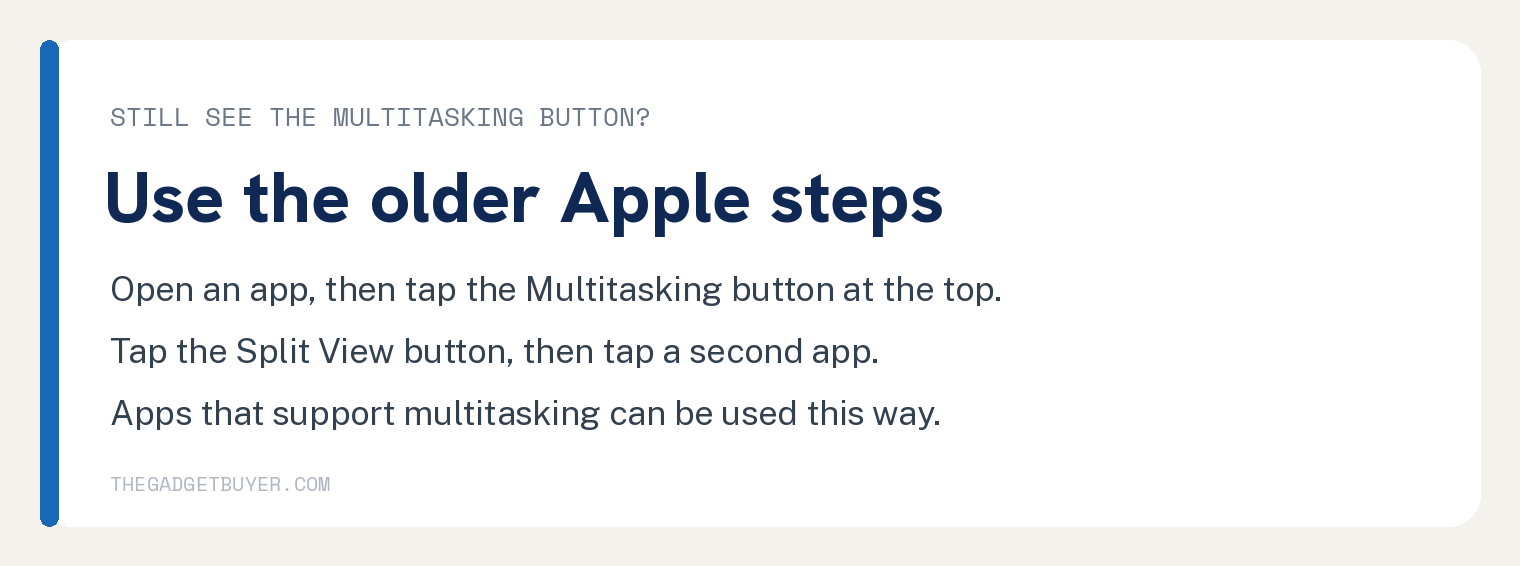
Apple’s archived page, the one with the banner “This article has been archived and is no longer updated by Apple.”, lists four steps under “How to use the Multitasking menu to open multiple iPad apps”:
- “Open an app.”
- “Tap the Multitasking button” “at the top of the screen.”
- “Tap the Split View button” “or the Slide Over button”. Apple adds: “The current app moves aside and your Home Screen appears.”
- “Tap a second app on your Home Screen.”
Apple’s result line: “If you chose Split View, the second app appears side-by-side with the current app.”
The same page gives a Dock route: “Open an app.”, “Slide one finger up from the bottom edge of the screen until the Dock appears, then release.” and “Touch and hold a second app in the Dock, then immediately drag it up out of the Dock.”
Where you let go decides the result. Apple: “If you drag the app to the left or right edge of the screen, it appears in Split View with the current app.” And: “If you let go of the app in the middle of the screen, it appears in a Slide Over window.”
That page states one qualifier before any of its steps: “Apps that support multitasking can be used in a few different ways.”
Questions readers ask
Did Apple remove Split View on iPadOS 26
Apple’s iPadOS 26 multitasking page does not use the name Split View at all, and its side by side instructions are the drag from the Dock, App Library or Spotlight and the window swipe quoted above. The archived page is the only one of the two that uses the name. That is a statement about these two pages at these two URLs, measured on October 11, 2026, and nothing wider.
Which iPads can use windowed apps
Neither Apple page cited here lists the iPad models that can run iPadOS 26 or windowed apps. The condition Apple does print is “make sure your iPad is running the latest version of iPadOS”.
How do I close the second app
On iPadOS 26, Apple’s words are: “Tap the window controls at the top of an app. If an app is in full screen and you don’t see the controls, swipe down from the top of the screen to see the controls in the menu bar.” Then “tap the Close button”.
On the older system, Apple’s wording is: “To close Split View, tap the Multitasking button in the app that you want to keep, then tap the full screen button”. Apple adds: “Or you can drag the app divider over the app that you want to close.”
My keyboard is split in half, is that the same thing
No. The split keyboard is a separate topic, and why the iPad keyboard is split covers it.
Can I open two windows of the same app
Apple’s iPadOS 26 page: “In some apps like Safari or Notes, you can open multiple windows from the same app. To open another window, tap and hold the app icon, then tap New Window.”
Sources
- Multitask on iPad, Apple Support, published September 14, 2026. Read October 11, 2026.
- Use multitasking on your iPad, Apple Support, archived, published May 14, 2026. Read October 11, 2026.