
What to Try When Your Pixel Watch Won’t Turn On
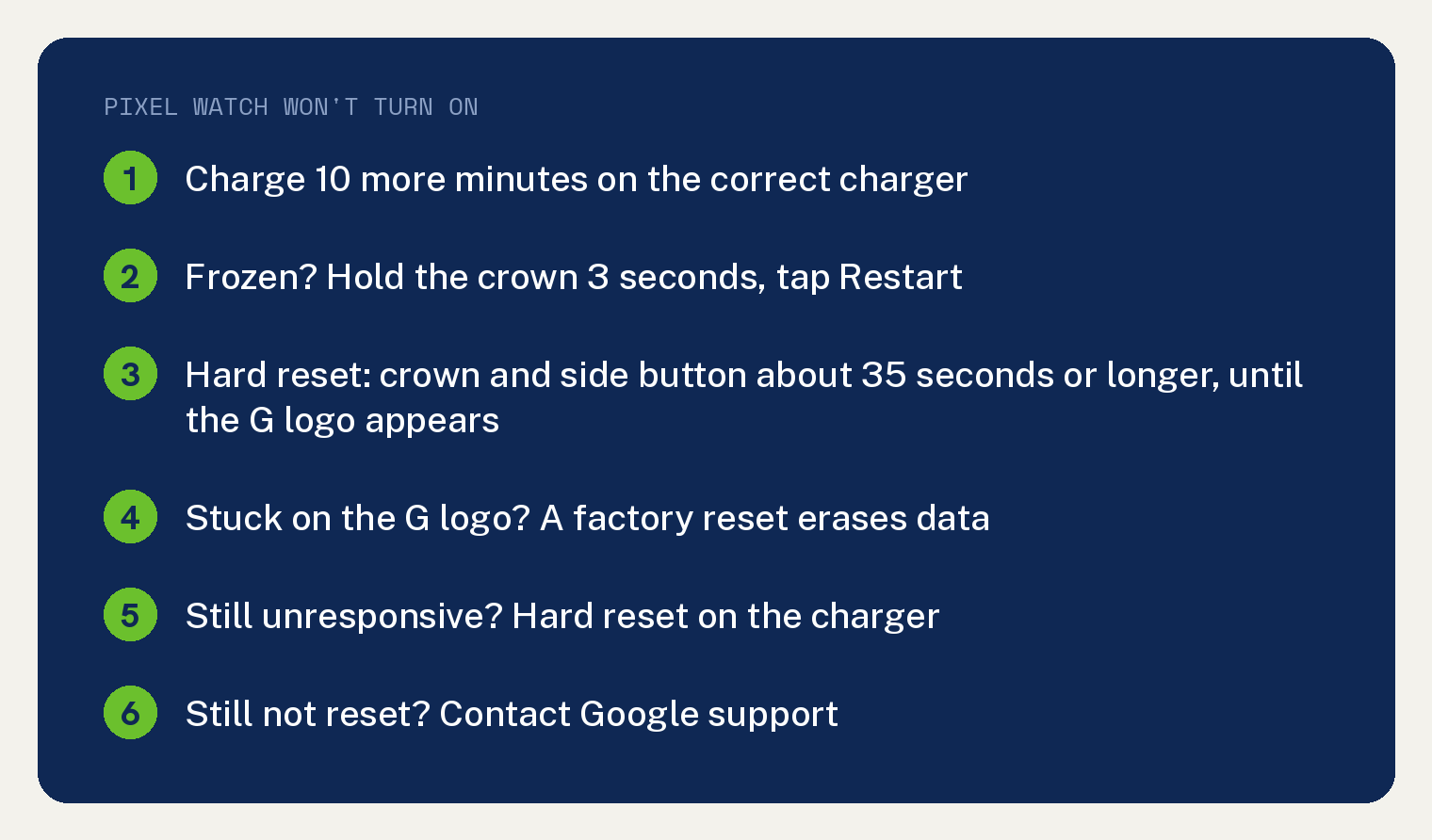
If your Pixel Watch won’t turn on, give it 10 more minutes on its correct charger first. If the screen is still black, press and hold the crown and side button for about 35 seconds or longer, until the G logo appears.
Google’s help page for a blank or frozen screen says: “If your Pixel Watch won’t turn on or becomes unresponsive, you may need to restart or hard reset your watch.”
Is your Pixel Watch just out of charge?
Rule that out first. Seat the watch on its correct charger and let it charge for 10 more minutes.
On a Pixel Watch 2, 3, 4 or 5, a lightning bolt icon should show after about 8 seconds. Google says that after 7 minutes the colored G icon appears, “indicating the watch is booting up and will continue to charge successfully.”
On the first Pixel Watch, the lightning bolt icon should show after about 1 minute. After 5 to 15 minutes of charging, long press the crown to turn the watch on, and a white G icon appears.
If the watch sat uncharged for more than a day, Google says “it may take longer than usual for the charging screen to appear on the watch.”
No lightning bolt at all? Our guide to a Pixel Watch not charging on the dock or cable covers the right charger for each model and how to seat it.
On a Fitbit tracker instead, see what to do when your Fitbit screen is black.
How do you restart a frozen or blank Pixel Watch?
Google says a restart “should resolve a frozen or blank watch face that won’t turn on or unresponsive touchscreen.”
- On your watch, press and hold the crown for 3 seconds.
- Scroll down and tap Restart.
If the screen is still unresponsive after a restart, Google’s next step is a hard reset.
How do you hard reset a Pixel Watch?
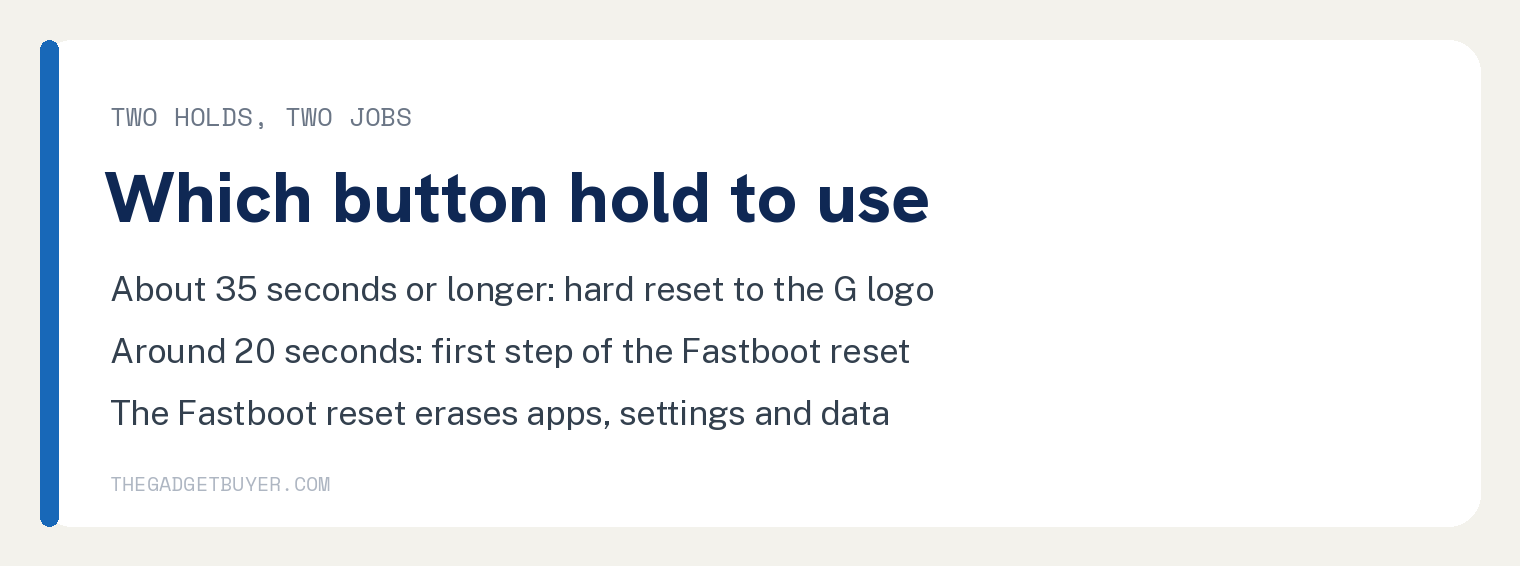
Hold two buttons at once. Press and hold the crown and the side button for about 35 seconds or longer, until the G logo appears.
Google adds: “The watch should restart and be ready to use shortly.”
Can you reset a Pixel Watch with a paper clip?
No. Google says: “Your Google Pixel Watch doesn’t have a physical reset button.”
Google also warns: “Do not insert any items, such as paper clips, into the mic hole on the side of the Pixel Watch.” On a Pixel Watch 2 or 3, keep objects out of the charging pins on the back, too.
What if your Pixel Watch is stuck on the G logo?
Google’s page says: “First, try the steps above to restart your Pixel Watch.” After that, its fix here is a factory reset, and it wipes the watch.
Its page lists a frozen screen with the G logo among the issues a factory reset helps resolve, and it warns that “all your apps, settings, and data are erased.”
From your phone, open the Pixel Watch app, tap System, then tap Reset and unpair watch.
If other steps don’t work, Google gives a “Factory reset from Fastboot” that you run on the watch itself. Its first hold, around 20 seconds, is shorter than the hard reset hold of about 35 seconds or longer, until the G logo appears.
- Press and hold the crown and the side button for around 20 seconds. If the watch is turned off, press and hold the crown for a few seconds to turn it on.
- As soon as the watch shows the G logo, tap the upper left and lower right edges of the screen at the same time. You may need to tap both edges repeatedly or try a few times until Fastboot mode appears.
- Press the side button next to the crown to scroll.
- When Recovery Mode is highlighted, press the crown. The No Command message appears on the watch face.
- Press and hold the crown and swipe up on the screen at the same time. A debug screen appears.
- Swipe down until Wipe Data or Factory Reset is highlighted.
- Swipe right to factory reset your watch and PIN.
- Once your data is wiped, swipe right or press the crown when Reboot system now is highlighted.
When you pair the watch again, Google’s note reads: “Sign in with your most recent PIN or Google Account login when you re-pair your phone and watch after the factory reset.” If it pairs but stops sharing data or alerts, see our fixes for a Pixel Watch not syncing with the Google Health app and Pixel Watch notifications not working.
Can you hard reset a Pixel Watch on its charger?
Yes. Google’s step reads: “If your screen remains unresponsive after you perform the steps above, try to hard reset your watch while it’s connected to the charger.”
After that, Google points you to its support team: “If you’ve tried all of the steps above and your watch still hasn’t reset, contact support.”
Is a Pixel Watch that won’t turn on covered by warranty?
Possibly. Google’s warranty page says: “If your Google Pixel Watch becomes defective through no fault of your own, you may be able to return it for replacement, repair or a refund, at Google’s discretion. Accidental damage isn’t covered under warranty.”
Google’s warranty page says: “Warranty terms can vary based on the country or region where you bought your device.” Start with Google’s interactive warranty checker, which “helps you check your warranty coverage, find solutions to common device issues, or connect with our team.”
Sources
- Fix a blank, frozen, or error message on the Google Pixel Watch screen (Google Pixel Watch Help)
- Fix a Google Pixel Watch that won’t charge (Google Pixel Watch Help)
- Replace or file a warranty claim for Google Pixel Watch (Google Pixel Watch Help)