
10 Tips for Organizing Photos on an iPhone Without Losing Your Mind
Your iPhone camera roll probably has thousands of photos at this point. You’ve got screenshots you forgot about, fifty versions of the same sunset, and random pics you have no idea why you even took. Every time you try to find that one great photo from last month, you end up scrolling forever.
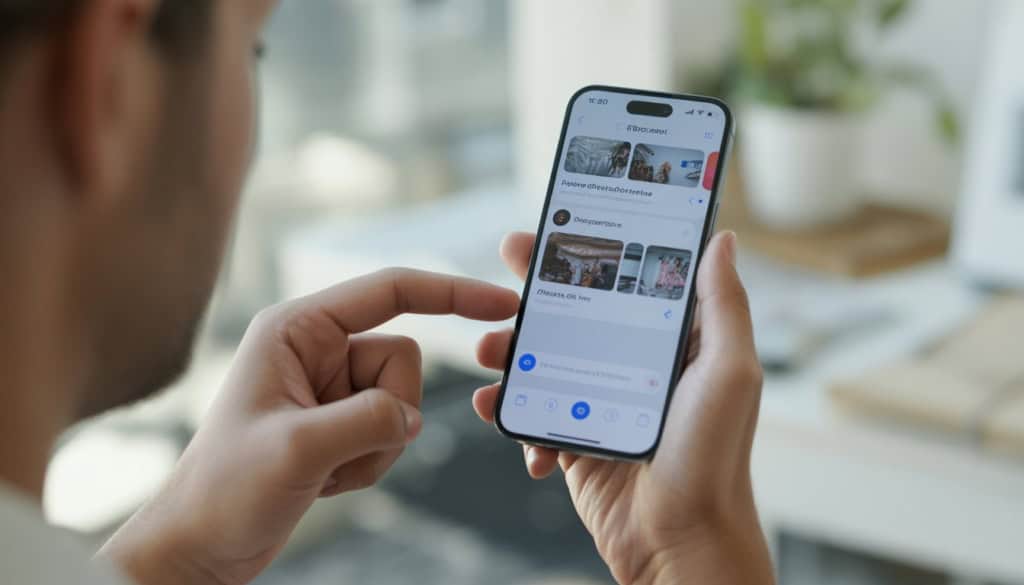
The good news is that organizing your photos doesn’t have to be a massive, overwhelming project—you just need a few simple habits and some smart tricks built right into your iPhone. I’m going to walk you through everything from cleaning up your photo clutter to setting up albums, using facial recognition, and backing everything up safely. We’ll also talk about why your library feels like such a disaster in the first place and how tools like iCloud actually work.
By the end of this, you’ll have a system that keeps your photos neat without eating up hours of your life. You’ll be able to find what you need fast, share memories easily, and never panic about losing important shots again.
1) Start by deleting duplicates and blurry shots to clear out your photo clutter—think of it as tidying up before organizing.
I always tell people this: before you organize anything, you’ve got to clear out the mess first. Same goes for your iPhone photos.
Deleting duplicates and bad photos is the first step to getting your gallery under control. Think of it like cleaning your room before rearranging the furniture. You wouldn’t organize around piles of dirty laundry, right?
Your iPhone already has tools to help with this. iOS can detect and remove duplicates automatically, which saves you tons of time. Go to your Photos app, scroll down to the Albums section, and look for “Duplicates.” Tap it, review what’s there, and merge or delete as needed.
For blurry shots and accidental screenshots, you’ll need to scroll through manually. I know it feels tedious, but trust me—getting rid of these now means you’ll actually be able to find the photos you love later.
Clearing out unwanted files also frees up storage space, so you can keep taking new pictures without that annoying “storage full” message popping up.
2) Create specific albums for events, trips, or themes like ‘Summer BBQ 2025’ or ‘Cute Pets’ to keep your memories grouped

I can’t tell you how much easier my photo life got once I started making albums for specific things. Instead of scrolling through 3,000 random pics looking for that one sunset from my beach trip, I just tap into my “Beach Trip 2025” album.
Your iPhone can detect patterns in your photos like dates and locations. But I find it even better to make my own albums with names that mean something to me.
Think “Taco Tuesdays,” “My Garden,” or “Kids Being Weird.” Whatever makes you smile when you see it.
To create an album, open Photos, tap the “+” icon, and name it whatever you want. Then just select the photos that belong there. You can add photos to multiple albums too, so your dog’s birthday pic can live in both “Cute Pets” and “Birthday Parties.”
This is how I keep summer adventures organized without losing my mind. Trust me, future you will thank present you.
3) Use the Photos app’s built-in facial recognition to effortlessly gather pictures of your friends and family.
I love this feature because it feels like magic. The Photos app recognizes faces in your pictures and automatically groups them together. You don’t have to dig through thousands of photos to find that one picture of your mom anymore.
Here’s the cool part: the facial recognition runs right on your device. That means your photos stay private and never leave your phone.
To get started, I open the Photos app and tap the People & Pets album. The app has already started grouping faces it finds. I just tap on a face and add a name. The more I confirm or correct the app’s guesses, the better it gets at recognizing people’s faces.
Sometimes the app misses a few photos. That’s totally normal. I can manually add missing photos to someone’s collection by tapping “Select Photos” in their album.
Once you’ve named a few people, finding every photo of them takes just seconds. It’s honestly one of my favorite ways to stay organized without doing much work.
4) Make folders to group related albums together, like all your travel albums under one ‘Vacations’ folder
I love albums for organizing my iPhone photos, but here’s the thing: albums can pile up fast. Before I know it, I’m scrolling through dozens of them trying to find that one trip to the beach.
That’s where folders come in. Think of folders as drawers in a filing cabinet. Instead of tossing loose papers everywhere, you can group albums into folders to keep things tidy.
For example, I created a folder called “Vacations” and dropped all my travel albums into it. Now when I open Photos, I see one clean folder instead of ten separate albums cluttering my screen. You could do the same with a “Family” folder for birthdays, holidays, and reunions.
The best part? Folders can hold other folders too. So if you want to get really organized, you can nest them however makes sense for your life.
It’s like going from a messy desk to having labeled drawers. Everything still exists, but now you actually know where to find it.
5) Add location tags to photos if possible—it’s like having a little map for your pictures.
I love scrolling through old photos and wondering where exactly I took that amazing sunset shot. That’s where location tags come in handy.
Your iPhone can automatically add GPS location data to photos when you take them. It’s basically like putting a tiny pin on a map for every picture. Later, you can browse photos and videos by location and see exactly where your memories happened.
To turn this on, go to Settings, then Privacy & Security, then Location Services. Make sure Camera is set to “While Using the App.” That’s it.
Once you’ve got location tags working, you can view your photos on a map in the Photos app. It’s really cool for organizing travel pics or remembering where you found that perfect coffee shop. Plus, if you ever need to add location details manually, you can do that too.
6) Regularly back up to iCloud so your photos stay safe even if your phone takes a swim or disappears mysteriously
I can’t tell you how many times I’ve heard someone say, “I lost my phone and all my photos are gone.” It’s heartbreaking because it’s totally avoidable.
iCloud Photos automatically uploads every photo and video you take. Think of it like having a safety deposit box in the cloud that instantly grabs copies of your memories the moment you snap them.
To turn it on, go to Settings, tap your name at the top, then iCloud, then Photos. Toggle on iCloud Photos. That’s it.
Now here’s something important: iCloud Photos is designed to sync, not back up. That means if you delete a photo on your phone, it deletes everywhere. So I always recommend having a second backup somewhere else too, like an external hard drive or another cloud service.
But for everyday protection against drops, theft, or accidental toilet dives? iCloud has your back. Your memories stay safe even when your phone doesn’t.
7) Take advantage of the ‘Favorites’ feature to star your best shots for quick access later
I can’t tell you how many times I’ve scrolled through thousands of photos trying to find that one perfect shot from last summer. It’s exhausting.
That’s where the Favorites feature comes in handy. Think of it like creating a highlight reel of your camera roll. When you favorite a photo, you’re basically telling your iPhone, “Hey, this one matters.”
Here’s how it works. Open any photo and tap the heart icon at the bottom of the screen. That’s it. Your photo now lives in a special album called Favorites that you can access anytime.
The best part? You can favorite both photos and videos to keep all your best memories in one spot. No more endless scrolling when you want to show someone your dog’s cutest moment or that amazing sunset from your trip.
I use this feature for anything I might want to share later or just look at when I need a smile. It’s become my personal “greatest hits” album, and honestly, it makes me actually enjoy looking through my photos again.
8) Use the search bar in Photos to find images by date, place, or even objects—it’s like your own photo detective.
I love that the Photos app lets me search in ways I’d never expect. Instead of scrolling forever, I just tap the search icon and type what I’m looking for.
Want to find that sunset photo from last summer? I can type “beach” or “sunset” and watch the magic happen. The app recognizes objects, places, and even specific things like “dog” or “birthday cake.”
I can also search by date if I remember roughly when I took a photo. Just type the month or year, and boom—there it is.
The coolest part? Photos automatically tags people, places, and things without me doing anything. It’s working behind the scenes so I don’t have to create folders or label everything myself.
When I tap the search bar, I even see suggestions pop up—recent dates, people I’ve photographed, and locations. It’s like having a personal assistant who actually knows where I left my stuff.
9) Set a monthly reminder to review and organize new photos, so your library doesn’t spiral out of control again.
I know what happens. You spend a whole afternoon organizing your iPhone photos, feel amazing about it, and then three months later you’re back to scrolling through 2,000 random screenshots and blurry pics.
The trick is to stay on top of it before it becomes overwhelming again. I set a monthly reminder on my phone to spend 15 minutes cleaning up new photos. That’s it—just 15 minutes.
Open the Reminders app and tap the plus button to create a new reminder. Type something like “Organize new photos” and set it to repeat every month. Pick a day that works for you, like the first Saturday of each month.
When that reminder pops up, I delete the bad shots, move keepers into albums, and clear out duplicates. It’s way easier to sort through 100 new photos than 1,000.
Think of it like doing dishes after dinner instead of letting them pile up for a week. A little maintenance now saves you from a massive cleanup later.
10) Make shared albums for family or friends to contribute photos—we’re talking teamwork without the chaos.
I love this feature because it turns photo collecting into a group effort. Instead of begging everyone to text me their pictures after a trip or party, I create a shared album and let them drop photos in themselves.
Here’s how it works. Open your Photos app and tap the Albums tab at the bottom. Hit the plus sign and choose “New Shared Album.” Give it a name like “Beach Trip 2026” or “Mom’s Birthday.”
Then invite people by typing their phone numbers or emails. They’ll get a notification and can start adding their own photos and videos. Everyone can see what others post, leave comments, and even like specific shots.
The best part? You’re not drowning in a million text threads. Everything lives in one organized spot. And if someone takes an amazing photo of you that you want to keep, just save it to your main library with one tap.
It’s collaborative photo sharing made simple. No chaos, just memories in one place.
Why Your iPhone Photo Library Feels Like a Mess
Your phone saves every single thing you snap, screenshot, or download—and it doesn’t ask questions first. Photos pile up fast because iPhones are built to capture everything, and they store images in ways that aren’t always obvious.
Why Photos Get Scattered So Easily
I know how it happens. You take three shots of your dog, five attempts at that sunset, and maybe a dozen screenshots of a recipe you’ll “make later.” Before you know it, you’ve got thousands of photos.
Your iPhone saves everything automatically. Every photo you take, every image you download, every screenshot—it all goes straight into your library. There’s no pop-up asking “Do you really want to keep this blurry picture of your ceiling?”
You’re probably taking more photos than you realize. Burst mode alone can create 20-30 images in seconds. Live Photos save a few extra frames around each shot. And if you use apps like Instagram or Snapchat, those apps often save copies to your camera roll too.
Nothing gets deleted unless you do it manually. Your iPhone doesn’t clean up after itself. Those accidental pocket photos from 2023? Still there. The memes you saved and forgot about? Yep, those too.
The Hidden Way iPhones Save Your Photos
Here’s something that throws people off: your iPhone doesn’t just dump everything into one big folder like a computer does.
Photos live in multiple places at once. When you create albums to organize your iPhone pictures, the original photo stays in your main library. Albums don’t move photos—they just create shortcuts to them. Delete a photo from an album, and it disappears everywhere.
iCloud makes things even more confusing. If you have iCloud Photos turned on, your images sync across all your devices. That means edits, deletions, and new photos appear everywhere. But here’s the catch: if you’re running low on iPhone storage, iCloud stores full-size versions in the cloud and keeps smaller versions on your phone. You might not even realize which photos are actually stored locally.
How iCloud and Albums Actually Help (Or Don’t)
iCloud isn’t just a backup—it syncs your photos across devices and lets you organize iPhone photos using albums to cut through the chaos. But albums and folders work differently than you might think, and knowing which one to use can save you hours of scrolling.
Understanding iCloud: Not Just ‘The Cloud’
I used to think iCloud was just a backup service. Like, my photos go up into some digital sky and sit there until my phone dies. But that’s not quite right.
iCloud Photos actually syncs everything. That means when you take a photo on your iPhone, it automatically shows up on your iPad and Mac too. It’s not just storing a copy—it’s keeping all your devices in sync so you see the same library everywhere.
Here’s the catch: iCloud doesn’t organize your photos for you. It just mirrors whatever mess you’ve got going on. If your iPhone library is a disaster, your iCloud library will be too.
And here’s something that surprised me: you can only organize photos in your personal library on iCloud.com, not shared albums. For shared stuff, you need to use the Photos app on your actual device.
Think of iCloud like a filing cabinet that follows you around. It doesn’t sort your files—you still have to do that part yourself.
Smart Albums vs. Folders: What’s the Difference?
This confused me for way too long. I kept making albums and wondering why I couldn’t organize them better.
Here’s the deal: Albums hold photos. Folders hold albums. That’s it. Albums and folders serve different purposes—one is for collecting specific photos, the other is for grouping those collections together.
Let me break it down:
Albums are like playlists for your photos. You pick which photos go in, and the same photo can live in multiple albums without taking up extra space. I have my dog’s photo in “Pets,” “Favorites,” and “2025 Memories” all at once.
Folders are containers for albums. Think of them like drawers in that filing cabinet. You might have a “Travel” folder that contains separate albums for Italy, Japan, and road trips.
Here’s what you can do:
- Put albums inside folders
- Put folders inside other folders
- Put the same photo in multiple albums
- Delete a photo from an album without deleting it from your library
You can’t put individual photos directly into folders. They have to go in an album first.